Getting started
Dashboard
Last updated: November 24, 2026
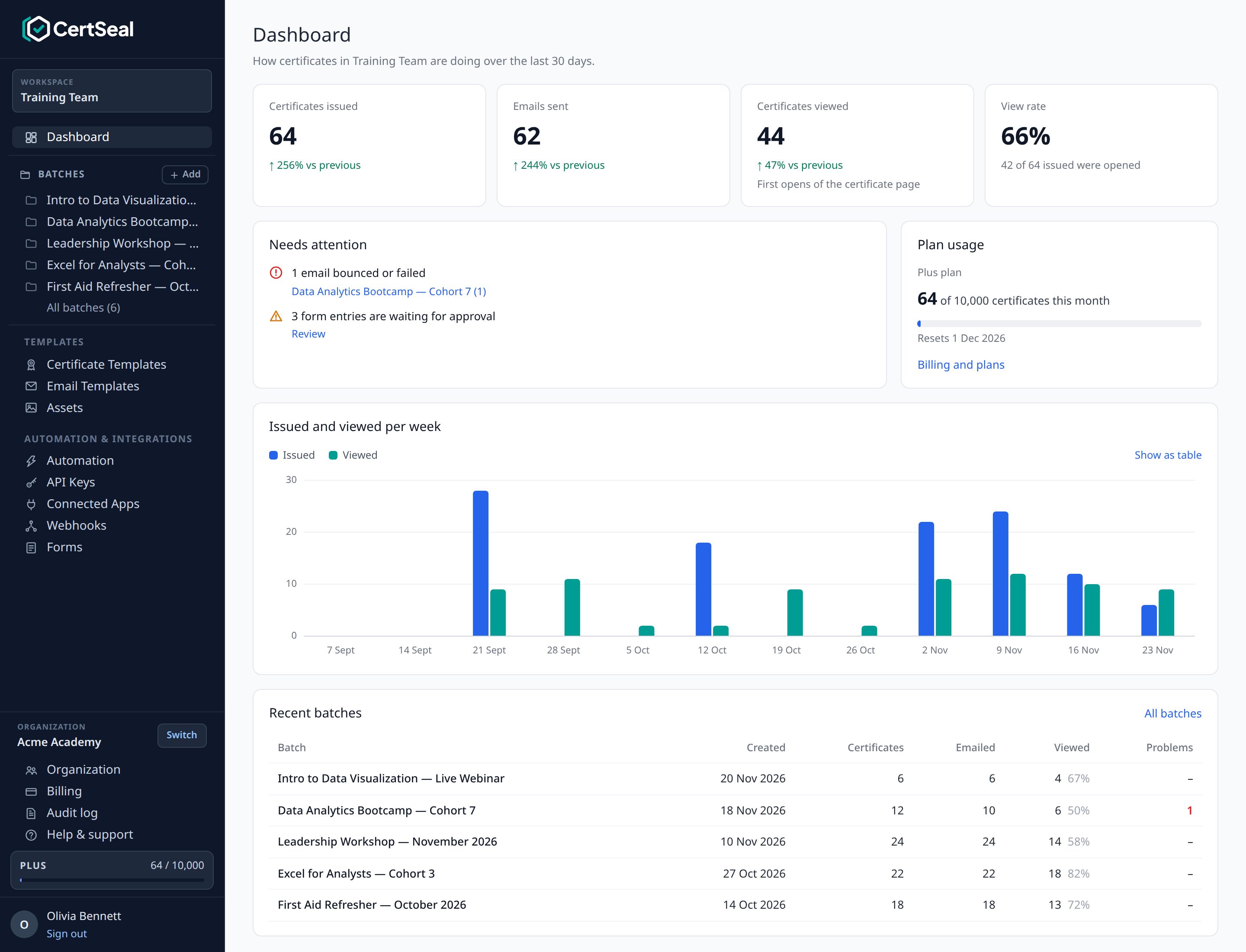
The dashboard is the first page you see after signing in. It shows how the current workspace's certificates are doing over the last 30 days and points you to anything that needs a look.
Open Dashboard at the top of the left sidebar. It covers the workspace you’re in: switch workspaces in the sidebar to see another one.
Last 30 days
The four tiles at the top count the last 30 days and compare them with the 30 days before:
- Certificates issued: certificates created in the workspace, from any source (CSV import, built-in forms, the API, Zoom, Zapier or Make).
- Emails sent: certificate emails that went out.
- Certificates viewed: certificates whose page was opened for the first time.
- View rate: of the certificates issued in the period, how many have been opened.
Certificates in archived batches still count here.
Needs attention
This card lists what you may want to act on, with a link to the batch or page:
- Emails that bounced or failed, and the batches they’re in. Fix the address on the recipient and send again.
- Emails waiting to be sent.
- Certificates expiring in the next 30 days.
- Form entries waiting for approval on your built-in forms.
- Webhooks that keep failing.
When there’s nothing to do, it says so. Archived batches aren’t included.
Plan usage
Shows your plan, how many certificates your organization has used out of its allowance, and when the allowance resets. Billing and plans opens the Billing page. The allowance belongs to the organization, so it includes certificates from every workspace.
Issued and viewed per week
A chart of certificates issued and viewed per week over the last 12 weeks. Use Show as table to see the numbers.
Recent batches
Your newest active batches, with how many certificates each has, how many were emailed and viewed, and how many had email problems. Click a batch to open it, or All batches to see the full list.
A new workspace
In a workspace with no certificates yet, the dashboard shows a Get started card instead, with the two steps to your first certificates: create a batch, then add recipients and send. See Getting started.
Support
Questions about the dashboard? Email support@certseal.com and a real person will reply, typically within 1 business day (Monday–Friday, 9:00 AM–6:00 PM SGT). See the support guide for all contact options.