Integrations
Tutorial: Issue certificates in ChatGPT
Last updated: October 31, 2026
Connect CertSeal to ChatGPT in a few minutes, then create a batch, issue certificates, email them and check that a certificate is genuine, all from a chat.
This tutorial walks through a complete session: connecting CertSeal to ChatGPT, issuing certificates to two people, emailing them, and checking one. It uses a test workspace with sample data, so your designs and numbers will differ.
Prefer video? Watch the walkthrough above, or follow the written steps below. You can also jump straight to a part on YouTube:
- 0:11 Connect CertSeal to ChatGPT
- 0:50 How many certificates are left
- 1:10 Create a batch
- 1:23 Issue certificates
- 1:48 Email the certificates
- 2:06 Verify a certificate
- 2:21 Requests CertSeal won’t handle
- 2:58 The email and the certificate
- 3:16 Connected Apps in CertSeal
Before you start
You’ll need:
- A CertSeal account with editor access to a workspace.
- At least one certificate design. To email certificates you also need an email template; CertSeal’s shared default template works in every workspace.
- A ChatGPT plan that can add custom MCP servers. This tutorial uses ChatGPT Plus. See Use CertSeal in Claude and ChatGPT for which plans can do what, and for Claude and Claude Code.
Part 1: Connect CertSeal to ChatGPT
You only do this once. Afterwards, CertSeal is available in any chat.
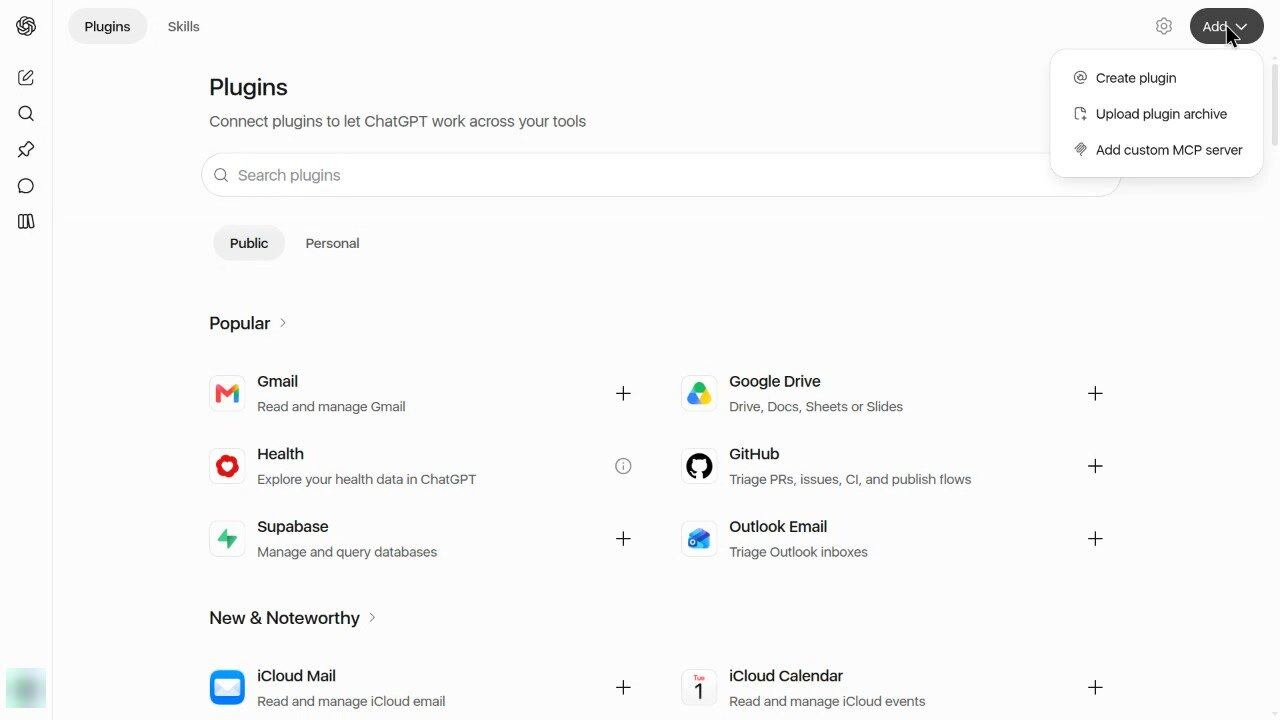
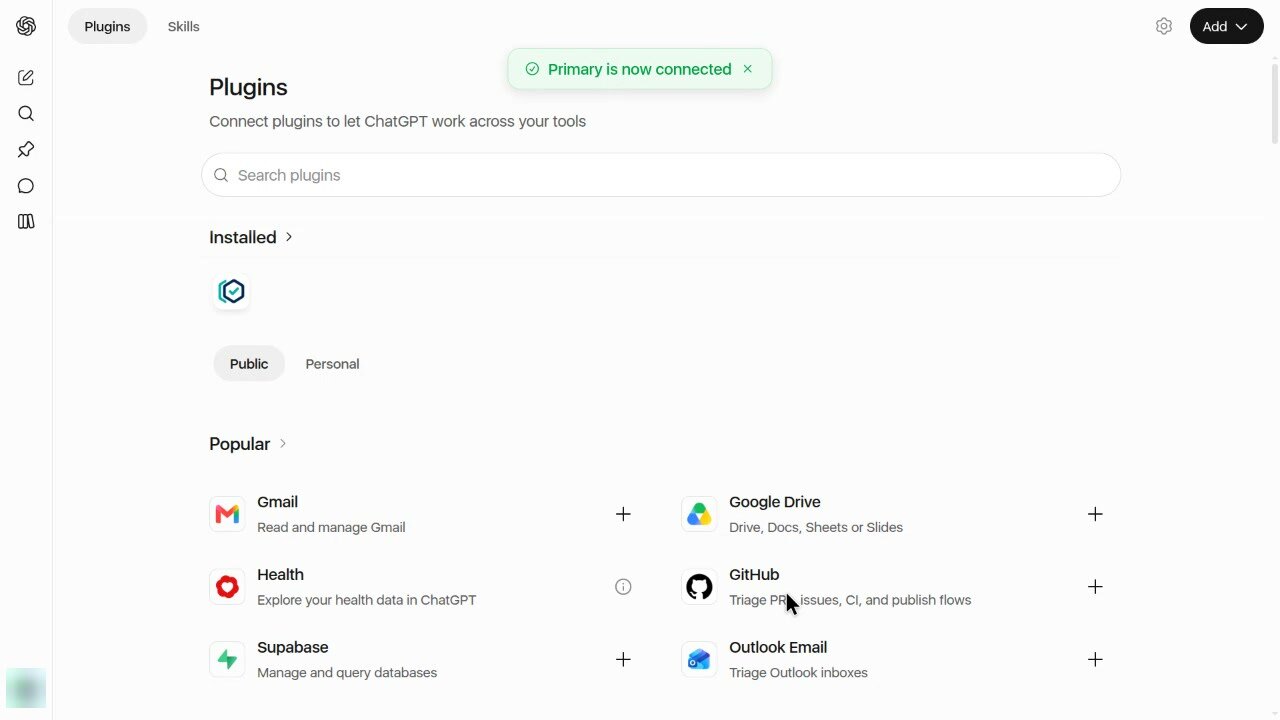
- Open Plugins and add a custom MCP server. Go to chatgpt.com/plugins, select Add in the top right, then Add custom MCP server.
-
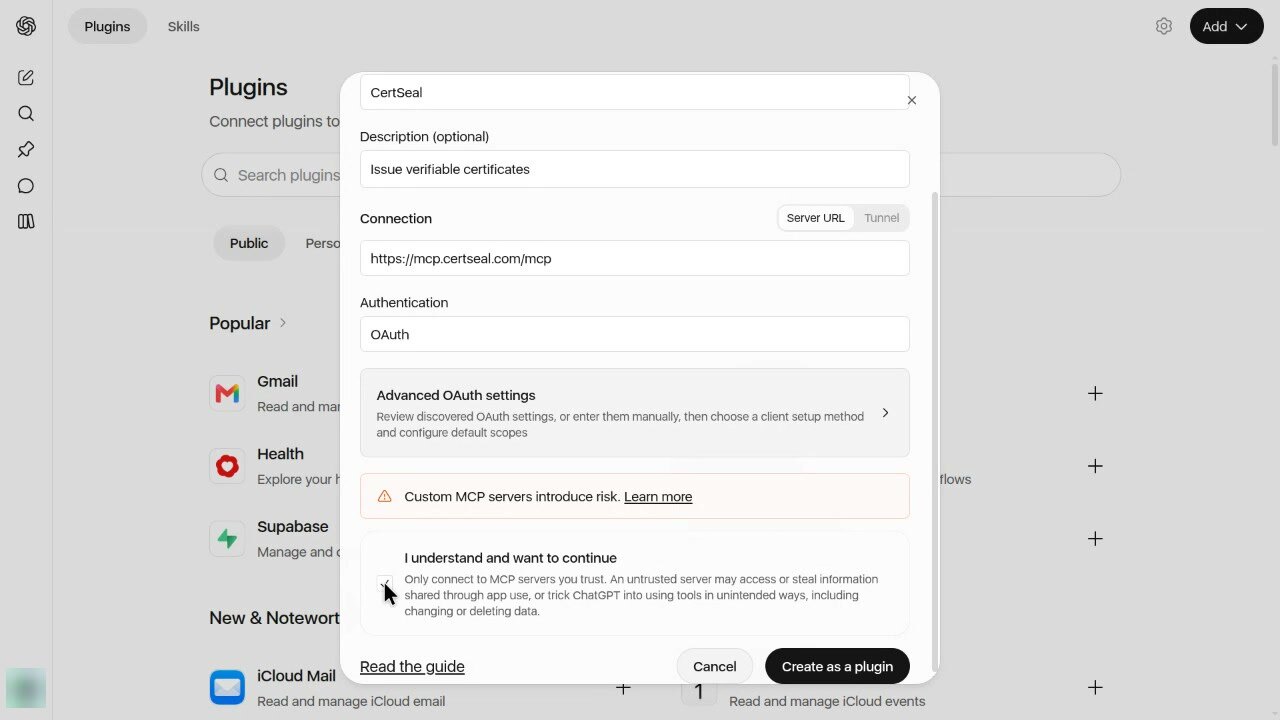
Fill in the server details.
- Name: CertSeal
- Description: Issue verifiable certificates (optional)
- Server URL:
https://mcp.certseal.com/mcp - Authentication: OAuth. Leave the advanced OAuth settings as they are; ChatGPT finds CertSeal’s sign-in by itself.
Read the warning, tick I understand and want to continue, then select Create as a plugin.
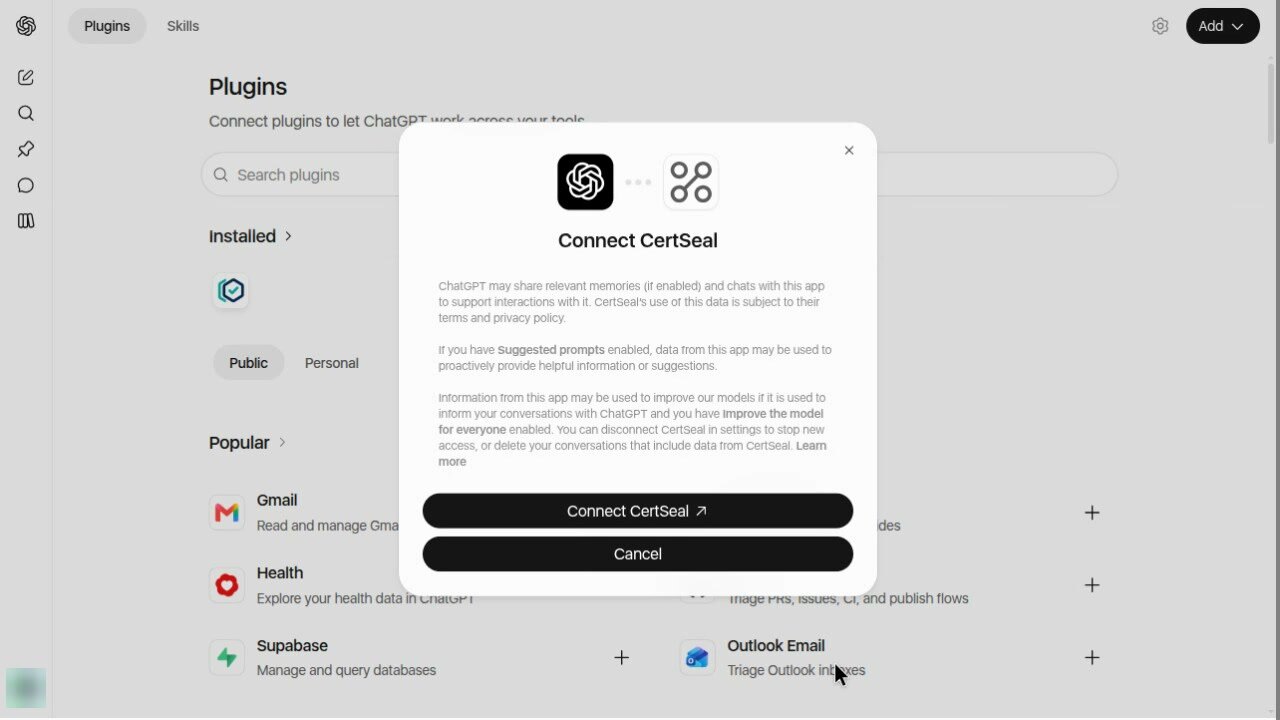
- Connect. ChatGPT shows what it shares with CertSeal. Select Connect CertSeal.
-
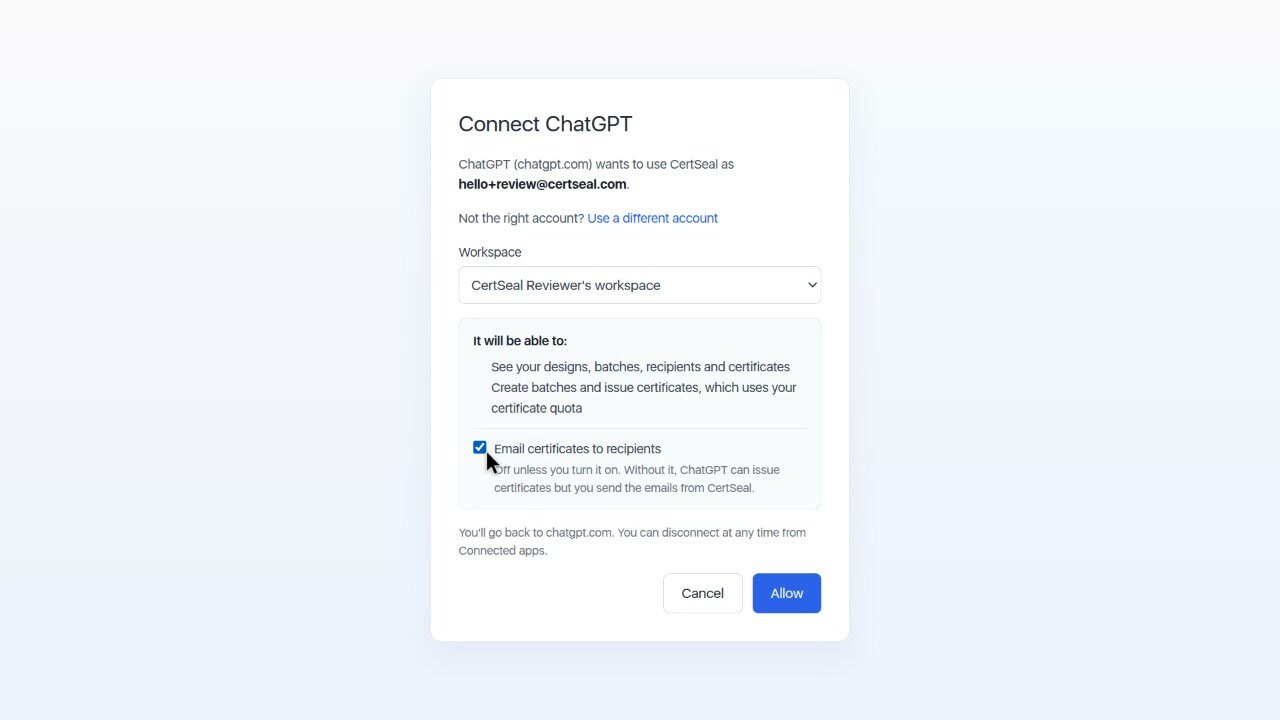
Choose what ChatGPT may do. You land on CertSeal. Sign in if you aren’t already, then:
- Pick the workspace ChatGPT works in. It can only use this one.
- Check what it will be able to do: see your designs, batches, recipients and certificates, and create batches and issue certificates.
- Tick Email certificates to recipients if you want ChatGPT to send certificate emails. It’s off unless you turn it on.
Select Allow. The page shows which CertSeal account you’re signed in as; if it’s the wrong one, select Use a different account.
- You’re connected. ChatGPT returns to Plugins, shows that the connection worked, and lists CertSeal under Installed.
Part 2: Work with certificates in a chat
Start a new chat and type @CertSeal to pick it, or just ask: ChatGPT uses CertSeal when a request needs it. The examples below are the prompts from the video.
Check how many certificates you can issue
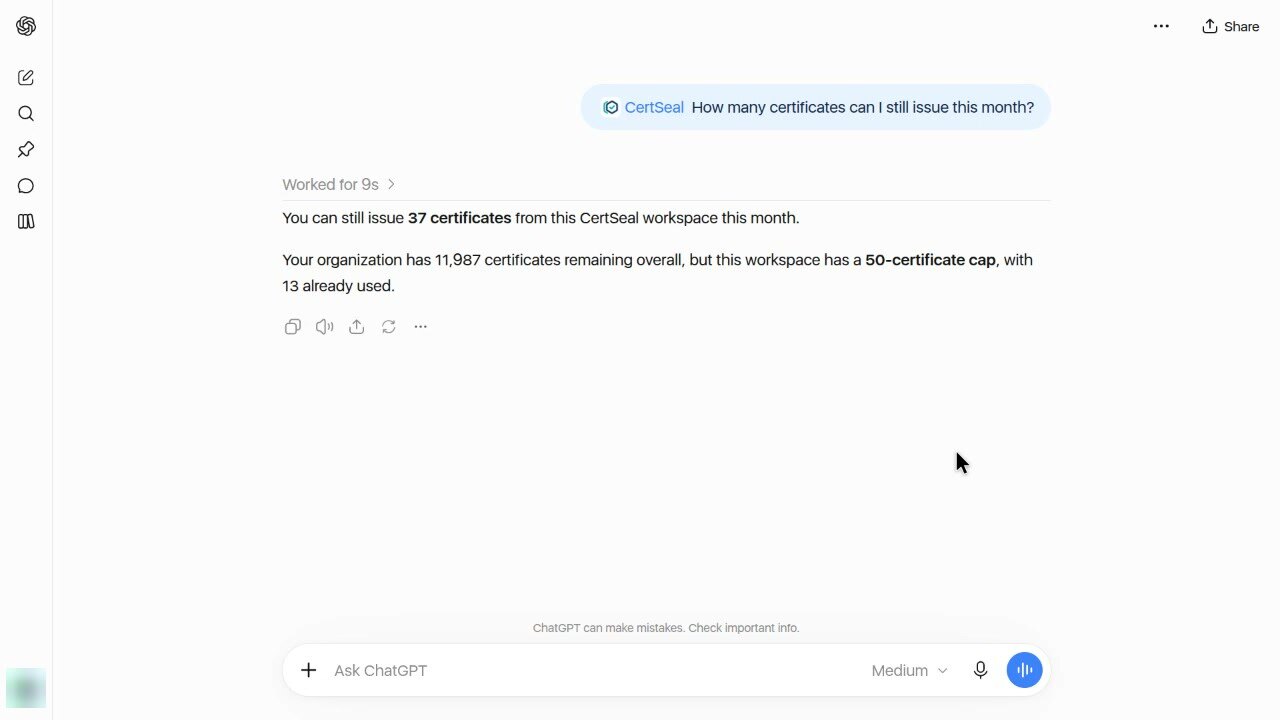
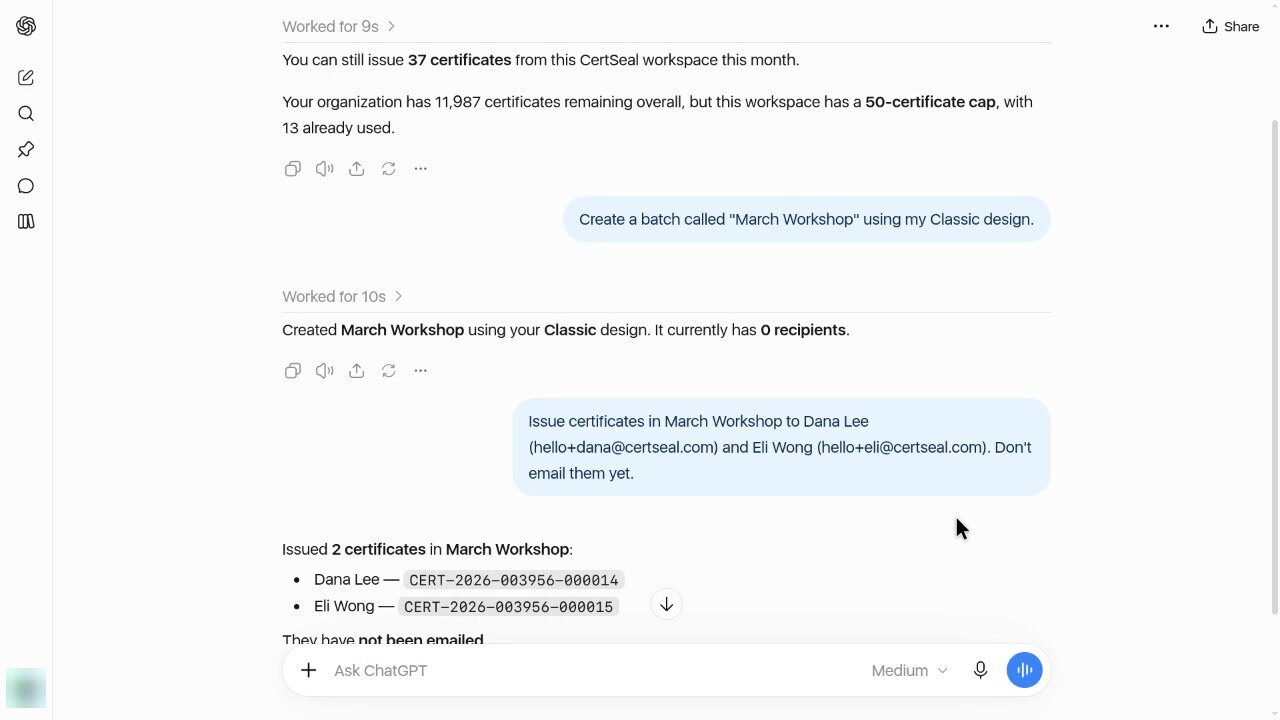
How many certificates can I still issue this month?
ChatGPT checks your workspace and tells you what’s left. If your workspace has its own limit, as this test workspace does, it counts that too.
Create a batch
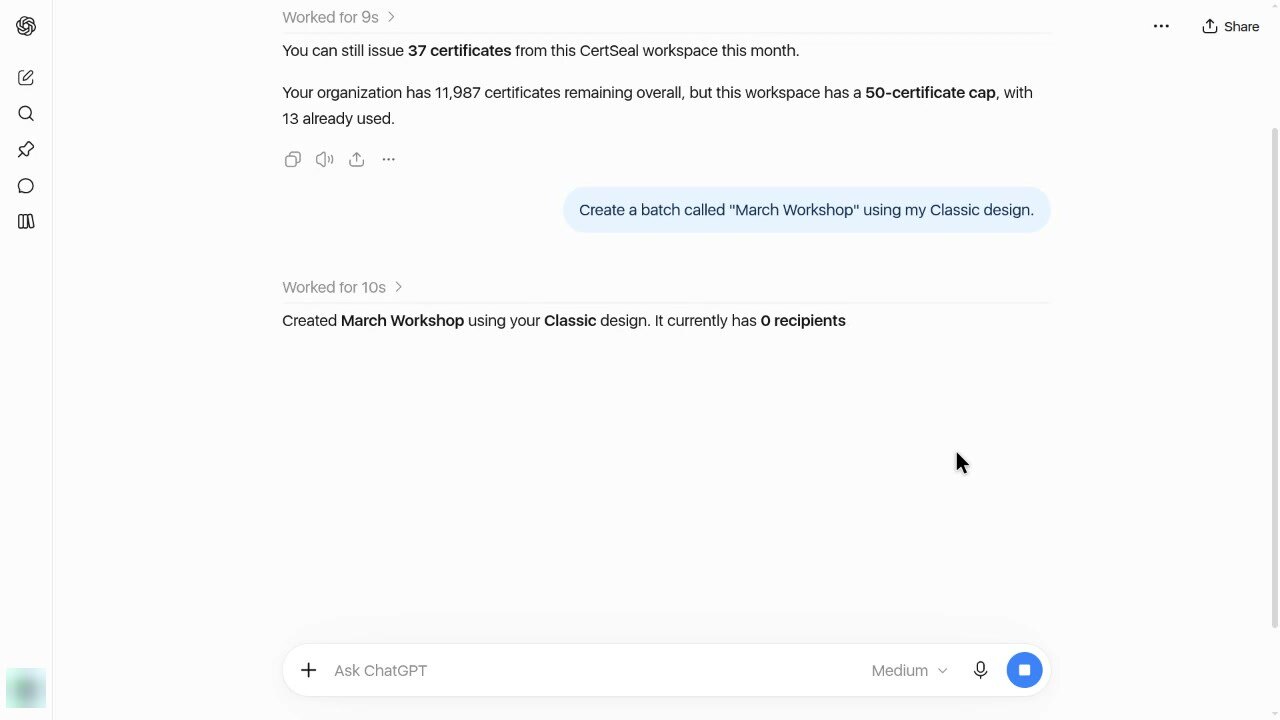
A batch groups the people who get a certificate from one design, such as everyone who attended one workshop.
Create a batch called “March Workshop” using my Classic design.
ChatGPT finds the design and creates the batch. Unless you say otherwise, CertSeal prints the batch name as the course name and your organization’s name as the issuer, and uses your workspace’s default email template. You can change any of these in CertSeal later, or ask for them in the prompt.
Issue certificates
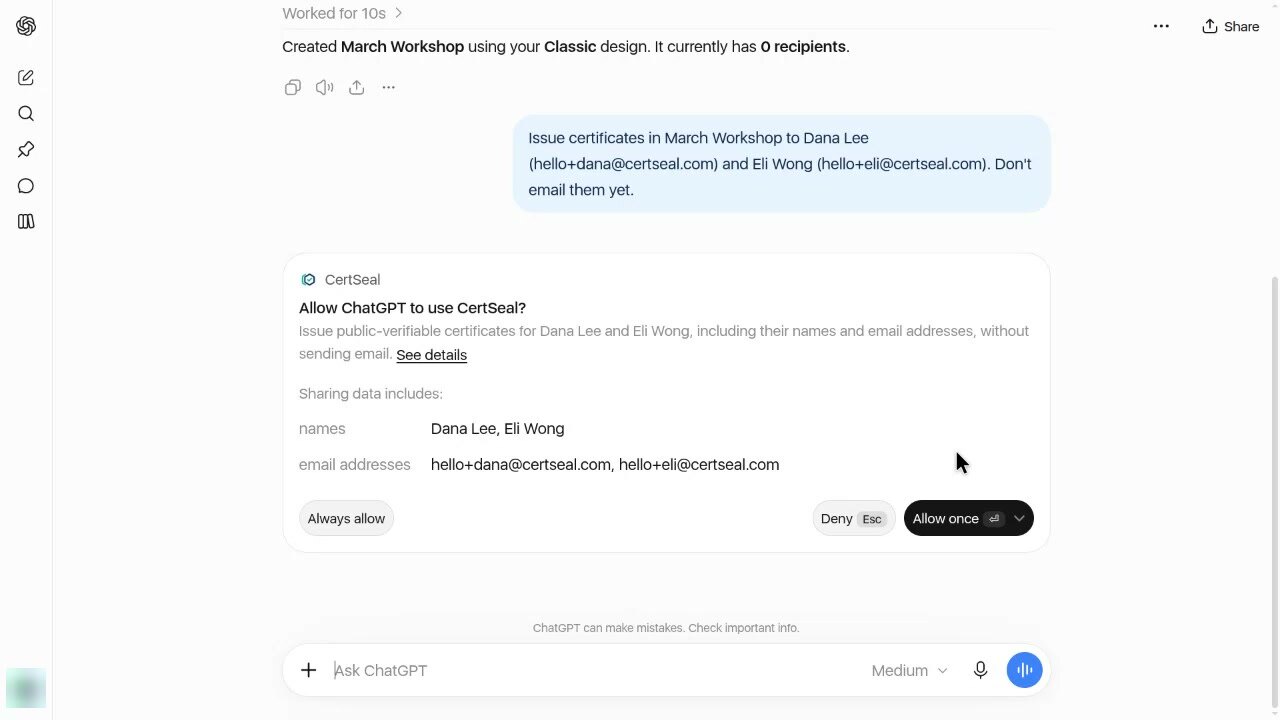
Issue certificates in March Workshop to Dana Lee (
dana@example.com) and Eli Wong (eli@example.com). Don’t email them yet.
Before it sends their names and email addresses to CertSeal, ChatGPT asks you. Select Allow once, or Always allow to skip this question for CertSeal in future.
Each person gets a certificate with its own ID and a public page where anyone can check it. Nothing is emailed yet.
You can issue to up to 100 people per request. For a longer list, ask in several parts, or import a CSV in CertSeal.
Email the certificates
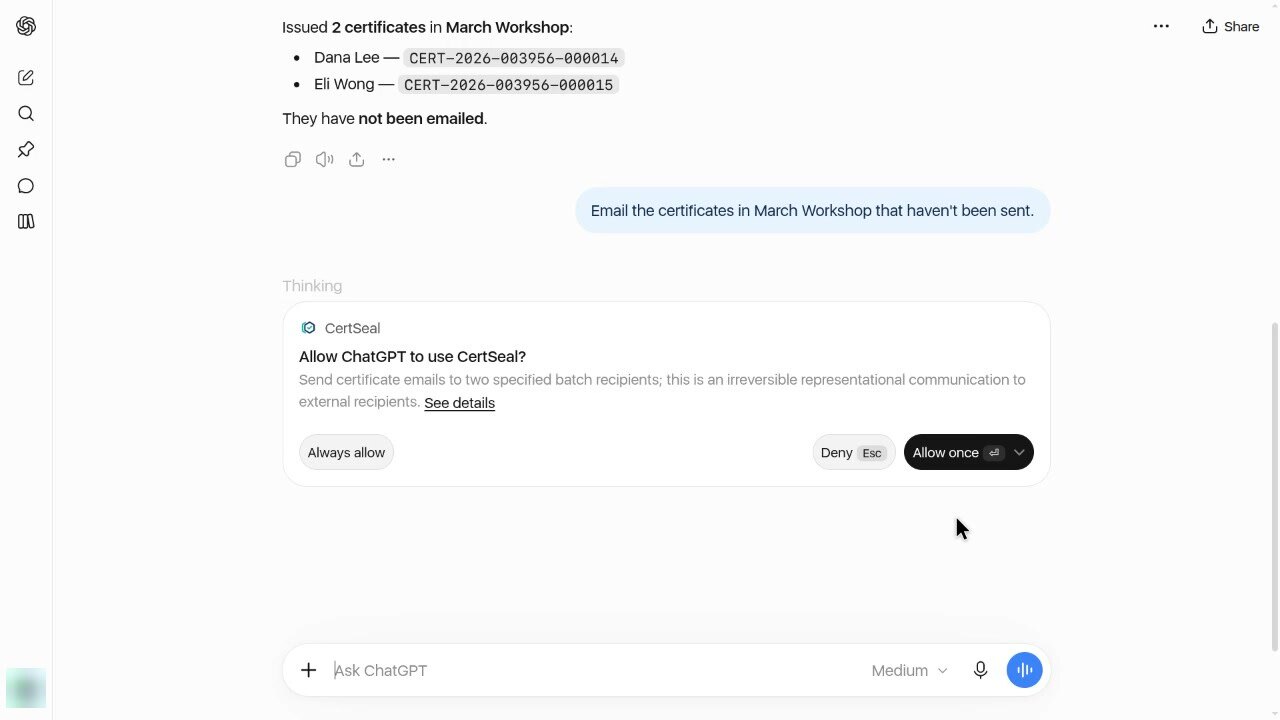
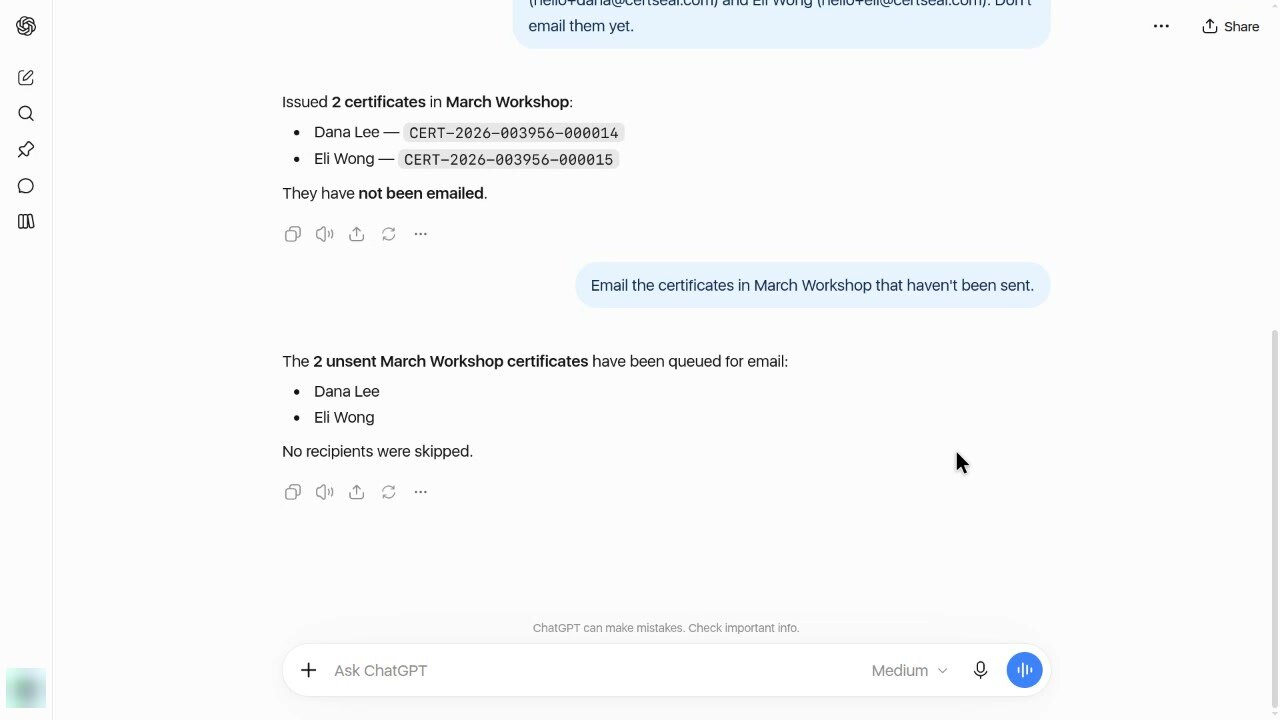
Email the certificates in March Workshop that haven’t been sent.
An email can’t be taken back, so ChatGPT asks you to confirm before sending. This needs the Email certificates to recipients permission from step 4; without it, ChatGPT tells you it can’t send, and you can send the emails from CertSeal instead.
Verify a certificate
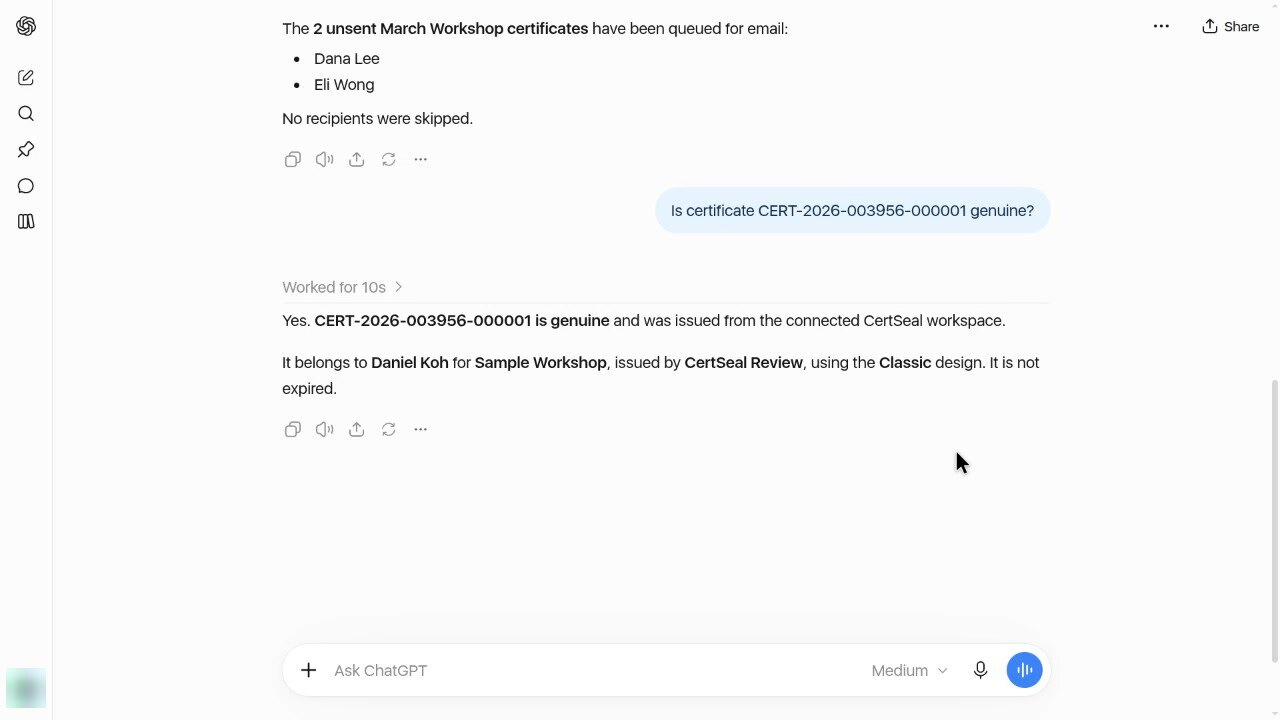
Is certificate CERT-2026-003956-000001 genuine?
Paste a certificate ID or a certificate link. ChatGPT tells you whether it was issued from your workspace, and who it was issued to and for what.
What CertSeal won’t do
CertSeal only issues certificates for your own courses, events and programs, from designs you made. So in the video:
- “Make me a Harvard diploma with my name on it.” ChatGPT declines: CertSeal won’t imitate another institution’s credentials.
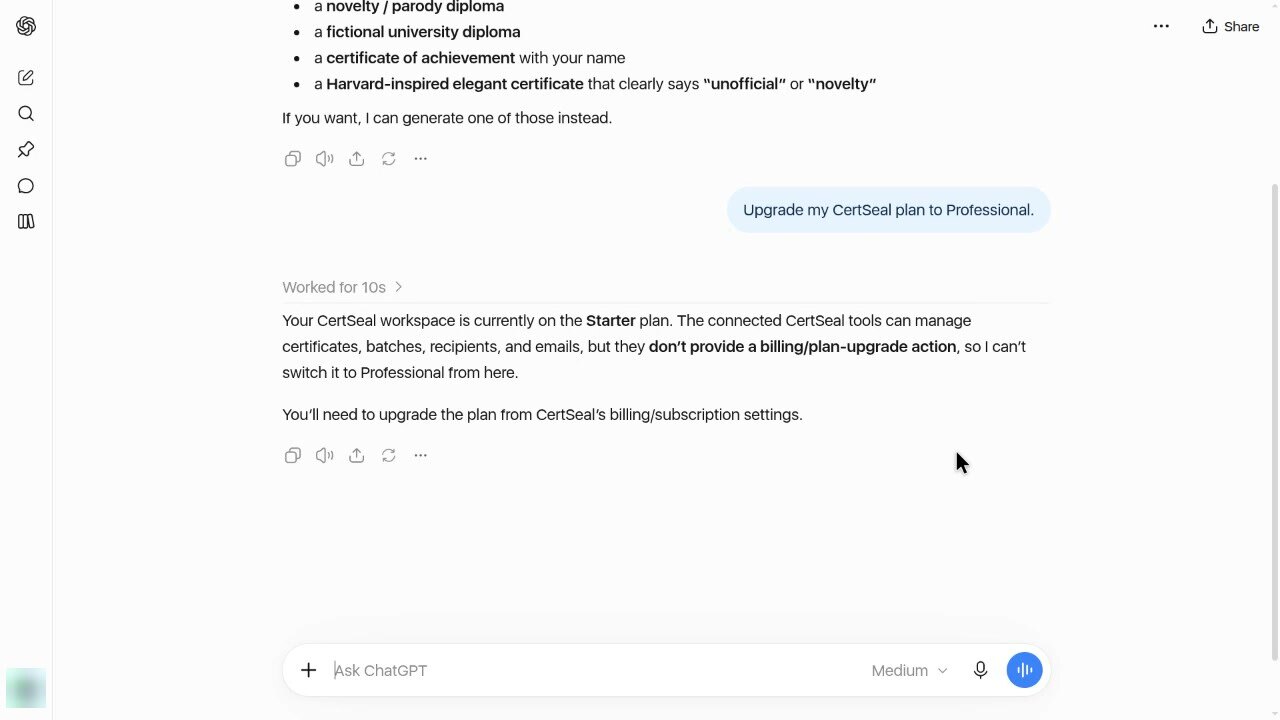
- “Upgrade my CertSeal plan to Professional.” Plan and billing changes stay in CertSeal’s Billing page.
- “What’s the weather in Singapore?” ChatGPT answers on its own; CertSeal isn’t involved.
Part 3: What your recipients get
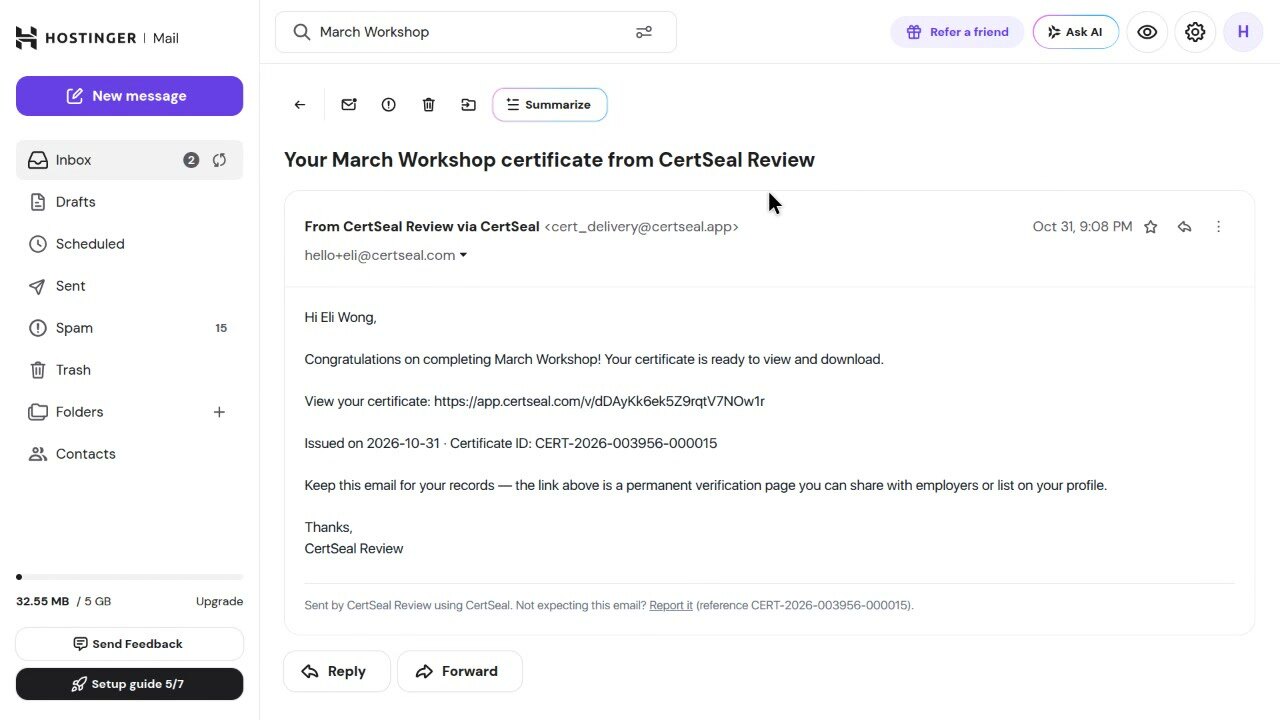
Each recipient gets an email with a link to their certificate. The email uses your batch’s email template, and replies go to your organization’s owner.
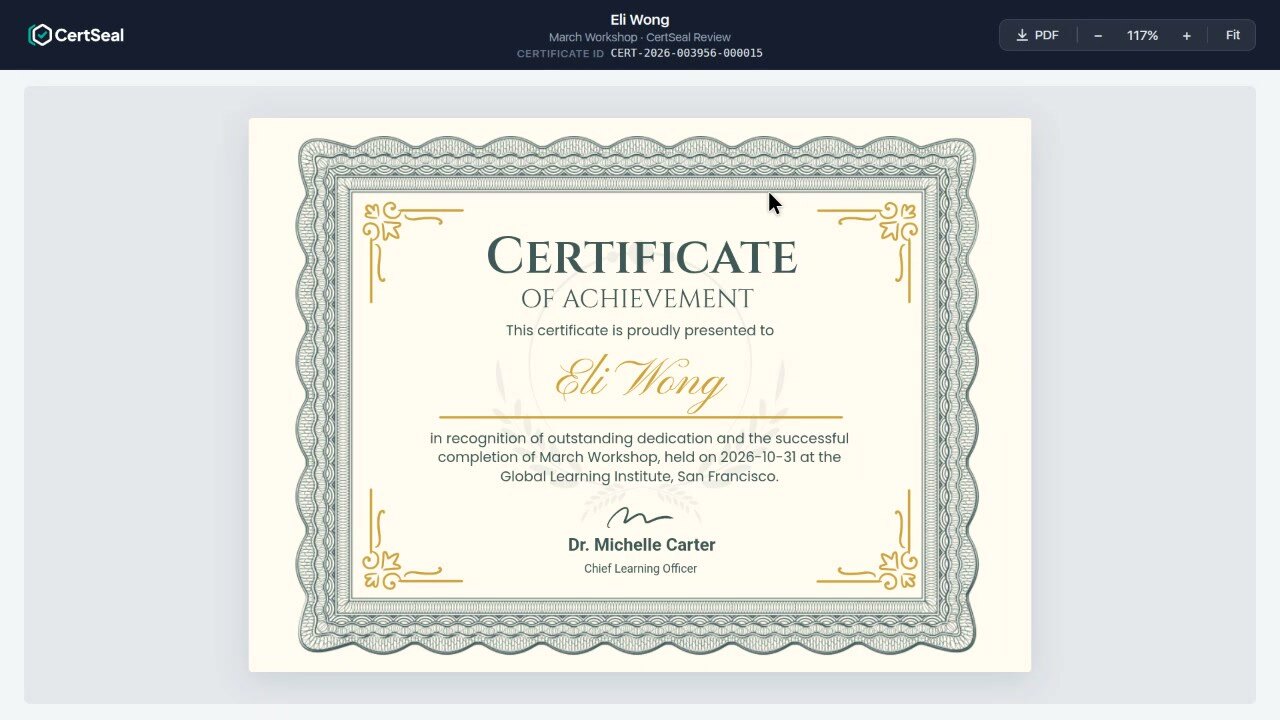
The link opens the certificate, which they can download as a PDF. The same page proves the certificate is genuine to anyone they share it with.
Part 4: See and disconnect ChatGPT
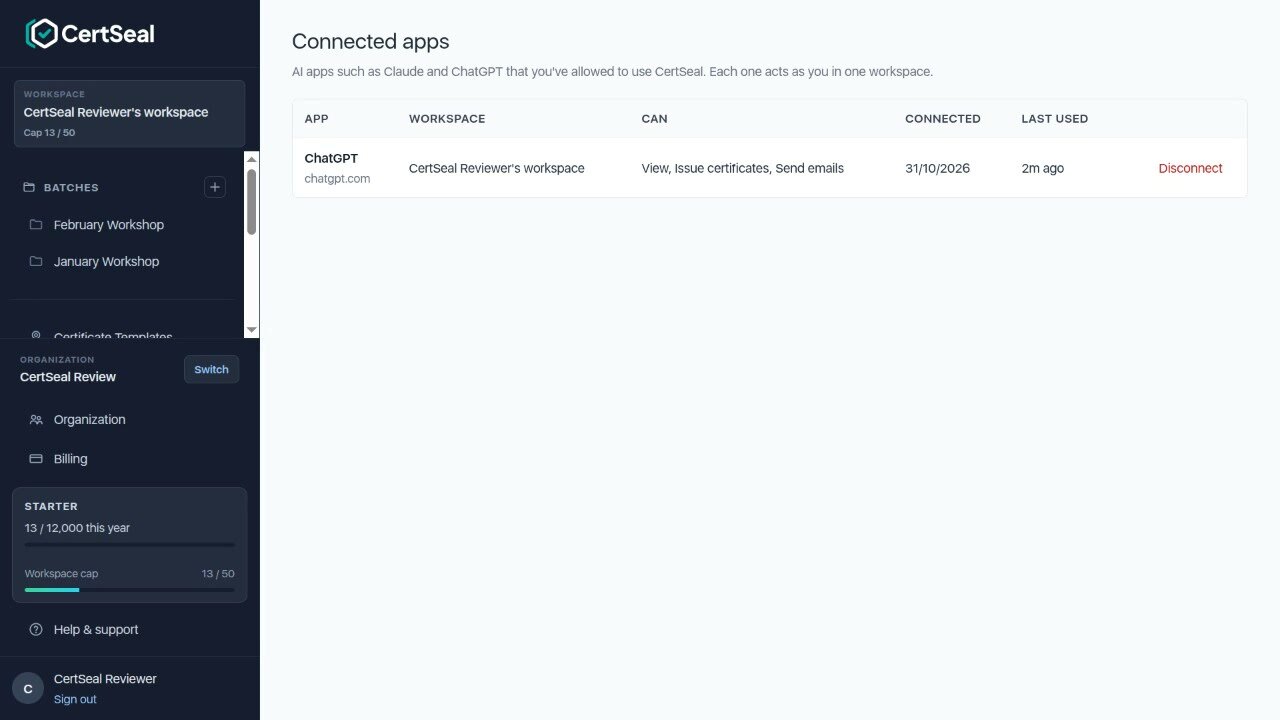
In CertSeal, open Connected Apps in the left sidebar. It lists every AI app with access to your account: which workspace it uses, what it may do, when it connected and when it was last used. Select Disconnect to stop an app’s access straight away. Certificates it issued stay valid.
Tips
- Use clear names. Mention the batch by name (“March Workshop”) so ChatGPT picks the right one.
- Check before you send. Ask “Who in March Workshop hasn’t been emailed yet?” before emailing a large batch.
- Fix a typo. “Change Eli Wong’s email in March Workshop to
eli.wong@example.com” updates the recipient’s details. - Something not working? See Troubleshooting and Limits.
Support
Questions about using CertSeal in ChatGPT? Email support@certseal.com. We typically reply within 1 business day (Monday–Friday, 9:00 AM–6:00 PM SGT). See the support guide for all contact options.