Email delivery
Email every recipient their certificate in one send
Stop attaching PDFs one message at a time. Write the email once, select your recipients, and CertSeal sends each person a personalized email with a link to their own certificate.
Capabilities
Mail merge for certificates, without the mail merge
No Word templates, no Outlook rules, no copying names into subject lines. The email, the certificate, and the recipient list live in one place.
A personal email for every recipient
Write the subject and body once with fields like {{recipient_name}} and {{course_name}}. CertSeal merges each recipient's details in before it sends.
Their certificate, one click away
Add {{cert_link}} and every email carries a link to the recipient's own certificate page, where they can view it and download the PDF.
Your own columns, too
Any extra column in your recipient file becomes a variable. Mention a score, a cohort, or a session date in the email without editing it per person.
Preview before you send
The template editor previews the email with sample data, and every recipient row has Preview email and Preview cert, so you can check one person's exact message.
Paced sending in the background
Send to one person or the whole batch. CertSeal queues the emails and works through them in the background, usually within a minute or two.
Clear delivery status
Each recipient shows Not queued, In queue, Sent, or Failed. Fix a mistyped address and re-send just that person — nobody else gets a duplicate.
The send flow
Four steps from recipient list to inbox
- 01
Write the email
Create an email template with a subject, a body, and variables such as {{recipient_name}} and {{cert_link}}. Check the live preview.
- 02
Attach it to a batch
Pick the template when you create a batch, or switch it later from the batch's Overview tab. Every recipient in the batch gets this email.
- 03
Select and send
Import your recipients, select everyone or just a few, and click Send selected. Optionally set the issue date first.
- 04
Watch it land
Statuses update as the queue works through the batch. Re-send any failed rows after fixing the address.
Hands-free
Or let your other tools press Send
The same email goes out when certificates are issued automatically.
Zoom
Choose Send immediately on a Zoom automation and attendees get their certificate email as soon as the meeting or webinar ends.
Zapier
Turn on Send in the Issue Certificate action and the email goes out the moment your Zap creates the recipient.
REST API
Create recipients and trigger the send from your own code, then listen for sent and failed webhooks to keep your records in sync.
Templates
Pick the certificate that goes with the email
Every email links to a certificate rendered from your design. Start from a template and brand it in minutes.
-

Blue Modern Certificate of Completion
-
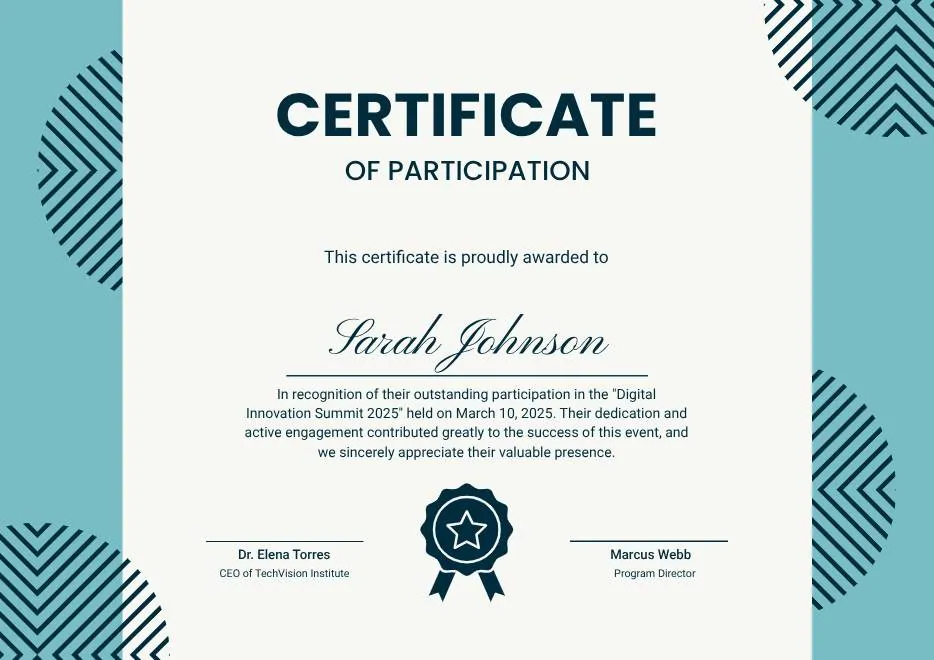
Teal Geometric Participation Certificate
-

Green Gold and White Modern Excellence Certificate
-
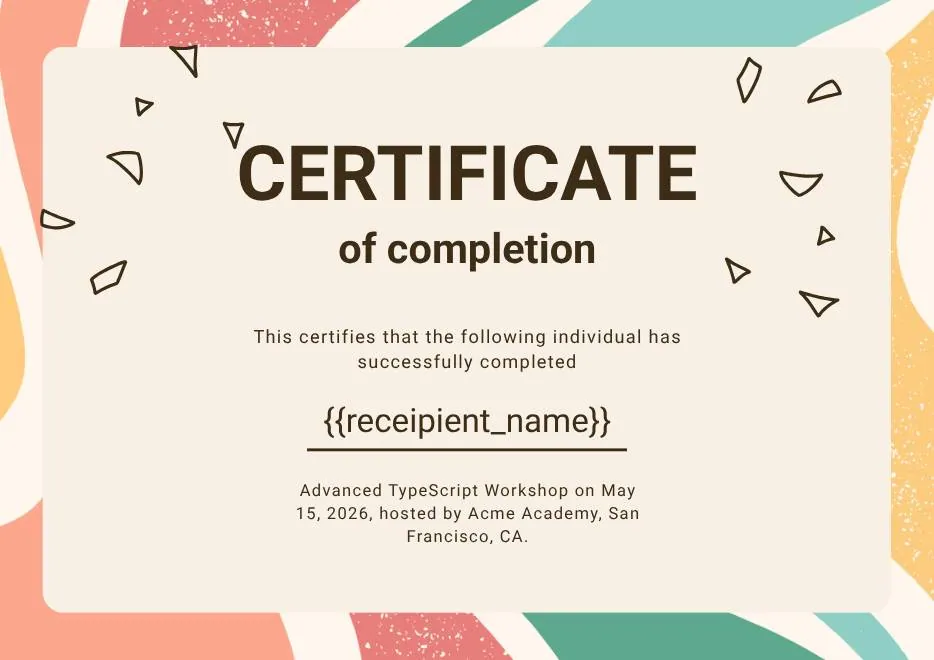
Certificate of Completion in Colorful Abstract Modern Style
-

Ivory Victorian Vintage Certificate of Excellence
-
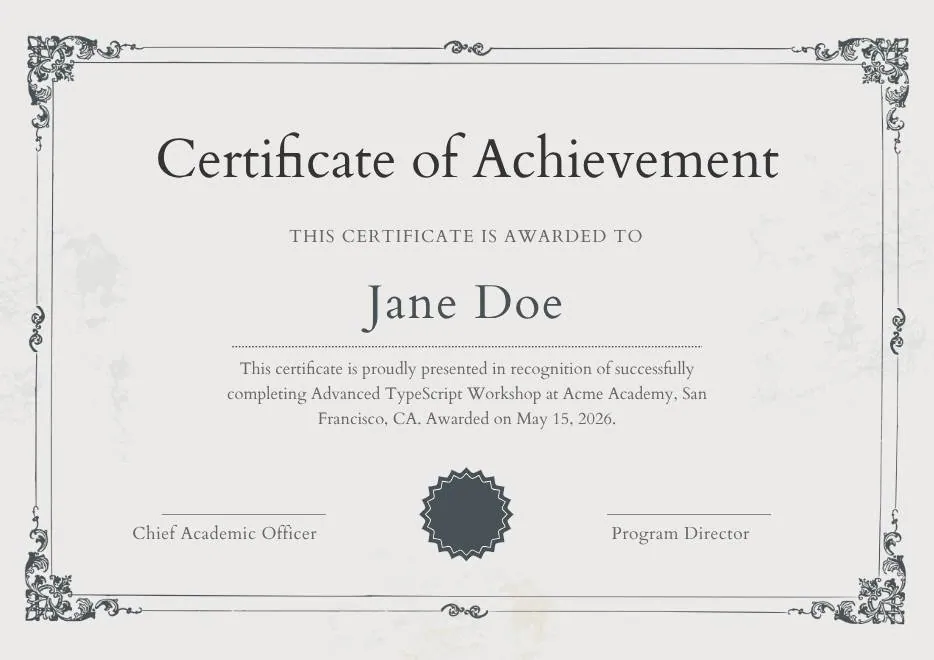
Modern Vintage Certificate of Achievement
-
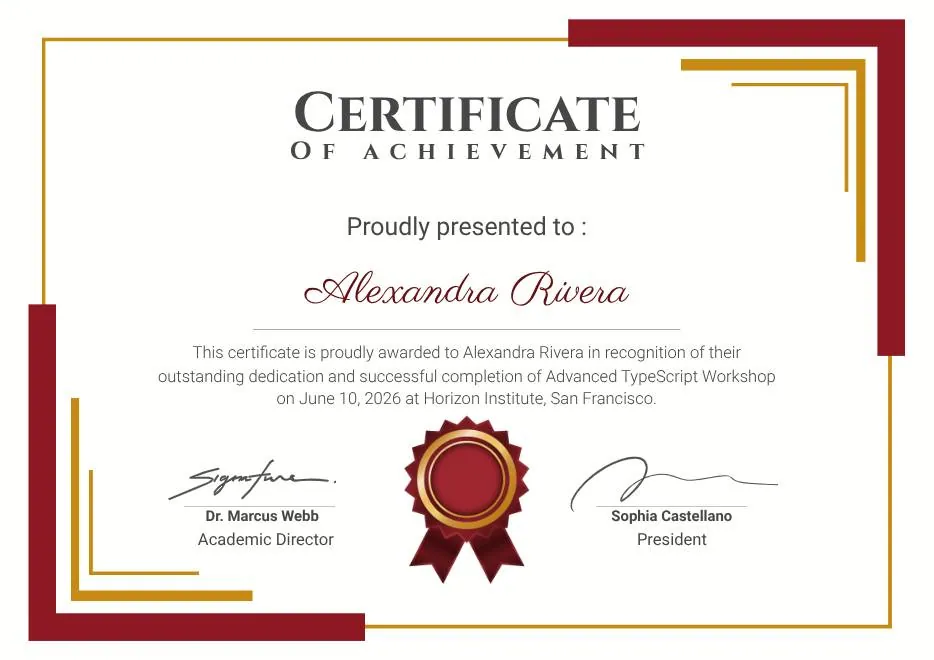
Red and Gold Achievement Certificate
-
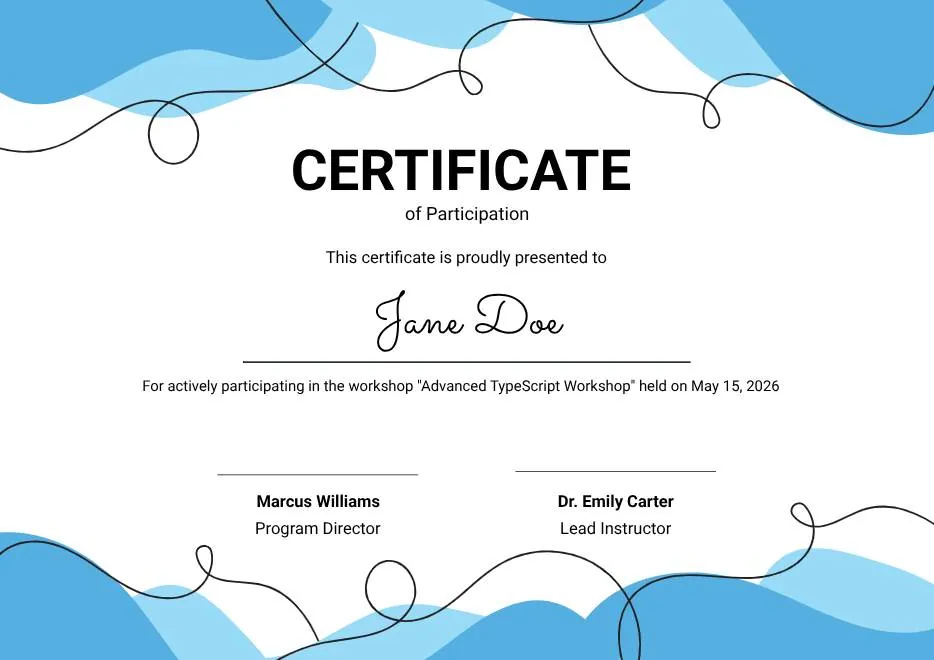
Blue Abstract Waves Participation Certificate
-
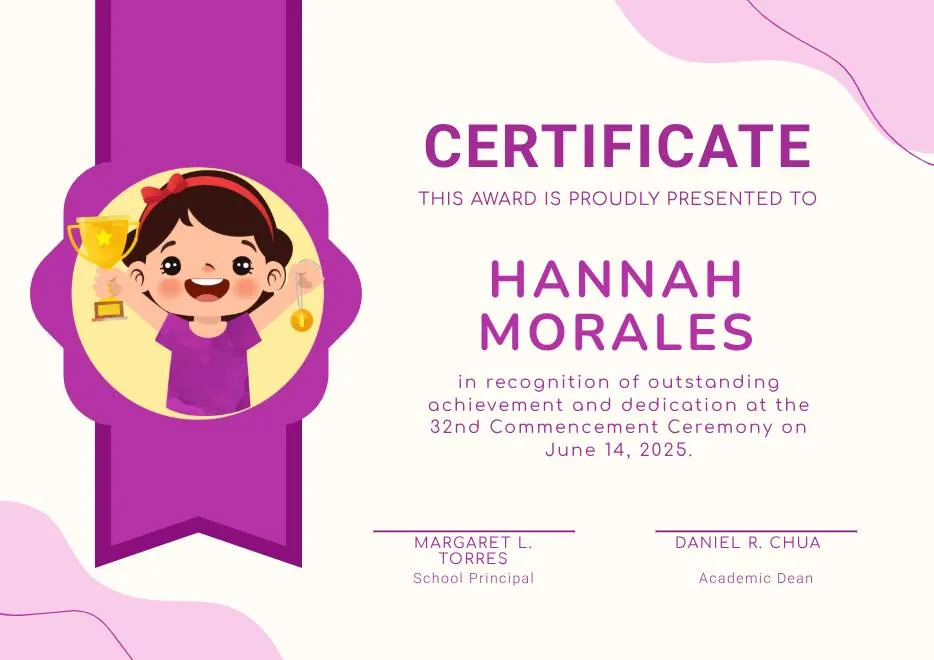
Purple Playfun Kids Award Certificate
-
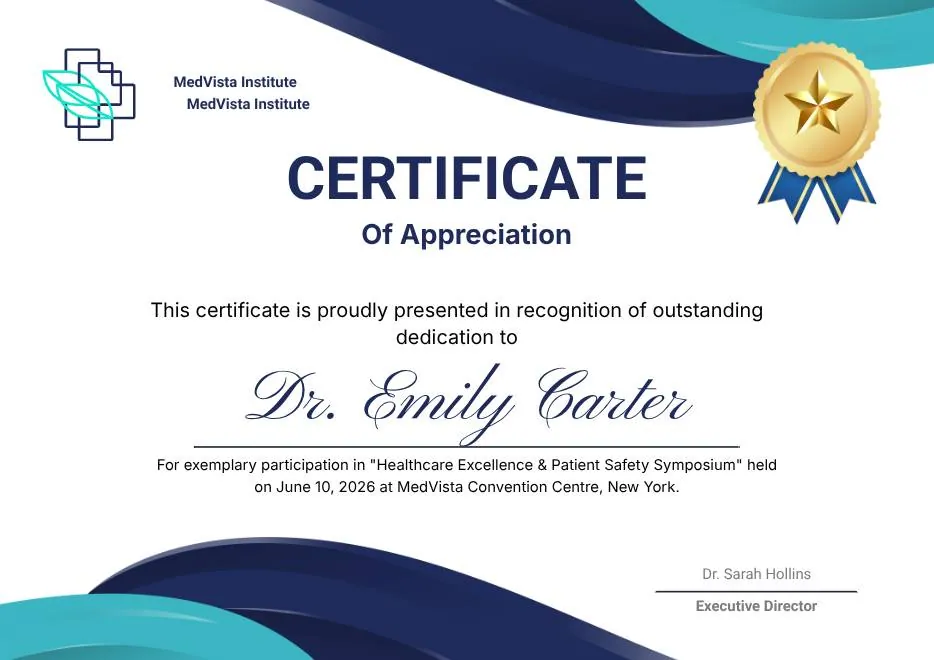
Blue Navy and Tosca Elegant Modern Medical Appreciation Certificate
-
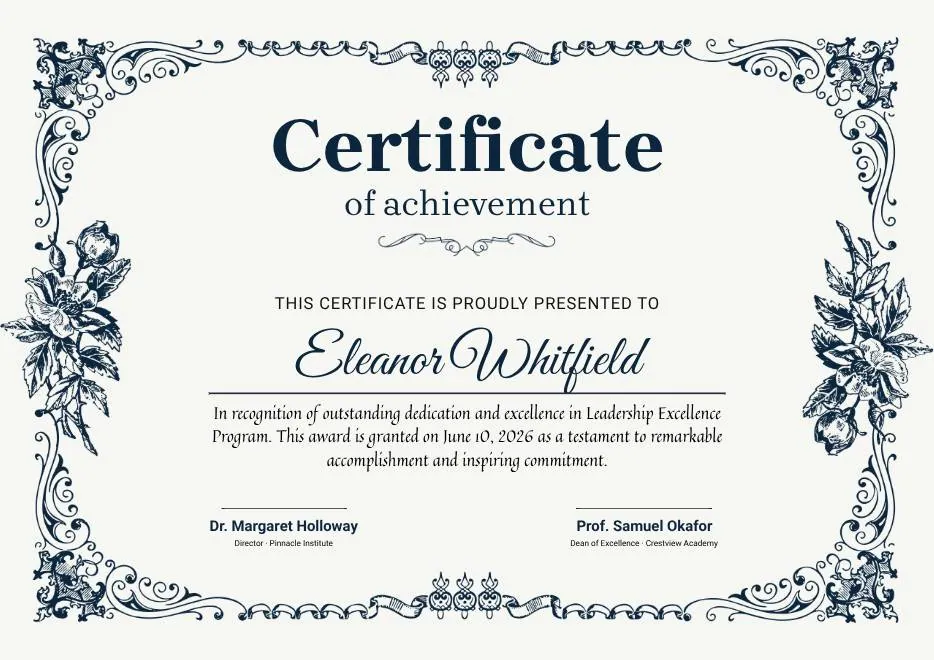
Modern Vintage Certificate of Achievement
-
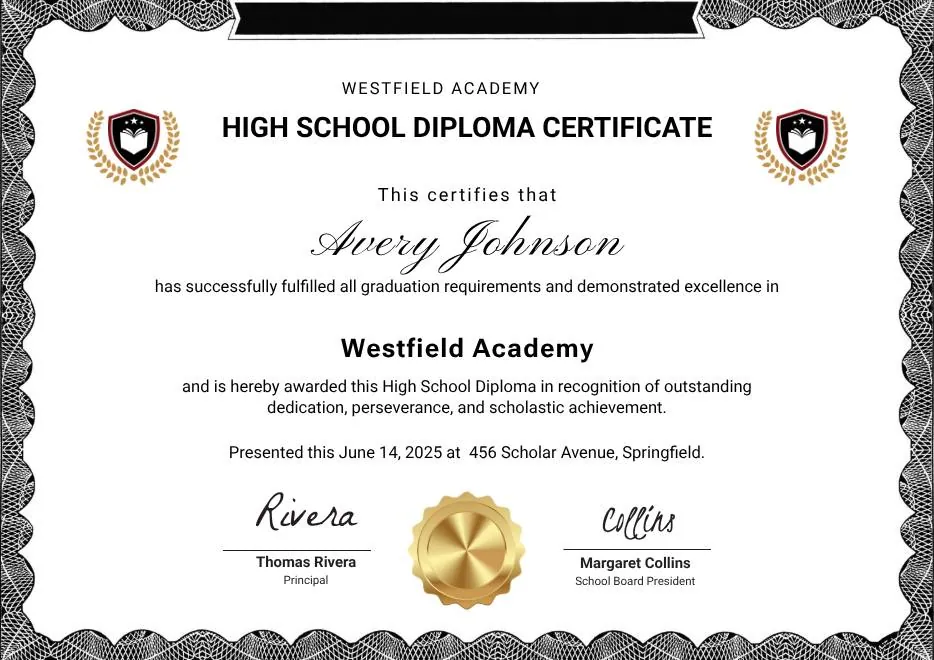
Black and White Modern High School Diploma Certificate
-
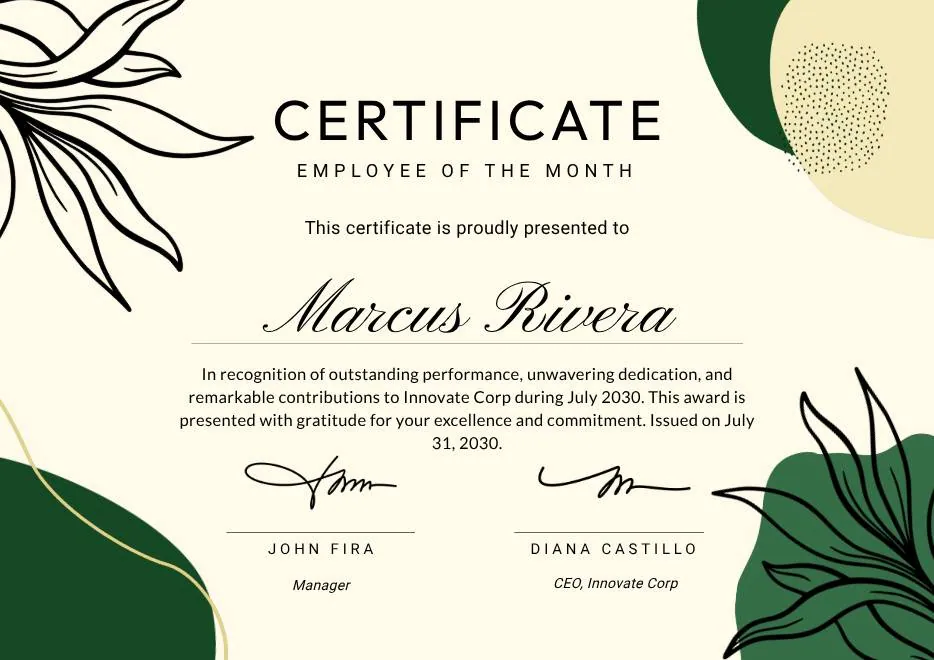
Green and Beige Botanical Employee of the Month Certificate
-
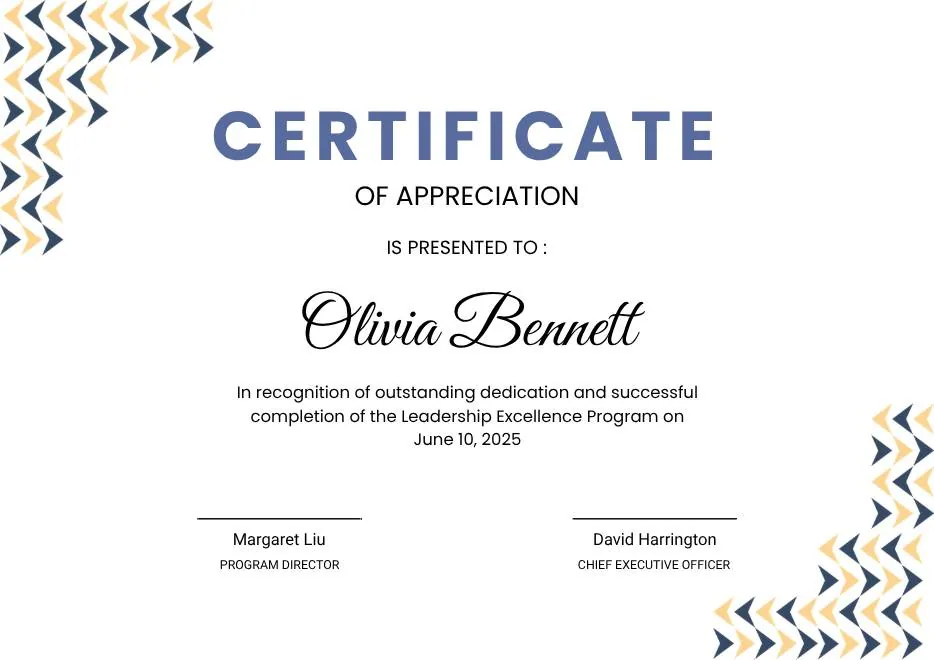
Blue Modern Certificate of Appreciation
-
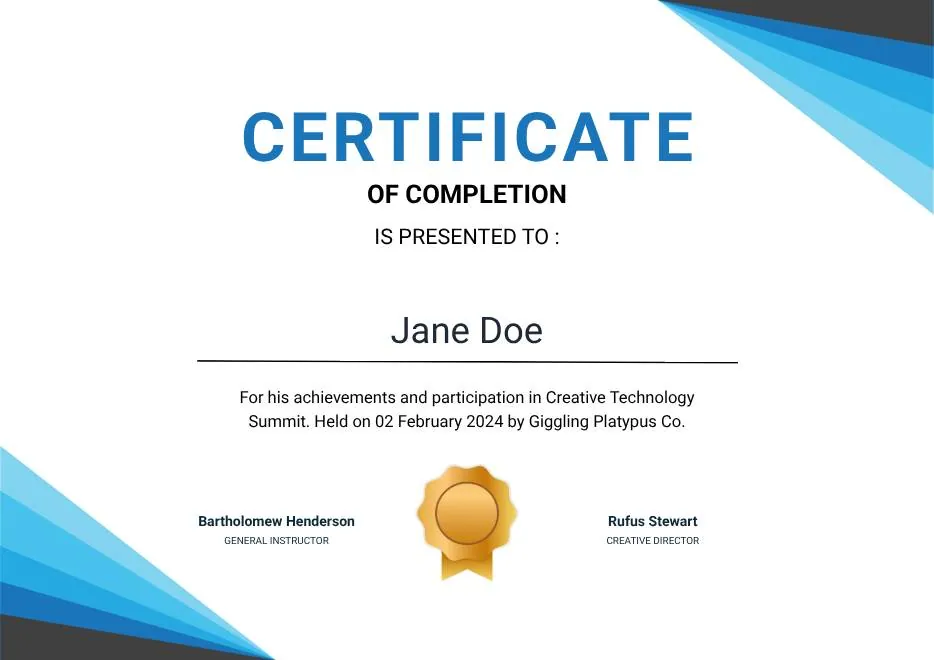
Blue Modern Event Completion Certificate
-
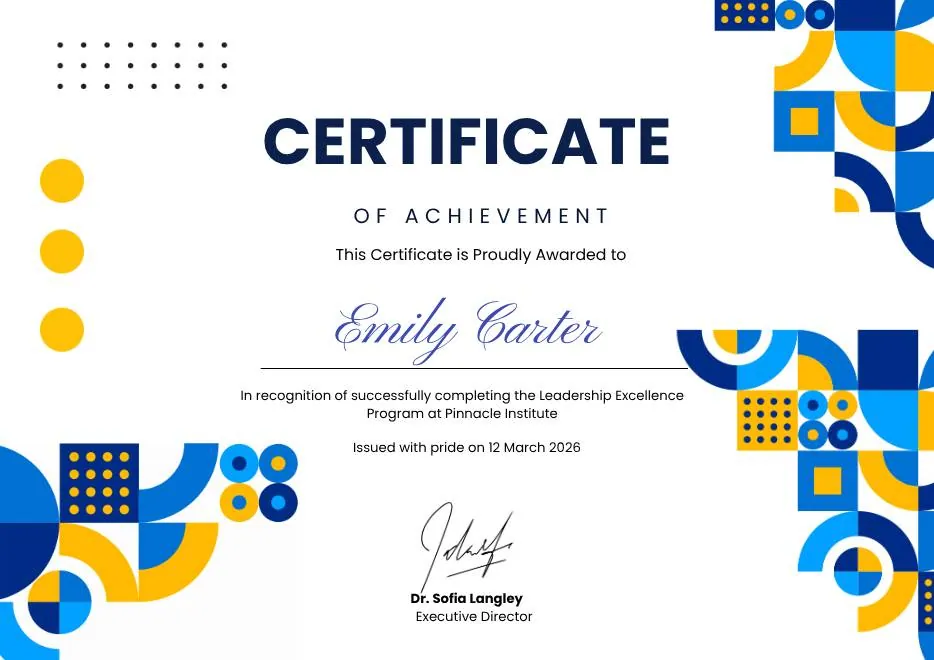
Blue and Yellow Geometric Achievement Certificate
-
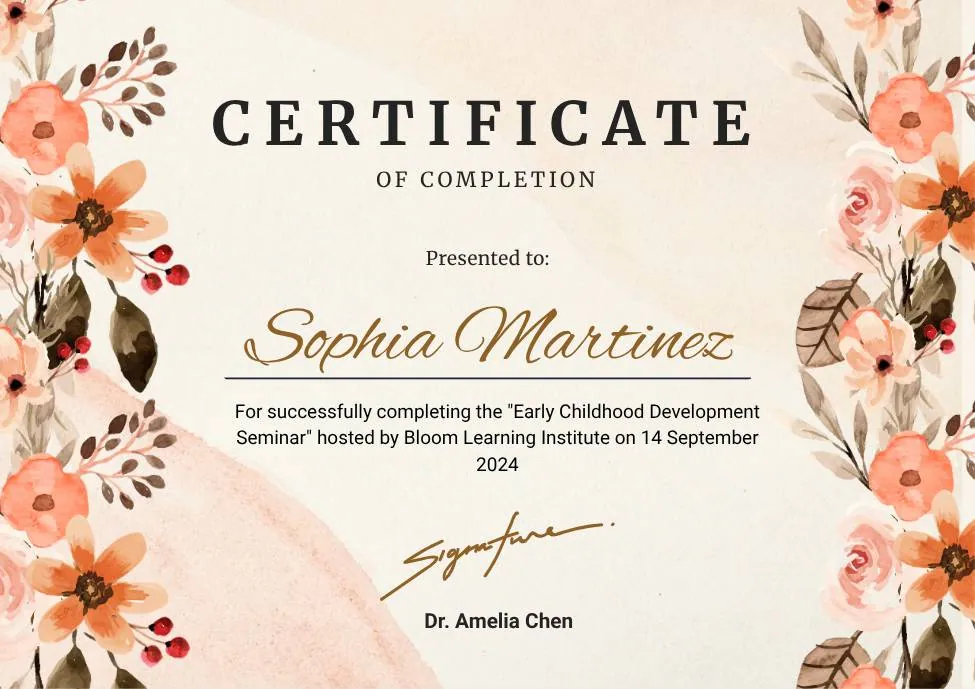
Beige Watercolor Floral Certificate of Completion
-
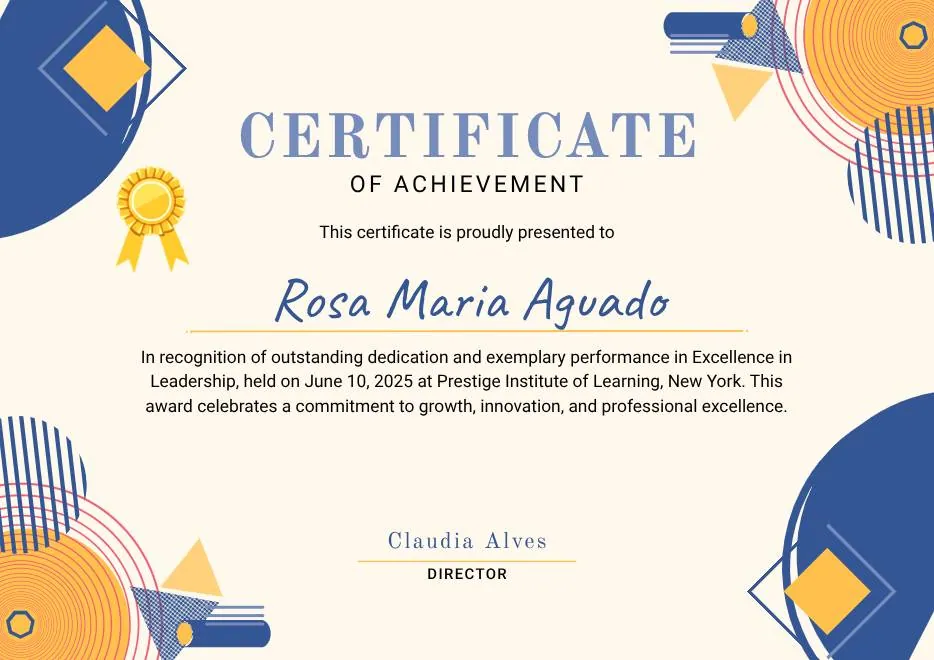
Blue Orange Modern Memphis Certificate of Achievement
-

Nexus Institute Bold Geometric Certificate of Achievement
-
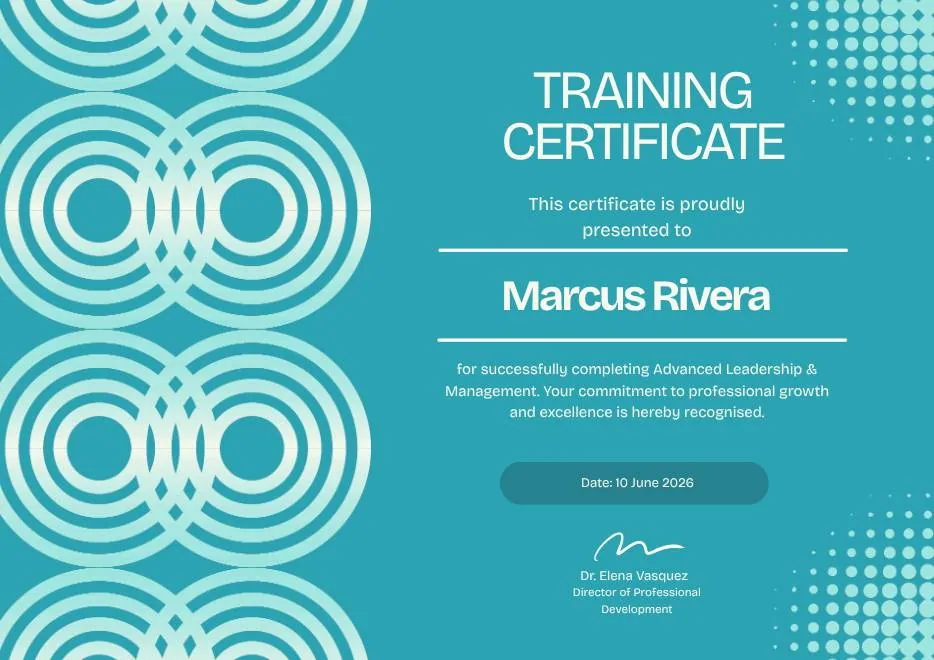
Blue Tosca Geometric Training Certificate
-
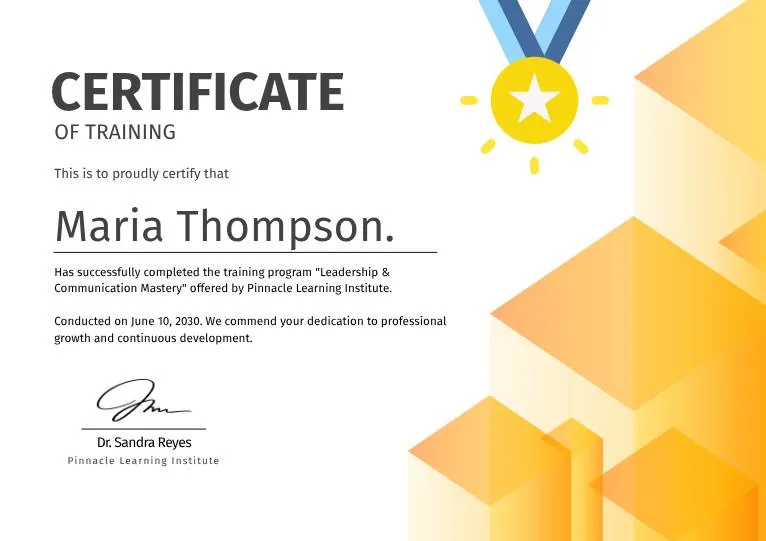
White and Yellow Modern Leadership Training Certificate
-
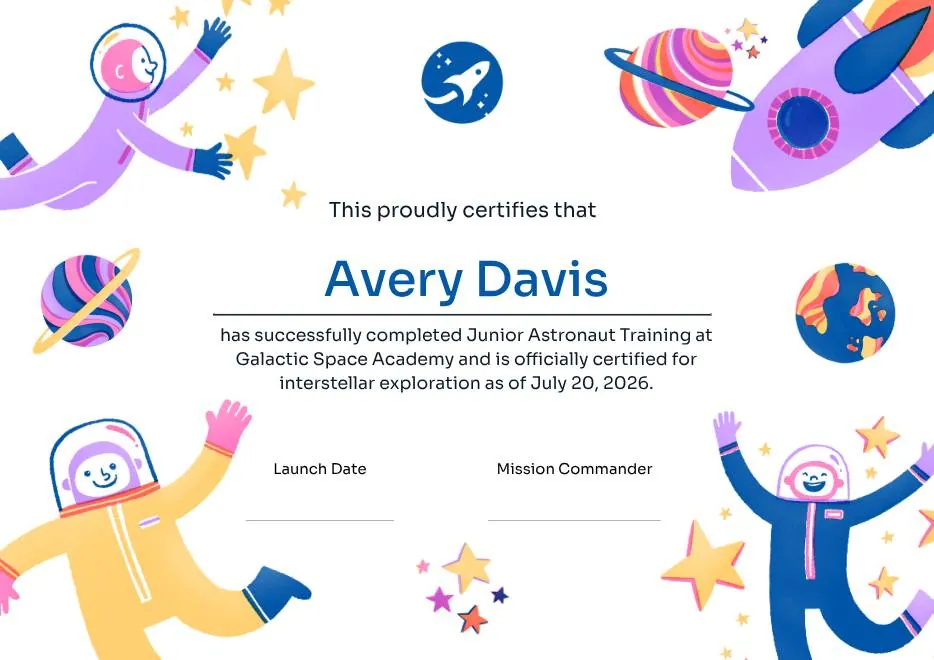
Junior Astronaut Training Certificate in Colorful Playful Style
-
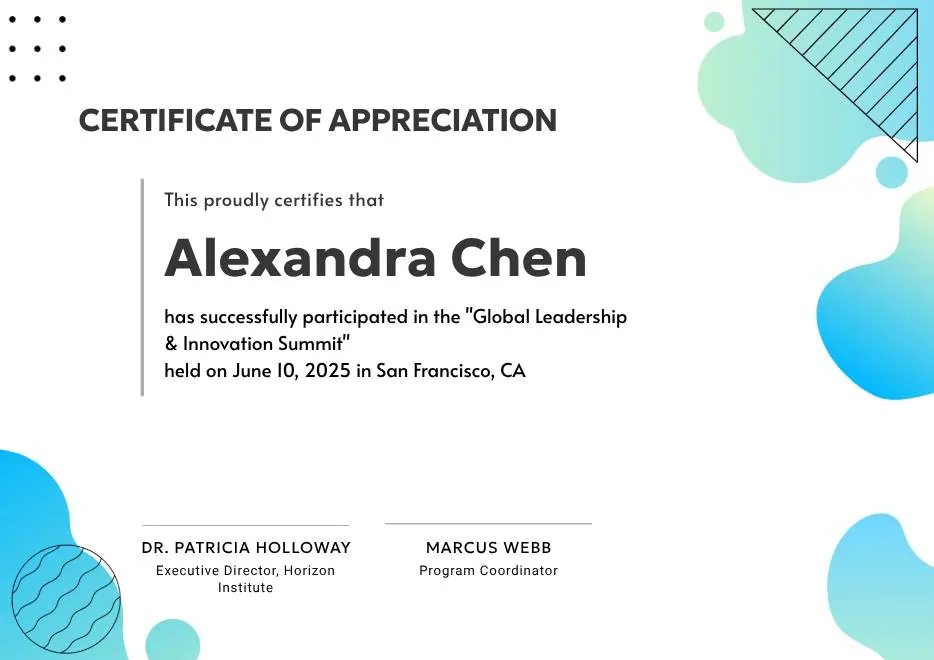
Certificate of Appreciation — Summit & Event Participation
-
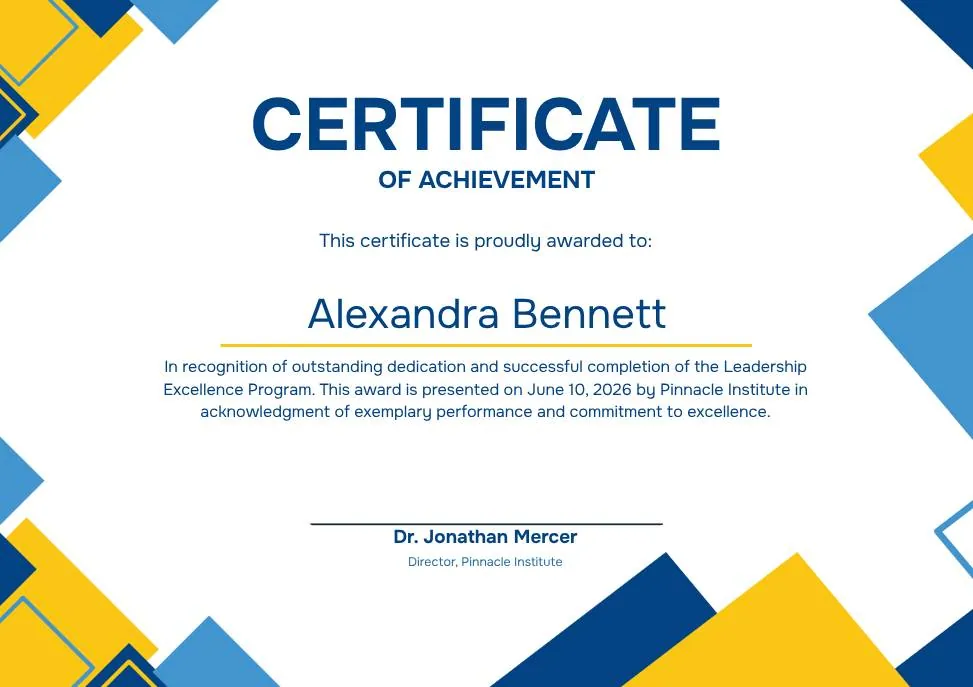
Blue Yellow Modern Geometric Certificate of Achievement
-
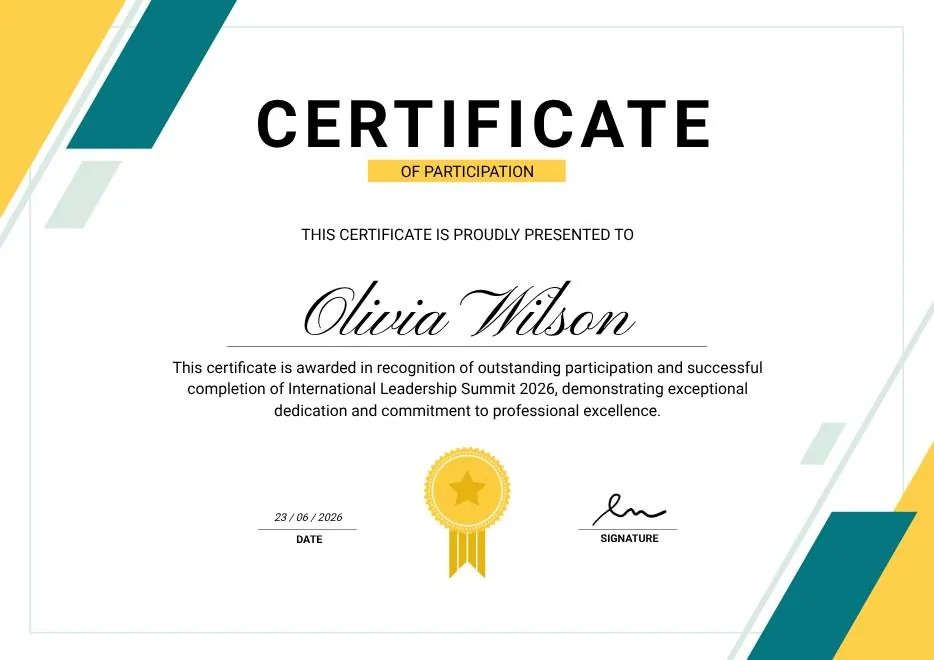
Green & Yellow Minimalist Certificate of Participation
-
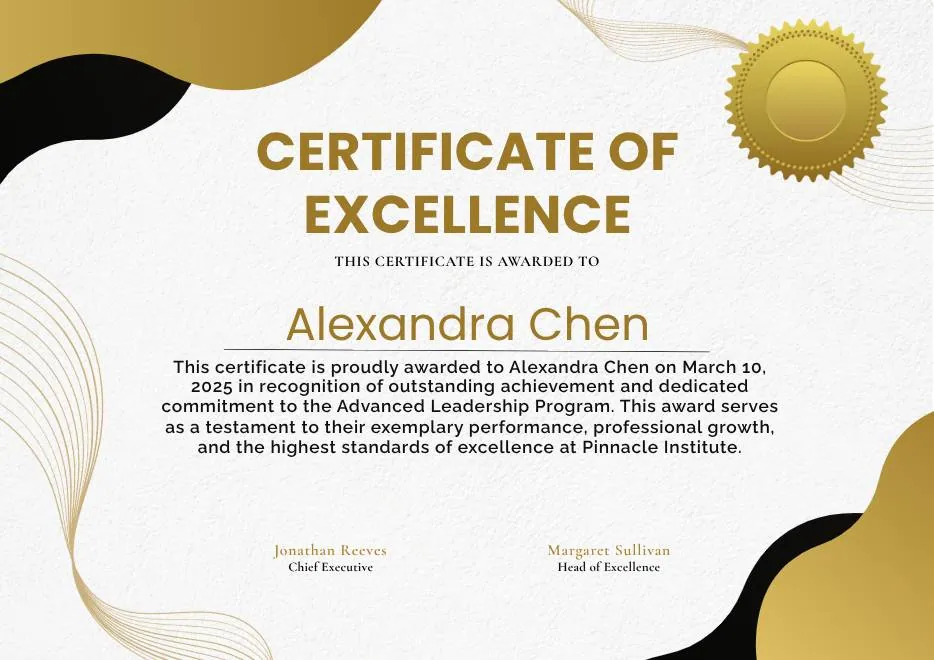
White and Gold Modern Awards Certificate
-

Gray Teal Simple Internship Certificate
-
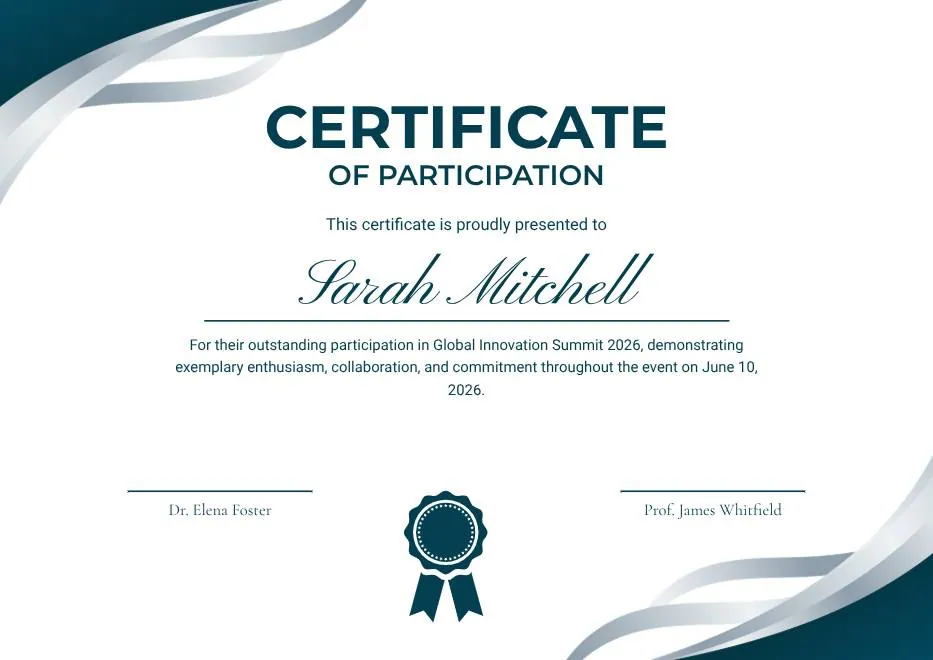
Teal and White Modern Participation Certificate
-
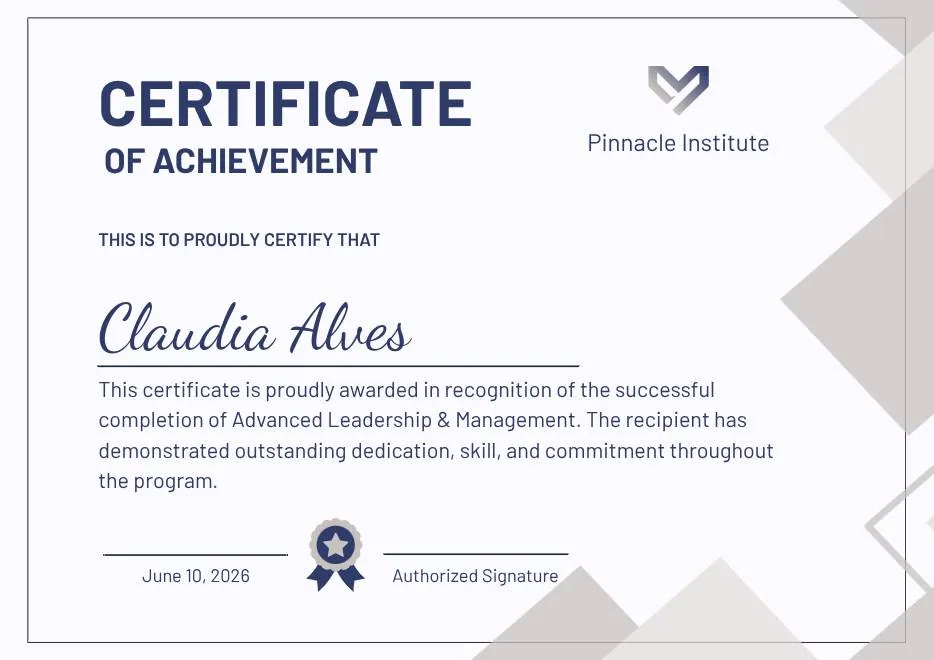
Gray and Blue Modern Achievement Certificate
-
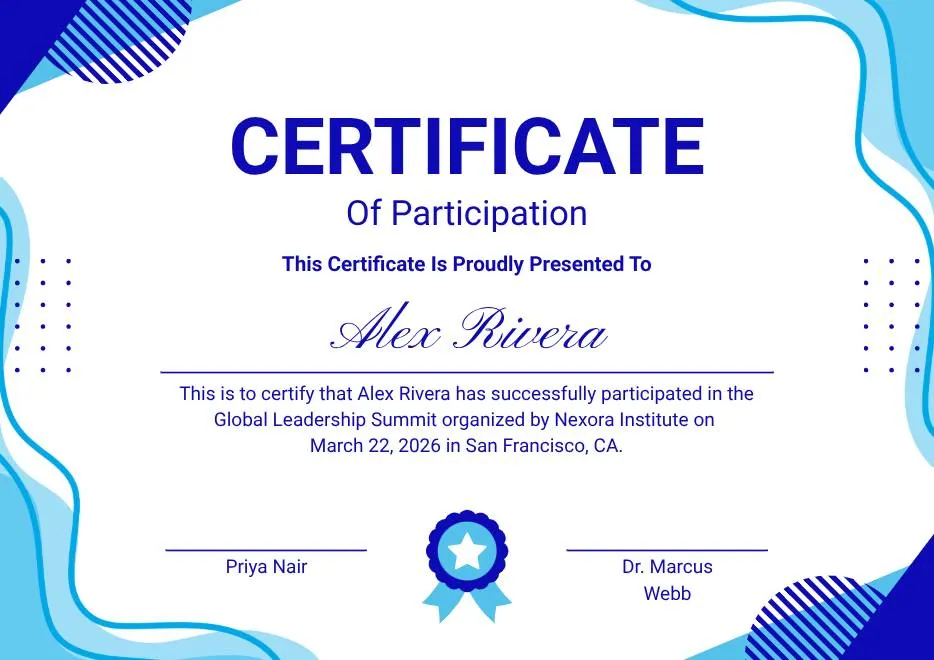
Blue and White Modern Participation Certificate
-
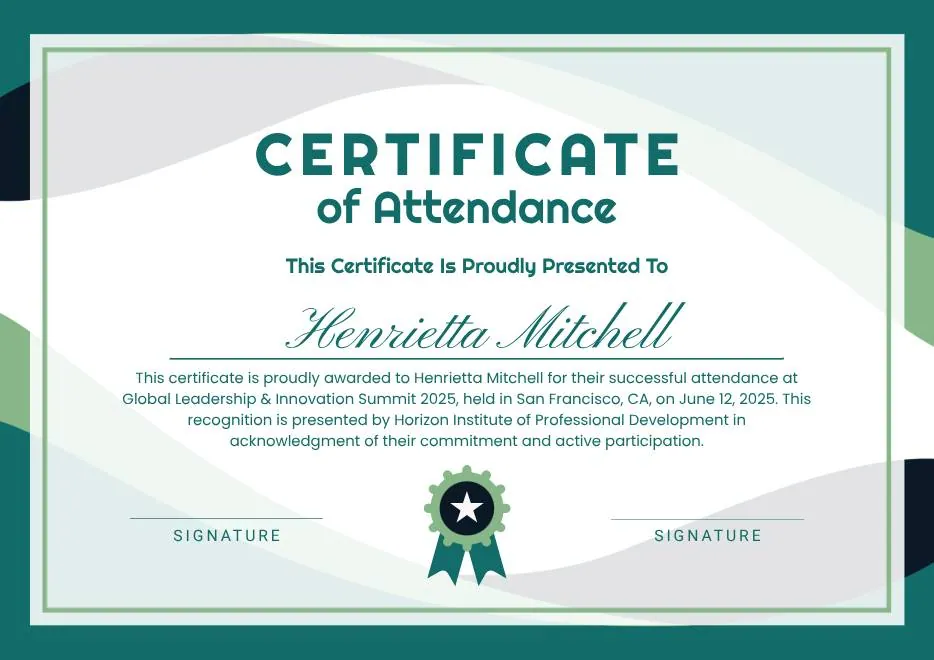
White and Green Minimalist Certificate of Attendance
-
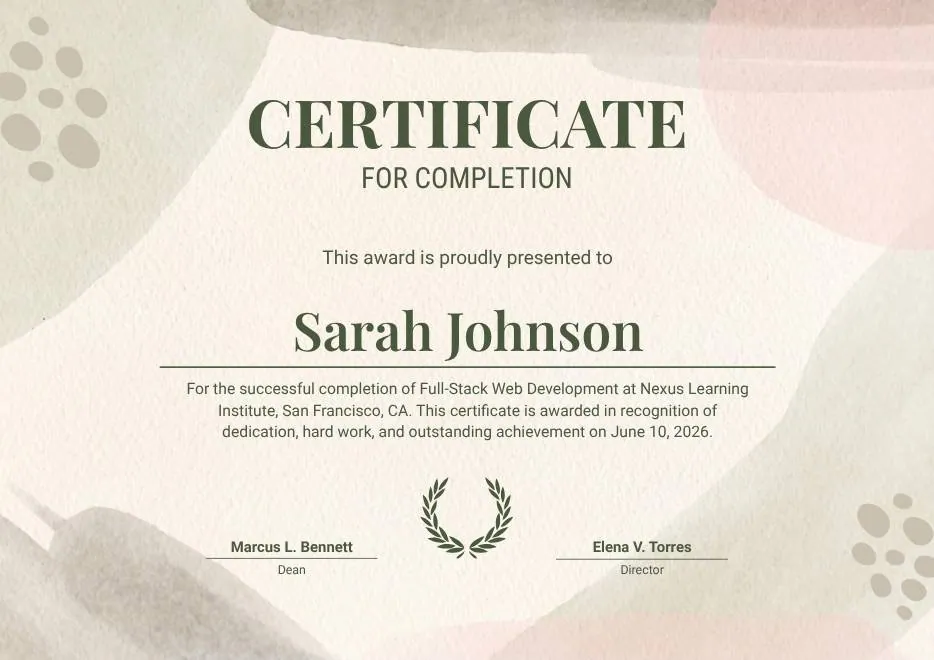
Beige Organic Completion Certificate
-
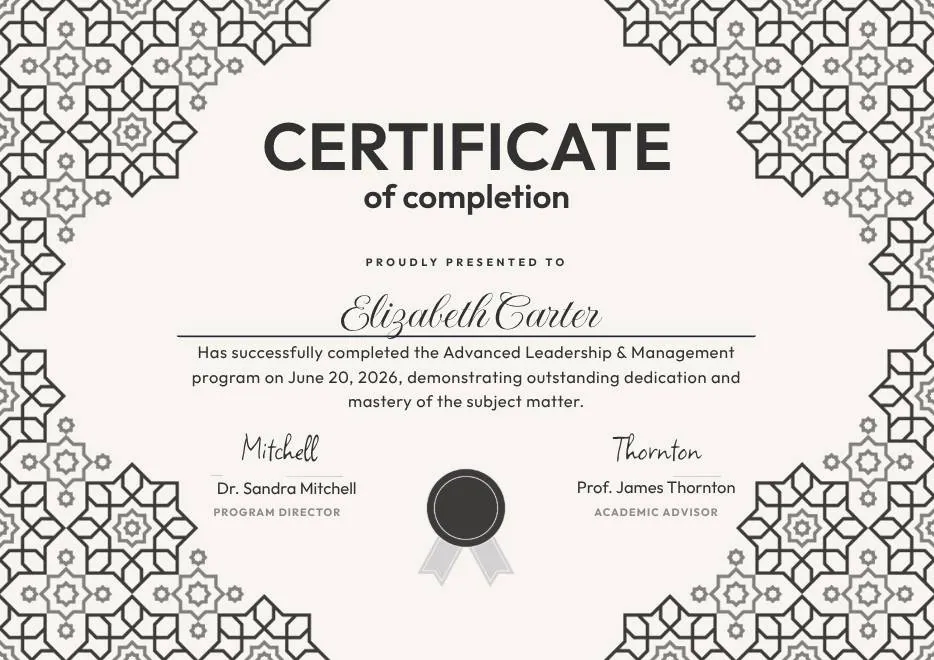
Black and White Geometric Completion Certificate
-
Blue Modern Certificate of Completion
-
Teal Geometric Participation Certificate
-
Green Gold and White Modern Excellence Certificate
-
Certificate of Completion in Colorful Abstract Modern Style
-
Ivory Victorian Vintage Certificate of Excellence
-
Modern Vintage Certificate of Achievement
-
Red and Gold Achievement Certificate
-
Blue Abstract Waves Participation Certificate
-
Purple Playfun Kids Award Certificate
-
Blue Navy and Tosca Elegant Modern Medical Appreciation Certificate
-
Modern Vintage Certificate of Achievement
-
Black and White Modern High School Diploma Certificate
-
Green and Beige Botanical Employee of the Month Certificate
-
Blue Modern Certificate of Appreciation
-
Blue Modern Event Completion Certificate
-
Blue and Yellow Geometric Achievement Certificate
-
Beige Watercolor Floral Certificate of Completion
-
Blue Orange Modern Memphis Certificate of Achievement
-
Nexus Institute Bold Geometric Certificate of Achievement
-
Blue Tosca Geometric Training Certificate
-
White and Yellow Modern Leadership Training Certificate
-
Junior Astronaut Training Certificate in Colorful Playful Style
-
Certificate of Appreciation — Summit & Event Participation
-
Blue Yellow Modern Geometric Certificate of Achievement
-
Green & Yellow Minimalist Certificate of Participation
-
White and Gold Modern Awards Certificate
-
Gray Teal Simple Internship Certificate
-
Teal and White Modern Participation Certificate
-
Gray and Blue Modern Achievement Certificate
-
Blue and White Modern Participation Certificate
-
White and Green Minimalist Certificate of Attendance
-
Beige Organic Completion Certificate
-
Black and White Geometric Completion Certificate
-
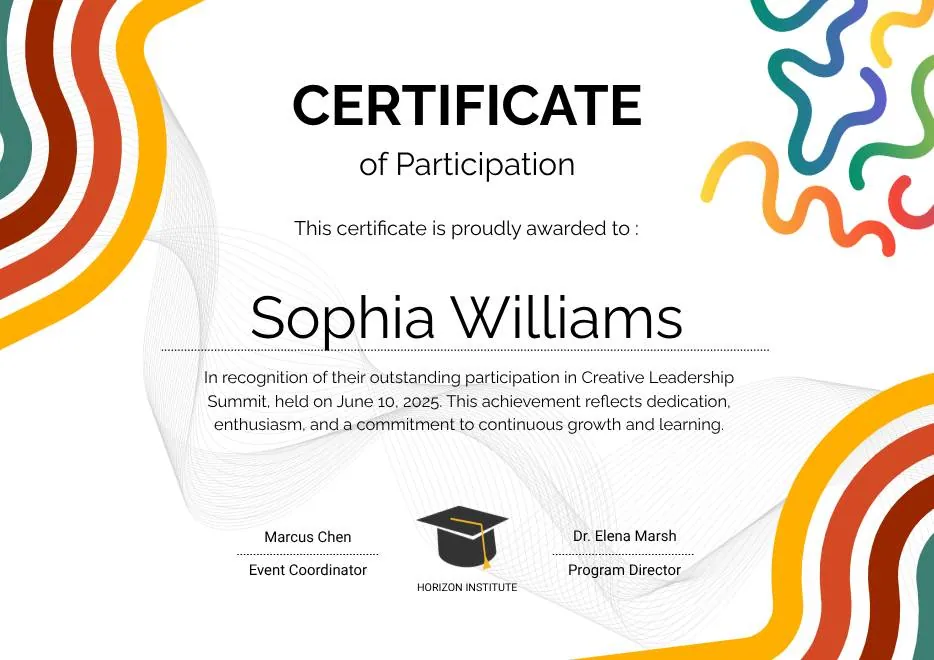
Colorful Abstract Waves Modern Participation Certificate
-
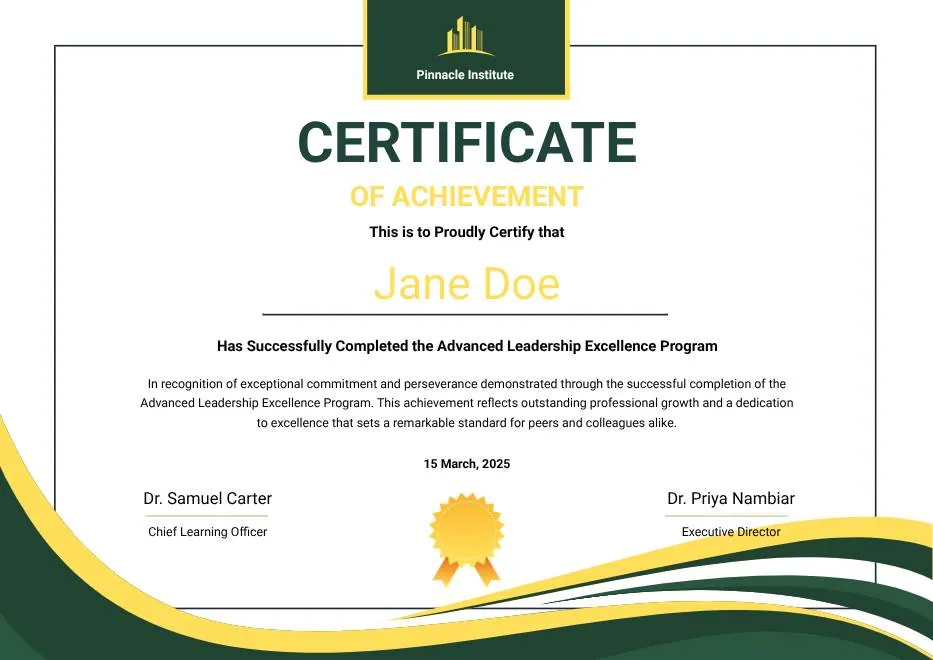
Green and Gold Modern Leadership Achievement Certificate
-

Teal Watercolor Elegant Certificate of Excellence
-
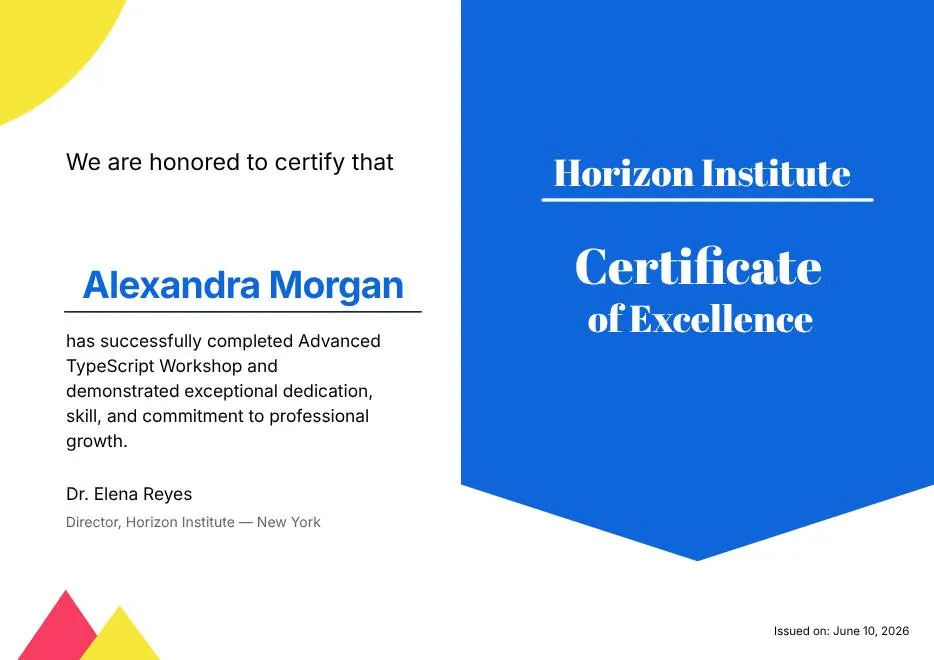
Blue and Yellow Modern Certificate of Excellence
-

Classic Floral Border Certificate of Achievement
-

Modern White and Green Certificate of Excellence
-

Beige Classic Certificate of Achievement
-
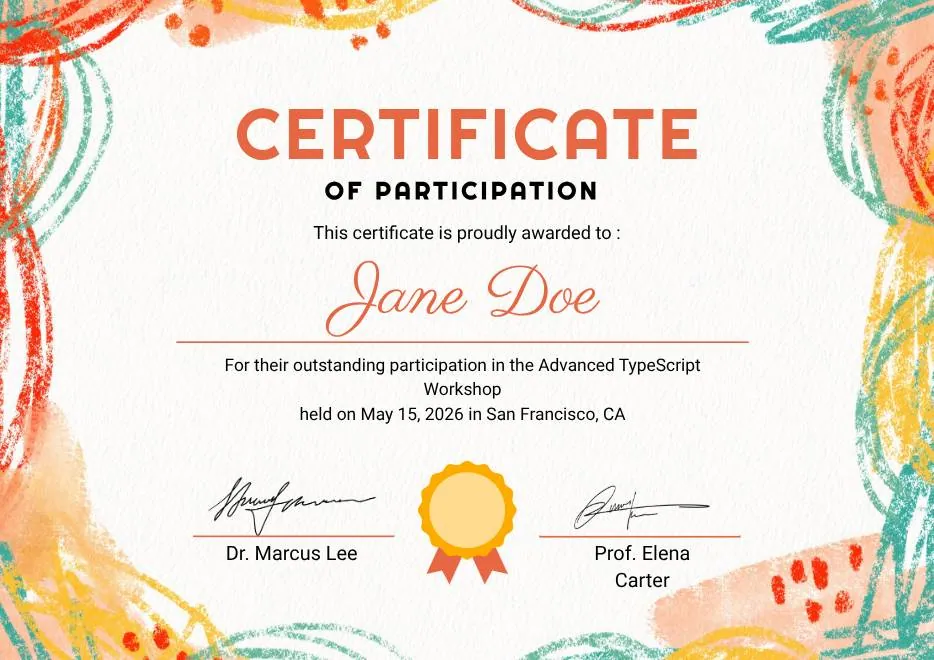
Colorful Brushstroke Art Certificate of Participation
-
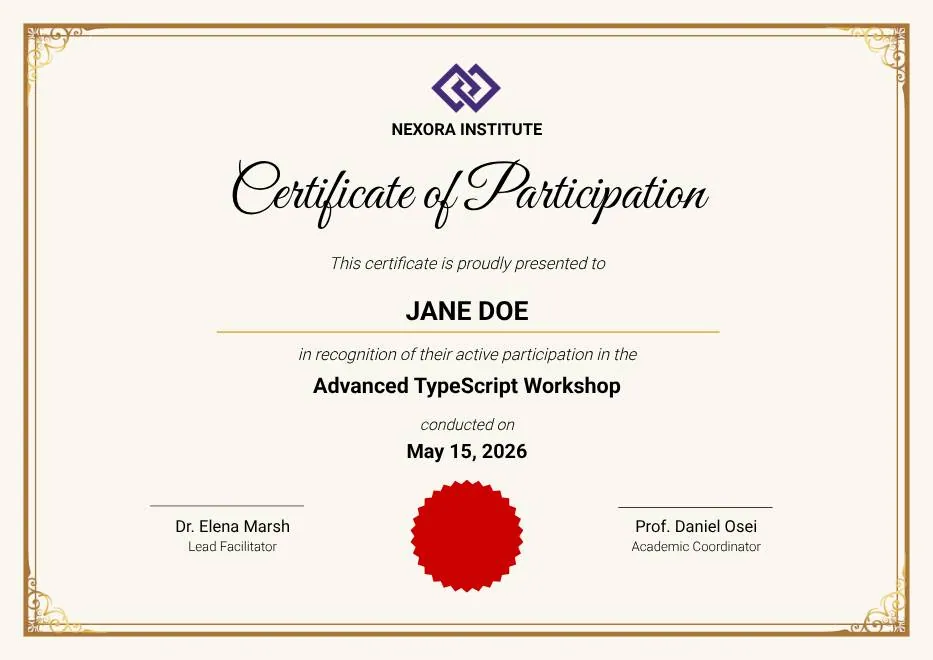
Gold Elegant Workshop Participation Certificate
-
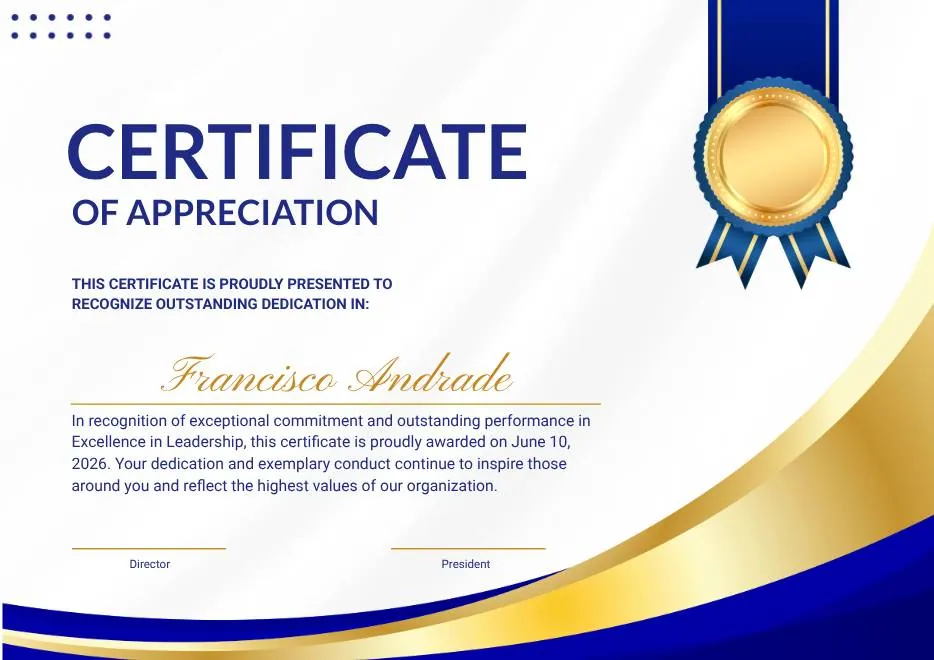
Blue and Gold Modern Certificate of Appreciation
-
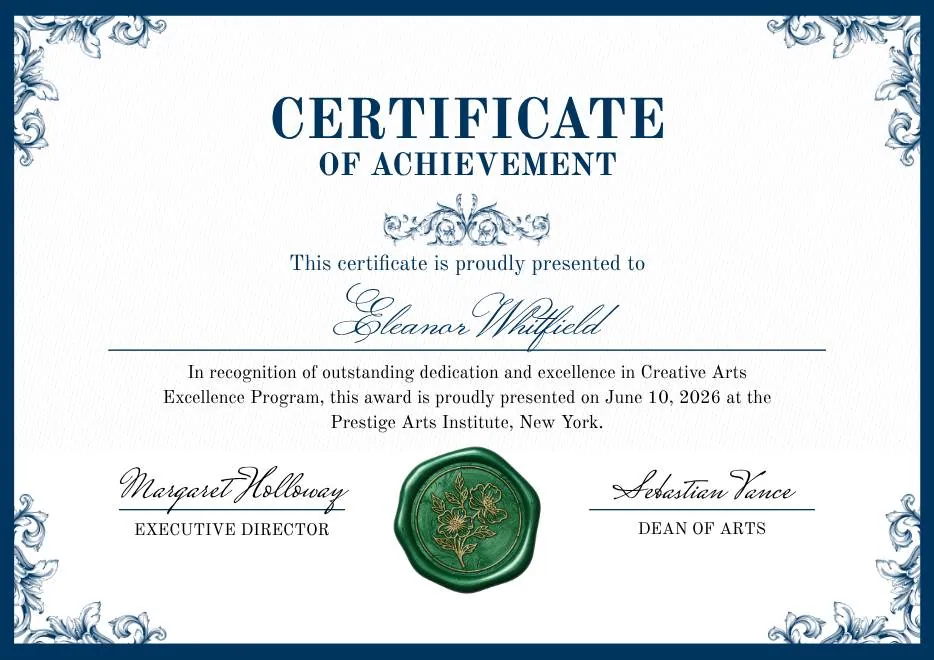
Blue and Green Traditional Certificate of Achievement
-
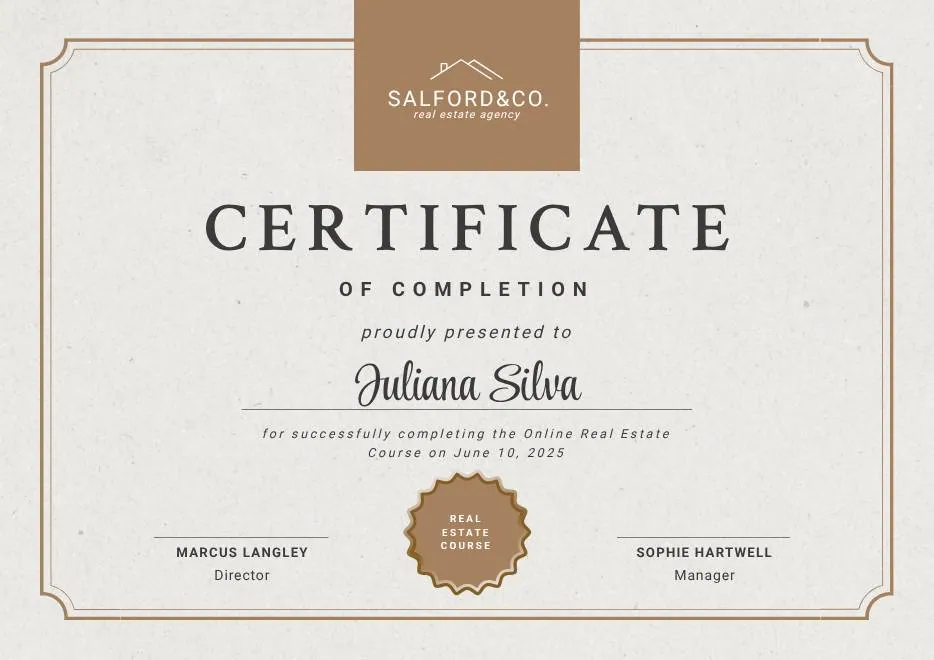
Beige Brown Aesthetic Real Estate Course Completion Certificate
-
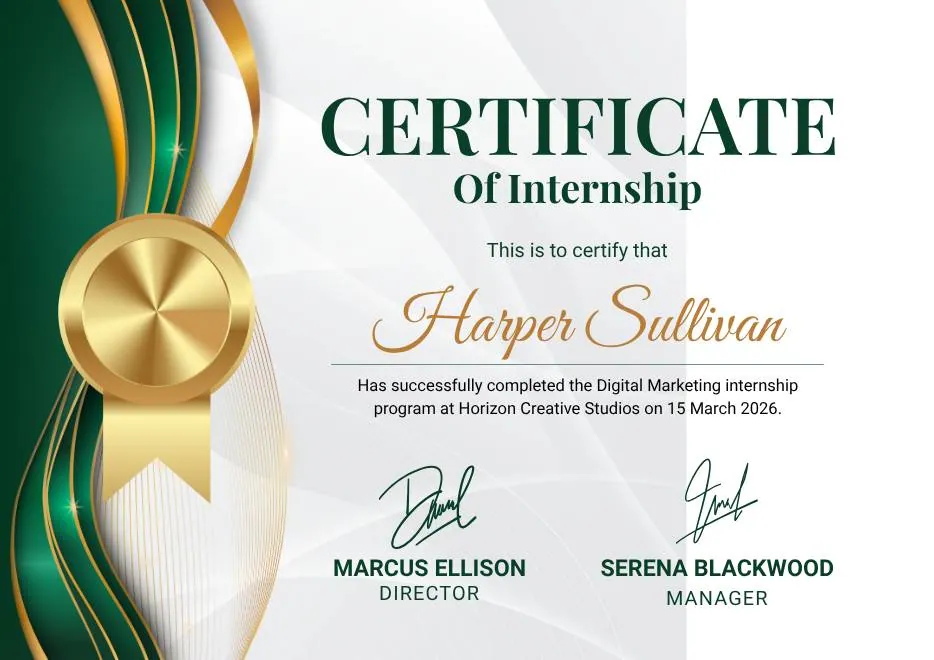
Green and Gold Elegant Internship Certificate
-
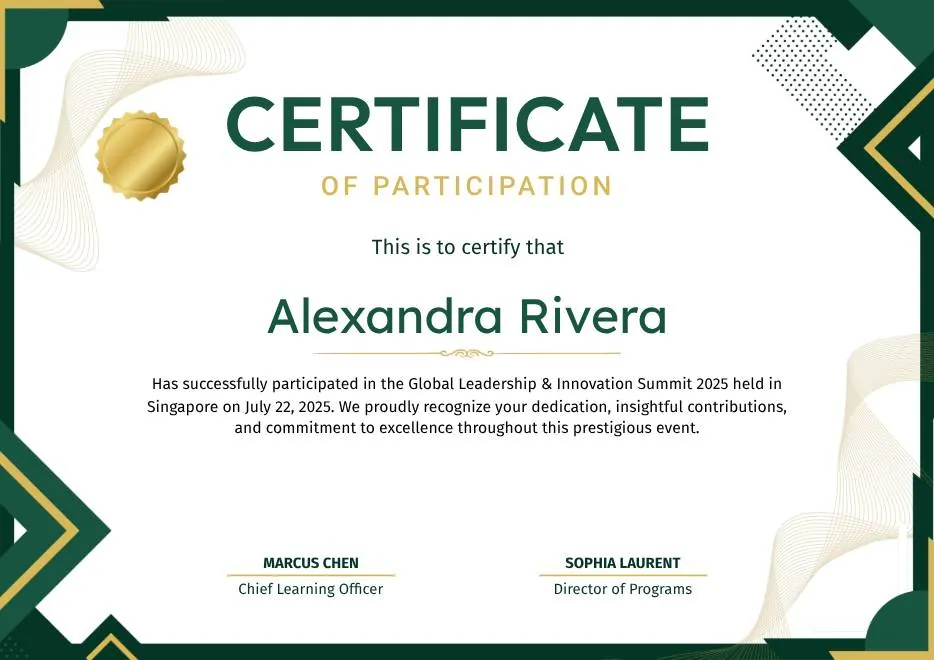
Green and Gold Geometric Modern Certificate of Participation
-
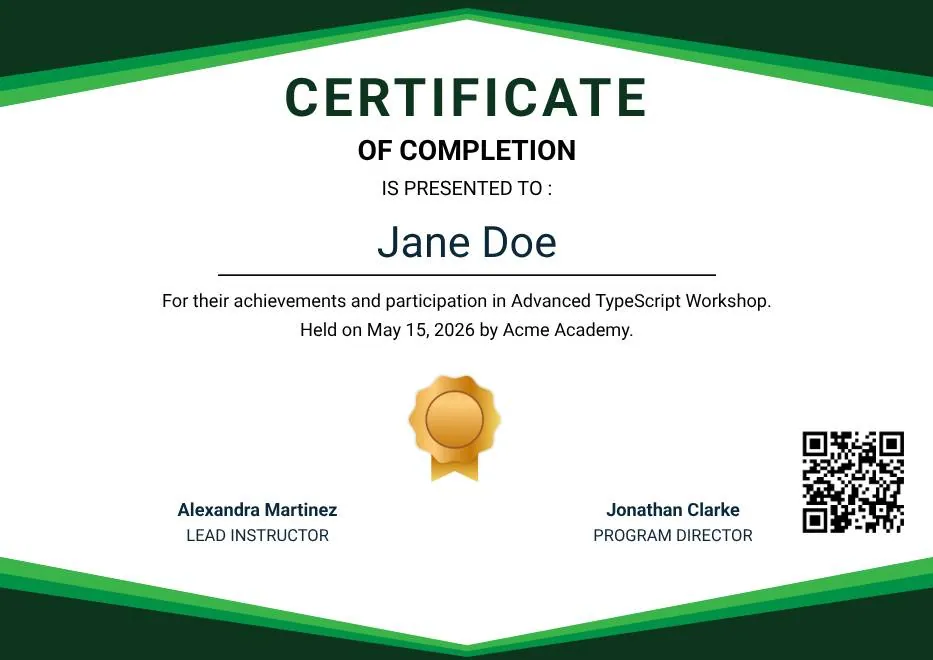
Green Modern Event Completion Certificate
-
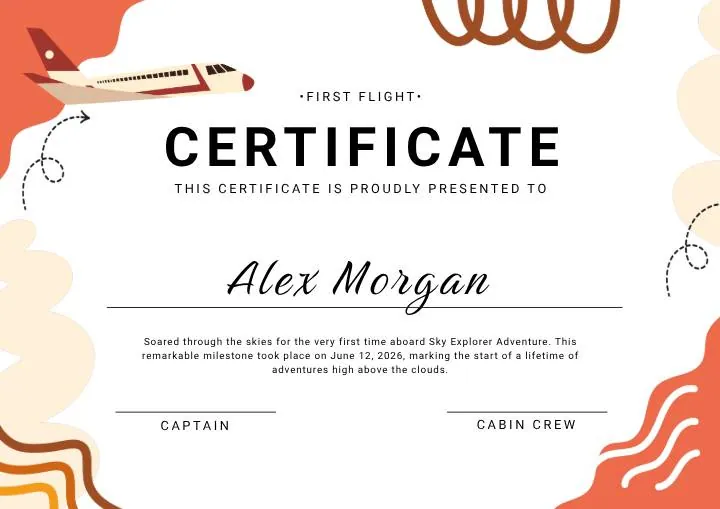
Orange and Brown Colorful Illustrated First Flight Certificate
-
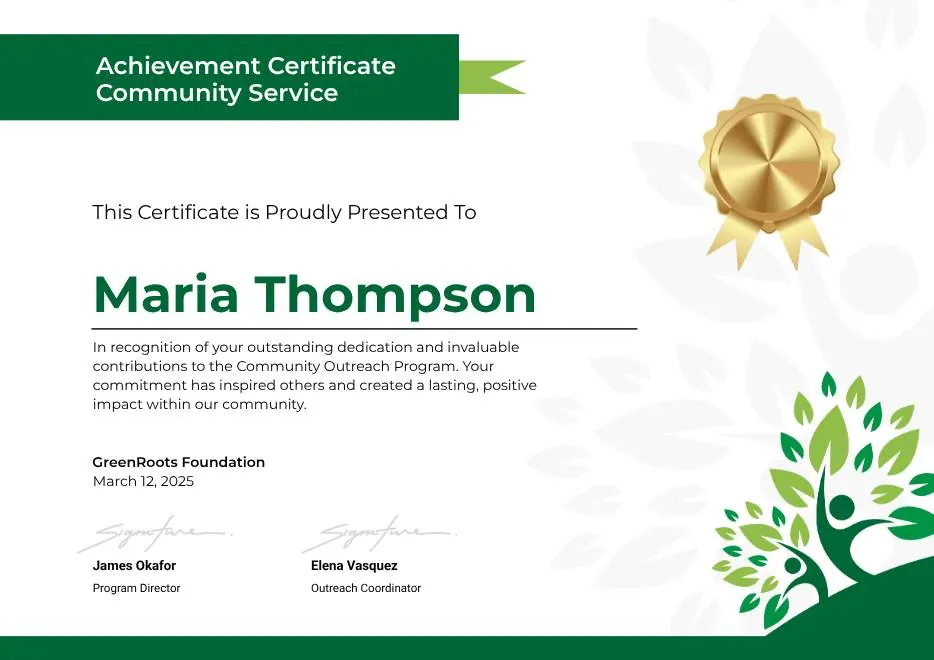
Green Clean Achievement Community Service Certificate
-
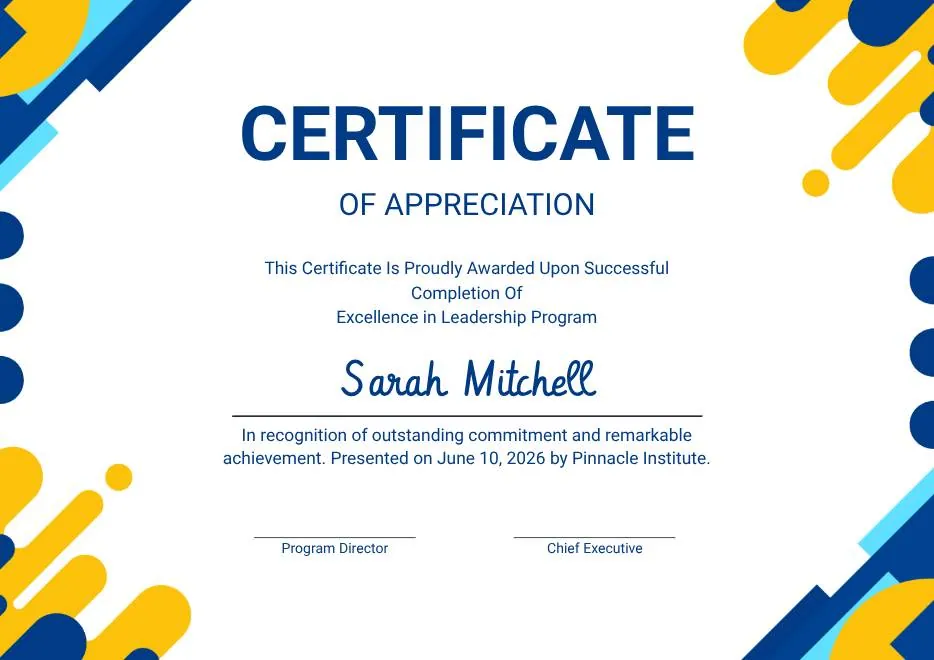
Yellow and Blue Modern Certificate of Appreciation
-

Colorful Funny Dinosaur Kids Certificate
-
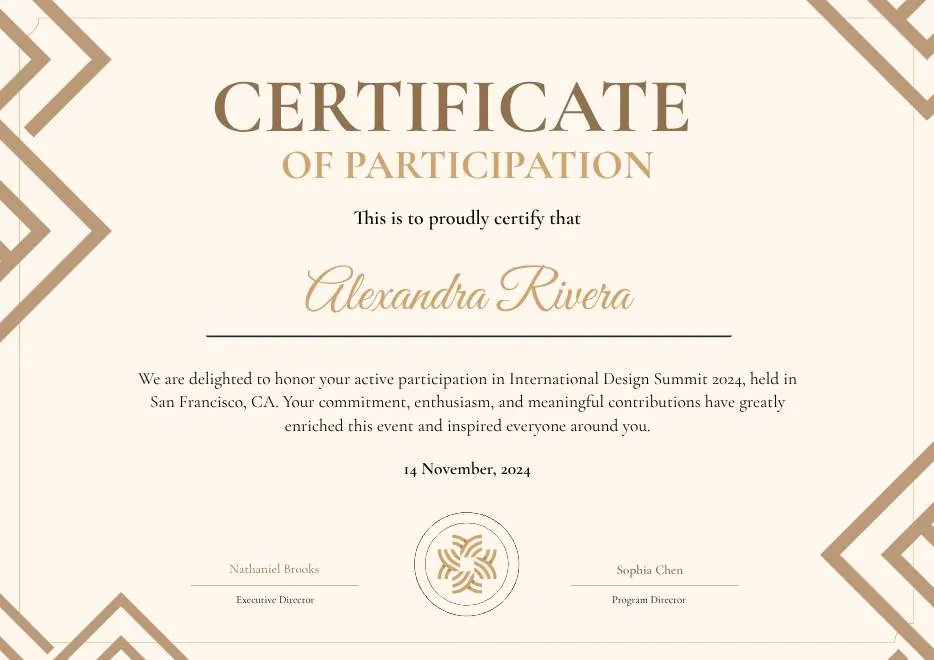
Brown Modern Geometric Participation Certificate
-
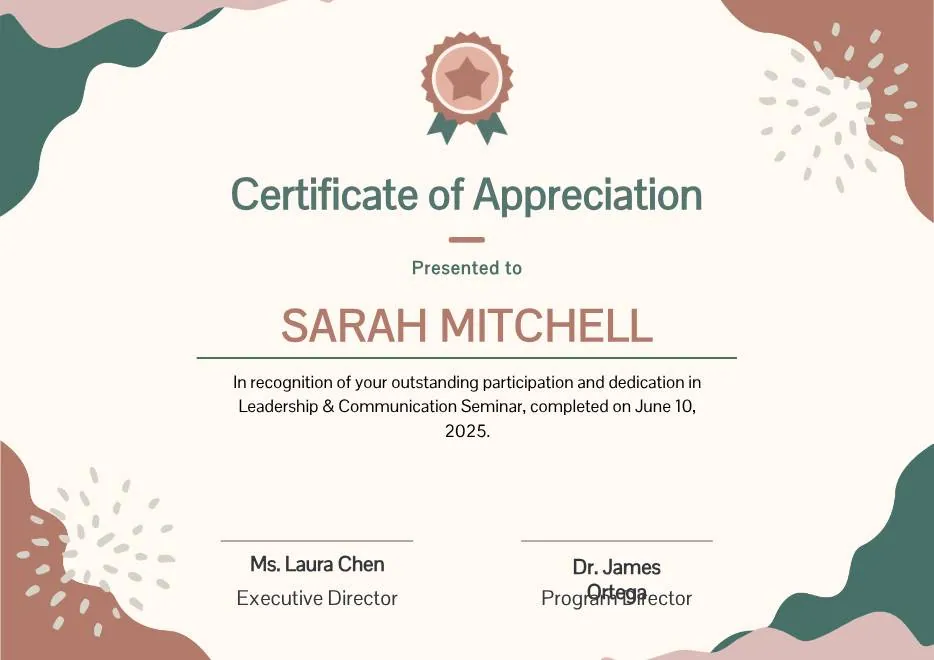
Beige Blob Appreciation Seminar Certificate
-
Navy and Gold Modern Appreciation Certificate
-
White Geometric Petal Pattern Certificate of Recognition
-
Green and Gold Modern Elegant Sport Achievement Certificate
-
Blue and Gold Appreciation Certificate
-
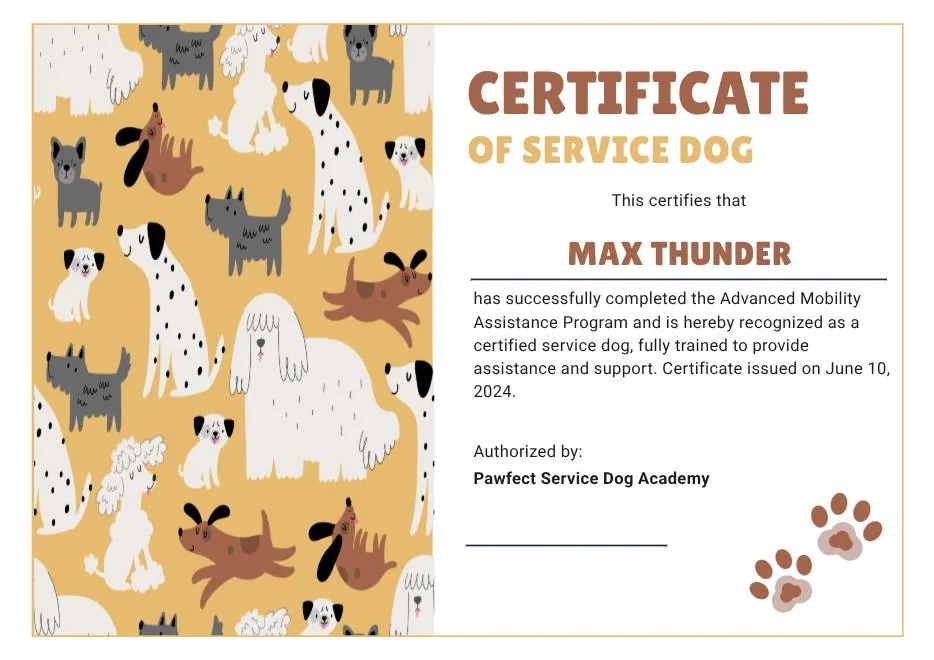
Tan White and Black Illustrated Service Dog Certificate
-
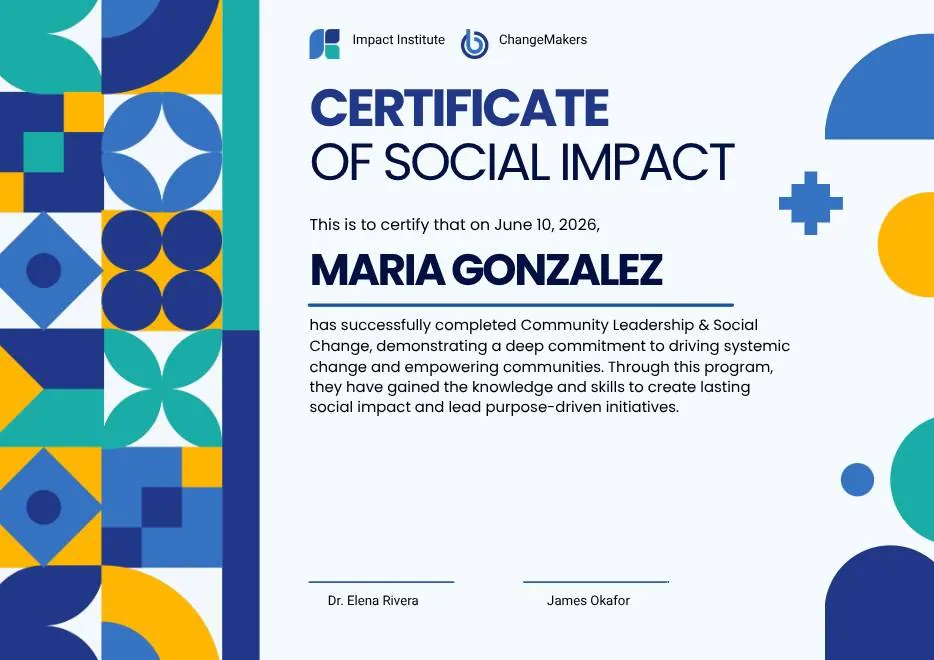
Blue and Yellow Geometric Certificate of Social Impact
-
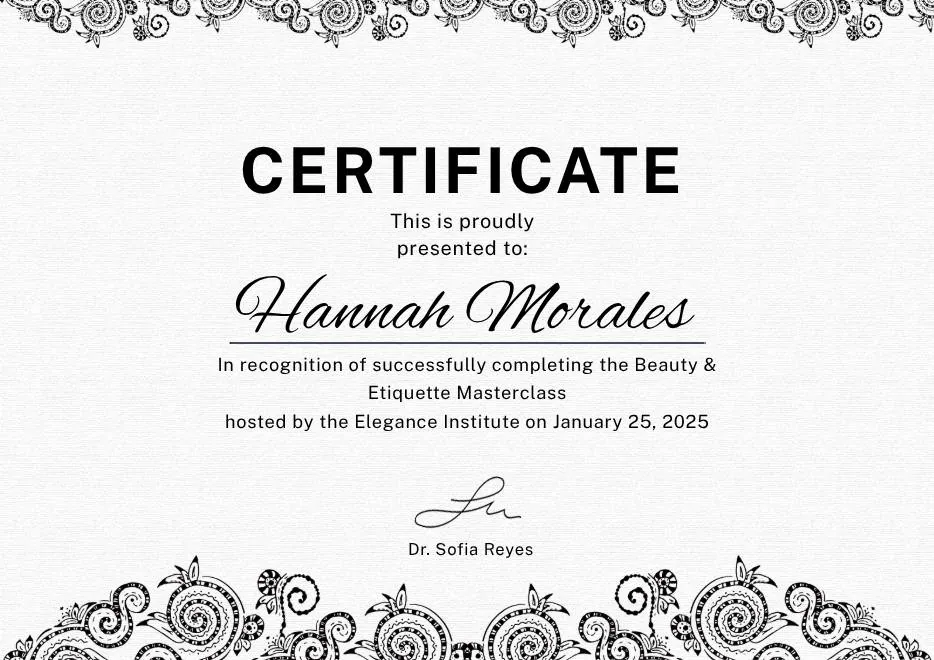
Black White Elegant Certificate Template
-
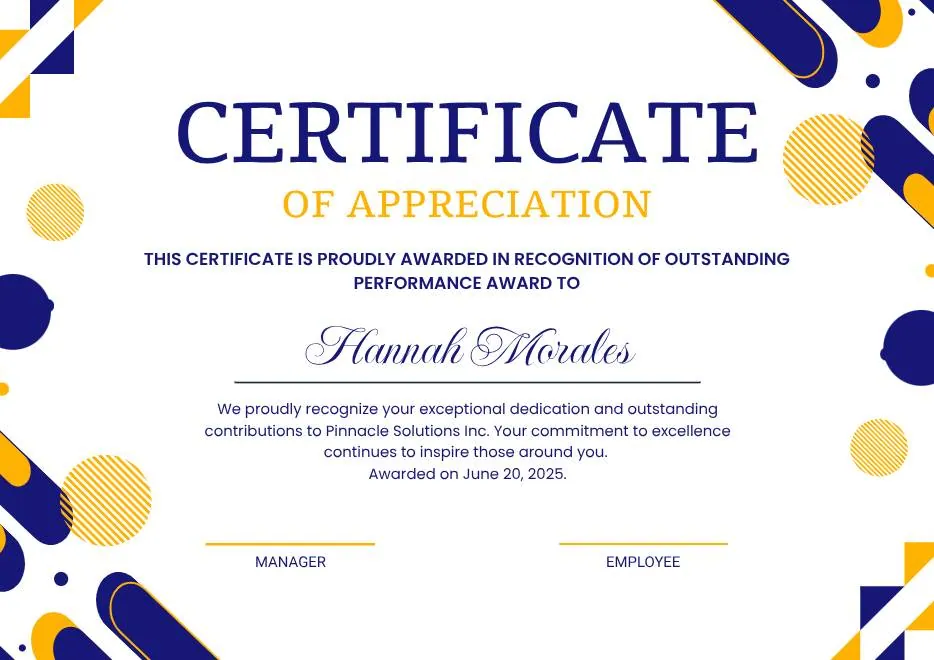
Blue Yellow and White Modern Appreciation Certificate
-
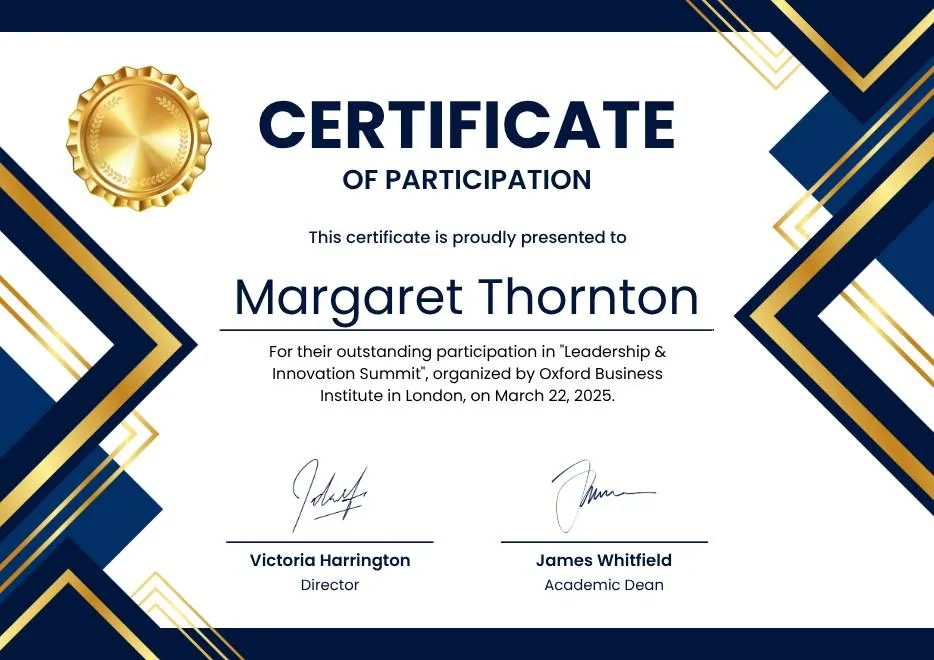
Blue White Gold Modern Participation Certificate
-
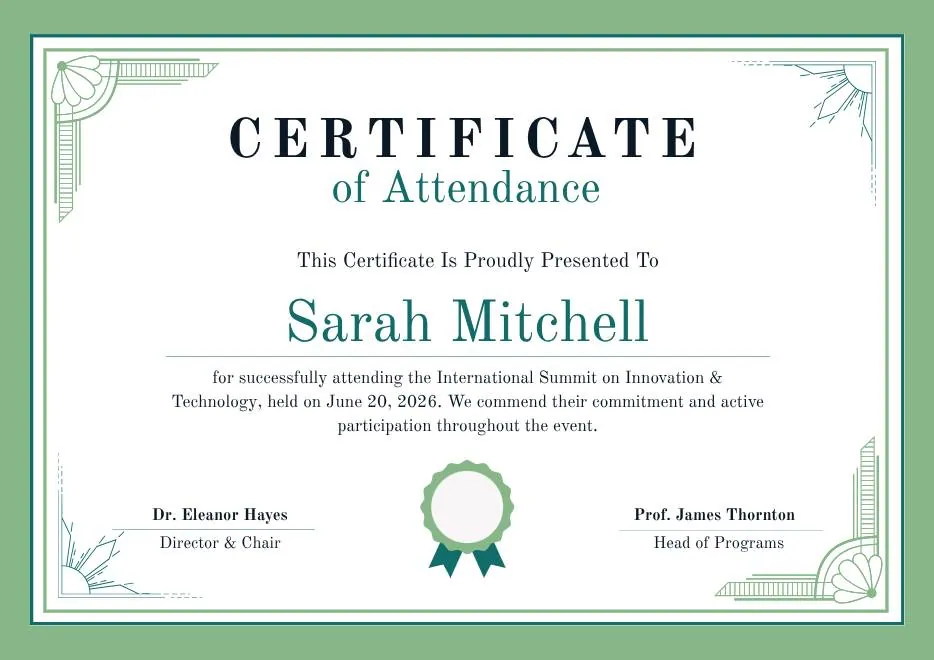
Green White Classic Minimalist Attendance Certificate
-
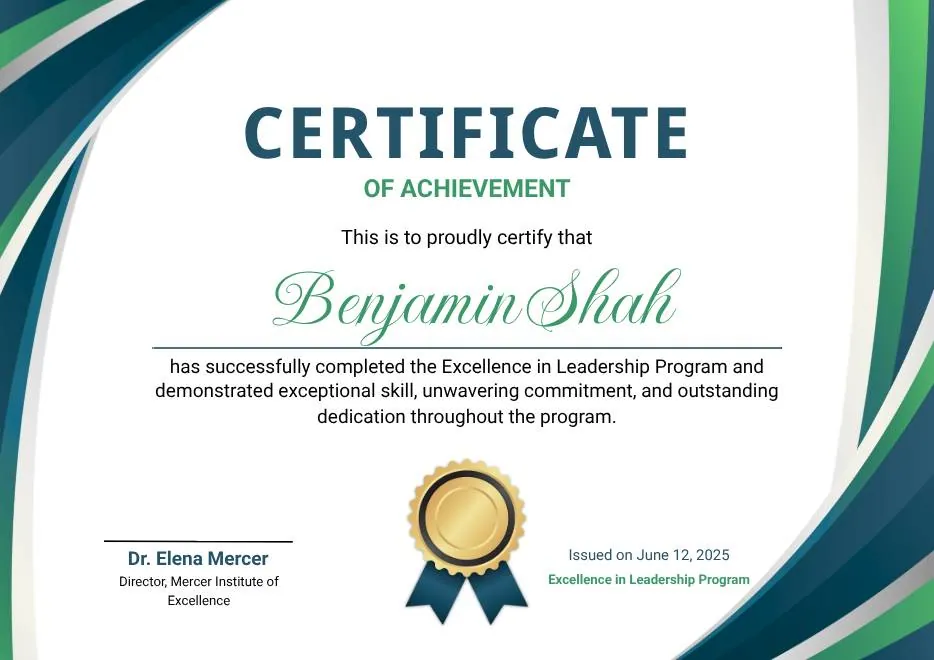
Blue and Green Modern Achievement Certificate
-
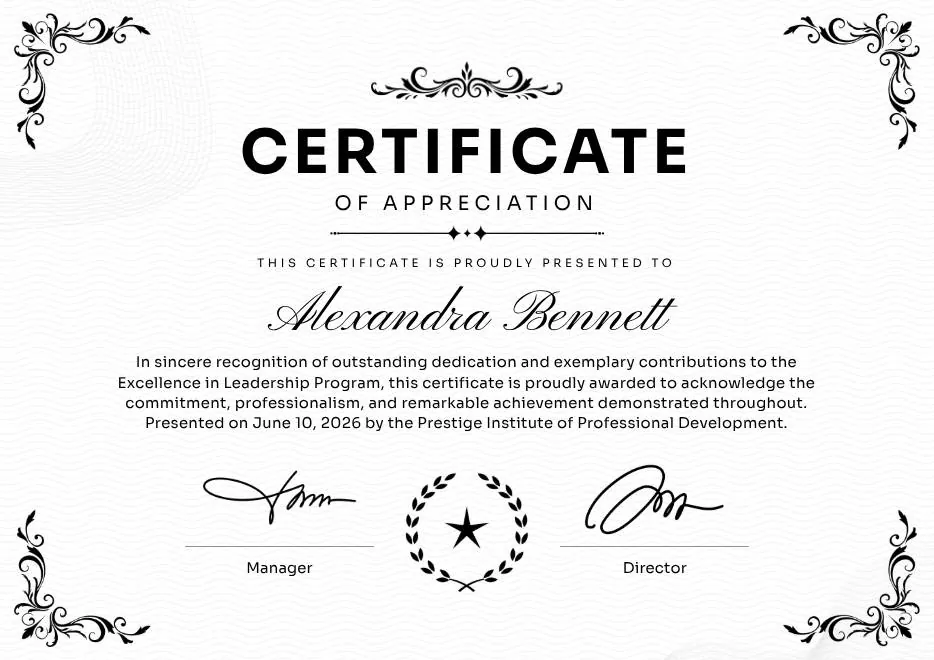
Black and White Traditional Appreciation Certificate A4
-
Colorful Abstract Waves Modern Participation Certificate
-
Green and Gold Modern Leadership Achievement Certificate
-
Teal Watercolor Elegant Certificate of Excellence
-
Blue and Yellow Modern Certificate of Excellence
-
Classic Floral Border Certificate of Achievement
-
Modern White and Green Certificate of Excellence
-
Beige Classic Certificate of Achievement
-
Colorful Brushstroke Art Certificate of Participation
-
Gold Elegant Workshop Participation Certificate
-
Blue and Gold Modern Certificate of Appreciation
-
Blue and Green Traditional Certificate of Achievement
-
Beige Brown Aesthetic Real Estate Course Completion Certificate
-
Green and Gold Elegant Internship Certificate
-
Green and Gold Geometric Modern Certificate of Participation
-
Green Modern Event Completion Certificate
-
Orange and Brown Colorful Illustrated First Flight Certificate
-
Green Clean Achievement Community Service Certificate
-
Yellow and Blue Modern Certificate of Appreciation
-
Colorful Funny Dinosaur Kids Certificate
-
Brown Modern Geometric Participation Certificate
-
Beige Blob Appreciation Seminar Certificate
-
Navy and Gold Modern Appreciation Certificate
-
White Geometric Petal Pattern Certificate of Recognition
-
Green and Gold Modern Elegant Sport Achievement Certificate
-
Blue and Gold Appreciation Certificate
-
Tan White and Black Illustrated Service Dog Certificate
-
Blue and Yellow Geometric Certificate of Social Impact
-
Black White Elegant Certificate Template
-
Blue Yellow and White Modern Appreciation Certificate
-
Blue White Gold Modern Participation Certificate
-
Green White Classic Minimalist Attendance Certificate
-
Blue and Green Modern Achievement Certificate
-
Black and White Traditional Appreciation Certificate A4
Questions about email delivery
What teams ask before their first send
Is the certificate attached to the email?
Do I have to write the email myself?
Can I send to only some recipients in a batch?
What happens if an email fails?
Can certificates be emailed automatically?
Send your first batch of certificates
Free for your first 100 certificates a year — no credit card required.