Account & teams
Send from your own email address
Last updated: November 3, 2026
On Plus and Professional, certificate emails can come from your own address, such as certificates@yourdomain.com, sent through your own email server or Resend account.
By default, CertSeal sends certificate emails from its own address, as “Your organization via CertSeal” <cert_delivery@certseal.app>. On the Plus and Professional plans you can send them from your own address instead:
- Recipients see “Your organization” <certificates@yourdomain.com>.
- You choose where replies go.
- Every certificate email uses it: batches you send, Zoom automations, Zapier, the REST API and AI apps.
Every email still ends with a short footer saying it was sent using CertSeal and how to report an unexpected email.
Before you start
- You need to be an owner or admin of the organization, on the Plus or Professional plan.
- You need one of these:
- An SMTP server you can send from: Microsoft 365, Google Workspace, Amazon SES, SendGrid, Postmark, Mailgun or your own.
- A Resend account with your domain verified in it.
- Set up SPF, DKIM and DMARC for your domain with that provider, as you would for any email you send. CertSeal doesn’t need any DNS changes.
Open Email sending
Open Organization in the sidebar and scroll to Email sending. The top of the card shows how certificate emails are sent right now and where replies go.
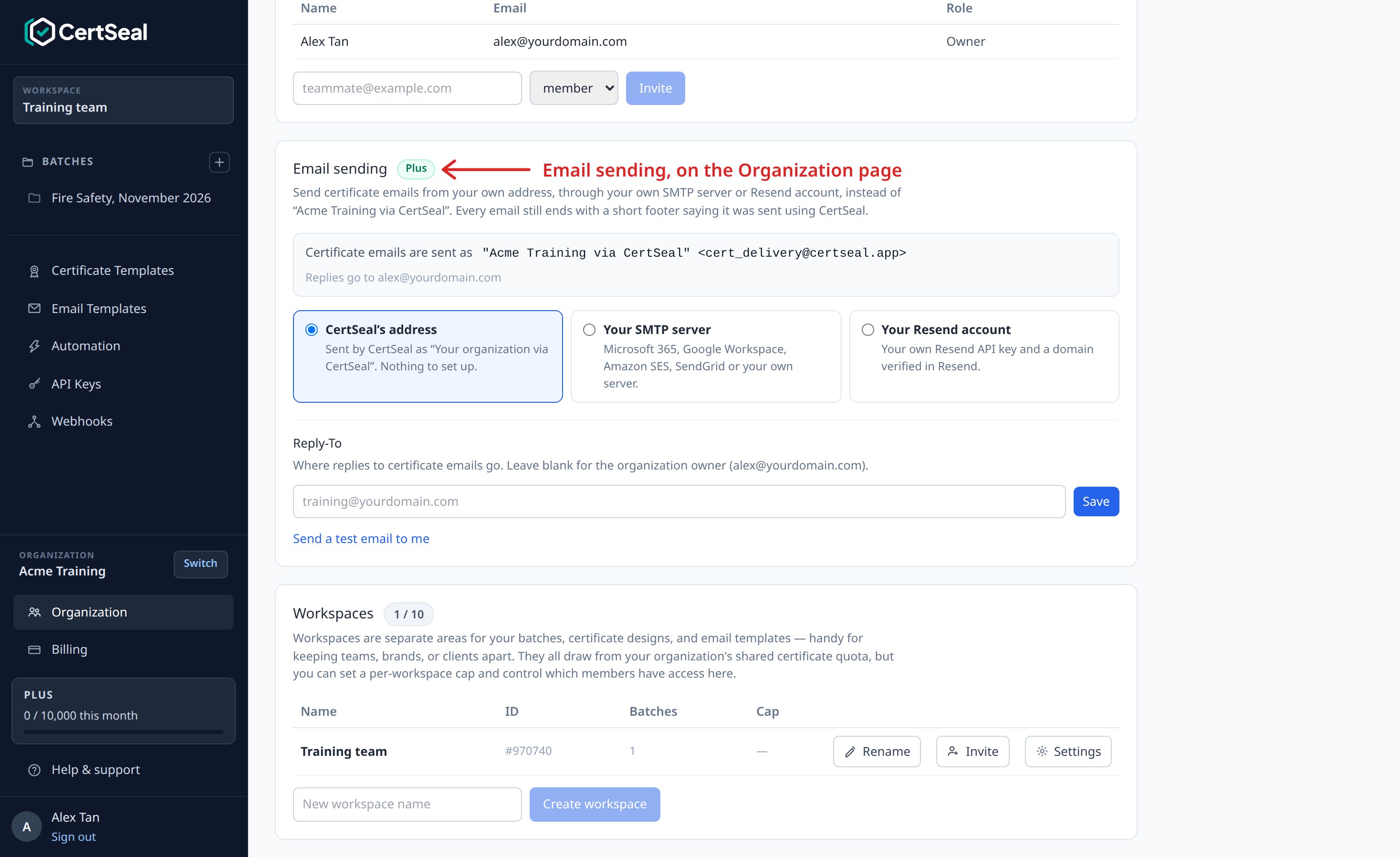
Choose Your SMTP server or Your Resend account, fill in the details, and click Save and send test email. CertSeal sends a test email through your server or account to you. Your settings are saved, and certificate emails switch to your address, only once that test arrives.
Send through your SMTP server
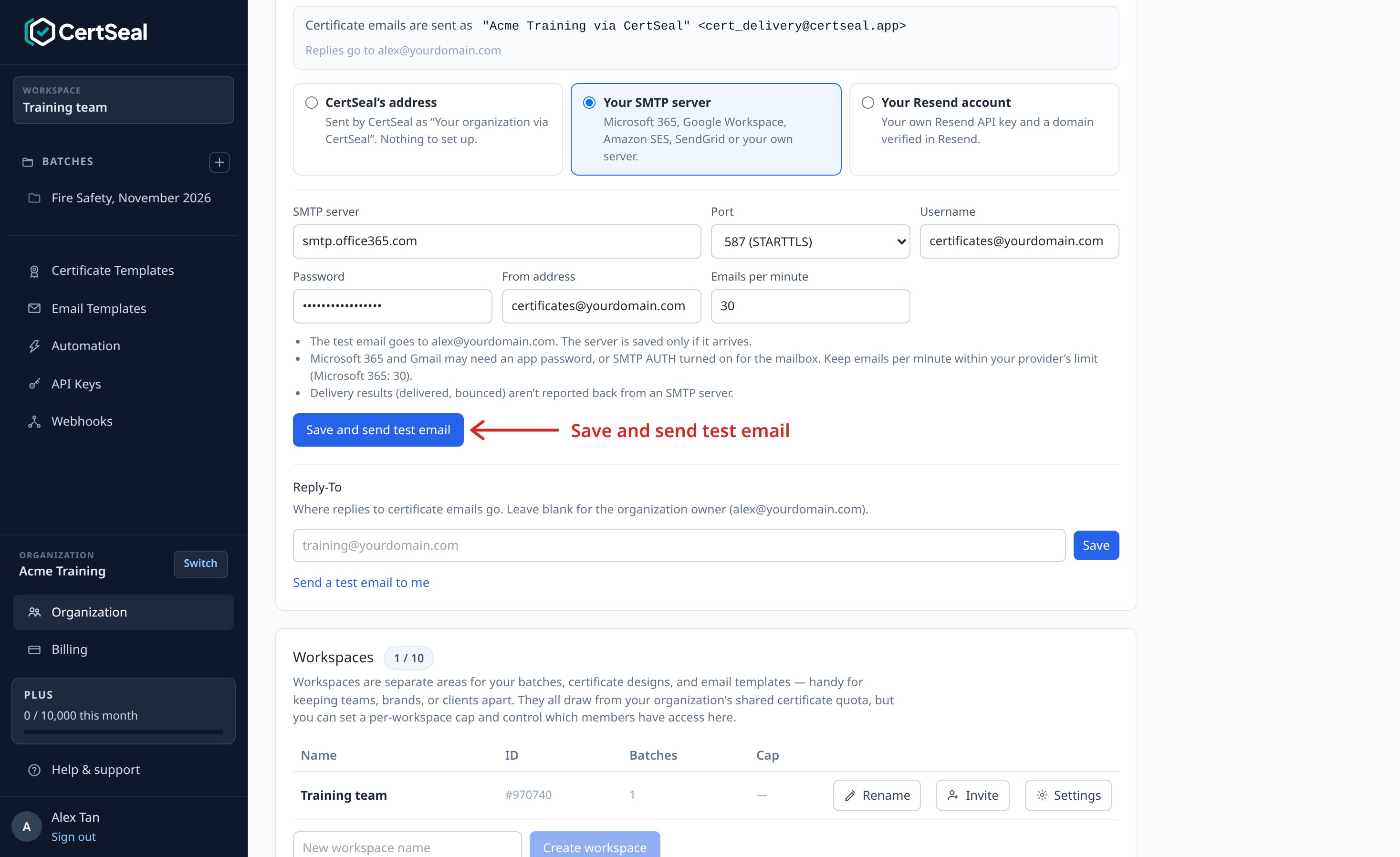
- Choose Your SMTP server.
- Enter the SMTP server, Port, Username and Password from your email provider (see the table below).
- Enter the From address. Your server must allow this login to send as that address.
- Set Emails per minute to stay within your provider’s limit. Large batches are spread out at this pace.
- Click Save and send test email.
| Provider | SMTP server | Port | Username and password |
|---|---|---|---|
| Microsoft 365 | smtp.office365.com | 587 | The mailbox address and its password. Turn on Authenticated SMTP for the mailbox in the Microsoft 365 admin center. |
| Google Workspace or Gmail | smtp.gmail.com | 587 or 465 | The full email address and an app password (needs 2-Step Verification). |
| Amazon SES | email-smtp.<region>.amazonaws.com | 587 or 465 | The SMTP credentials you create in the SES console (not your AWS access keys). |
| SendGrid | smtp.sendgrid.net | 587 | Username apikey, password a SendGrid API key. |
| Postmark | smtp.postmarkapp.com | 587 or 2525 | Your server API token as both username and password. |
| Mailgun | smtp.mailgun.org | 587 | The SMTP login and password from your domain’s settings in Mailgun. |
CertSeal always uses an encrypted connection: TLS on port 465, or STARTTLS on ports 587 and 2525. Port 25 isn’t supported.
When the test passes, the panel shows Working and the card shows your address.
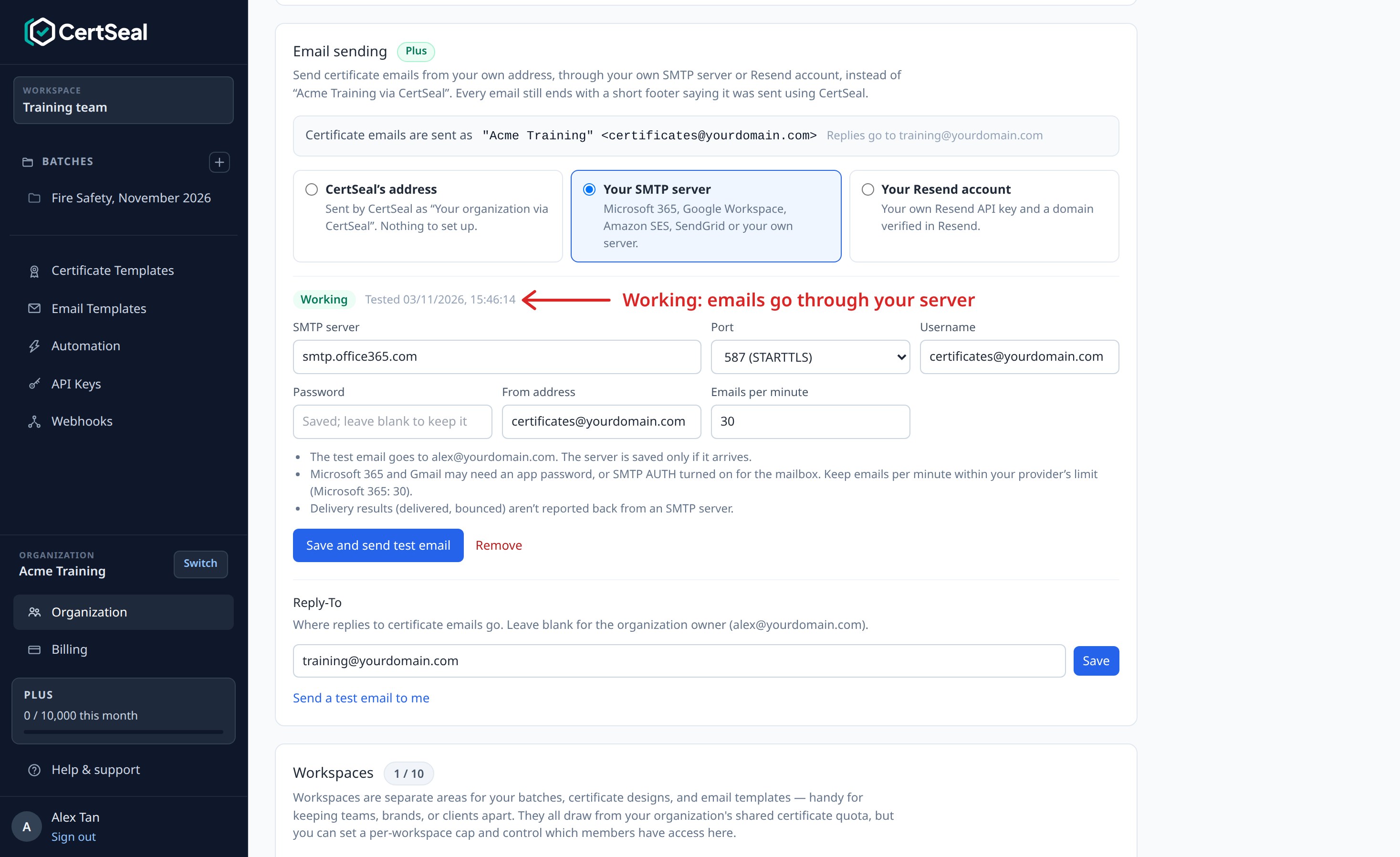
An SMTP server doesn’t report back what happened after it accepted an email, so recipients show Sent or Failed but not Delivered or Bounced.
Send through your Resend account
- In Resend, verify your domain under Domains.
- Under API Keys, create a key with Sending access, limited to that domain.
- In CertSeal, choose Your Resend account and paste the API key.
- Enter a From address on your verified domain and the Emails per minute.
- Click Save and send test email.
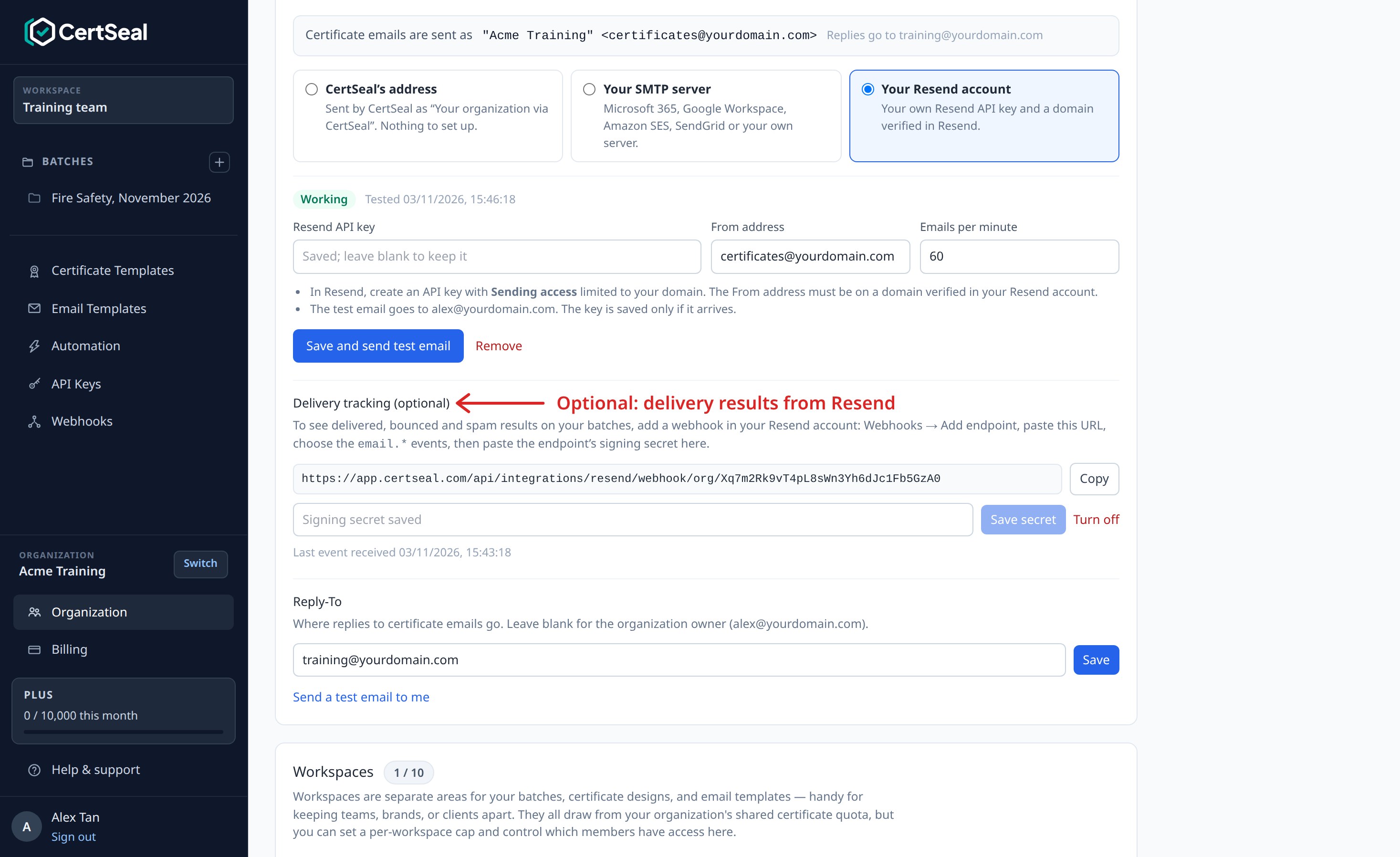
Delivery tracking (optional)
To see Delivered, Bounced and Marked as spam on your batches, add a webhook in your Resend account:
- Copy the webhook URL shown under Delivery tracking in CertSeal.
- In Resend, open Webhooks, choose Add endpoint, paste the URL, and select the
email.*events. - Copy the endpoint’s signing secret (it starts with
whsec_), paste it into CertSeal, and click Save secret.
Last event received shows when Resend last reported a result.
Choose where replies go
Under Reply-To, enter the address that should receive replies to certificate emails, such as training@yourdomain.com, and click Save. Leave it blank to send replies to the organization owner.
If your server or key stops working
If your server stops accepting the login, your API key is revoked, or your domain is no longer verified, CertSeal stops using it:
- Certificate emails go out from CertSeal’s address instead, so they still arrive.
- Owners and admins get an email saying what went wrong, and the card shows the error.
- To switch back, fix the problem and click Save and send test email again.
The same happens if your plan changes to Starter or Free. Your settings are kept and are used again when you upgrade.
Change or remove your settings
- Switch back to CertSeal’s address: choose CertSeal’s address and click Send from CertSeal’s address. Your saved server or key stays saved.
- Change a setting: edit it and click Save and send test email. Leave the password or API key blank to keep the saved one.
- Remove: click Remove in the panel. CertSeal deletes the saved password or key.
Your SMTP password and Resend API key are encrypted when saved and never shown again.
Troubleshooting
- “535 Authentication credentials invalid” or another login error: check the username and password. Microsoft 365 needs Authenticated SMTP turned on for the mailbox. Gmail needs an app password, not your normal password.
- A TLS or certificate error: the server must support STARTTLS on port 587 or 2525, or TLS on port 465, with a valid certificate for the server name you entered. Check the server name and port with your provider.
- “The SMTP server must be on the public internet”: CertSeal can only reach servers with a public address.
- “isn’t verified in your Resend account”: verify the From address’s domain under Domains in Resend, or use a From address on a domain that’s already verified.
- “This API key can’t send from…”: create a Sending access key for the From address’s domain.
- Emails arrive in spam: check SPF, DKIM and DMARC for your domain with your email provider.
Support
Questions about sending from your own address? Email support@certseal.com and a real person will reply, typically within 1 business day (Monday–Friday, 9:00 AM–6:00 PM SGT). See the support guide for all contact options.