Excel certificate generator
Generate certificates from an Excel sheet
Upload your spreadsheet, match the columns to your design, and get a personalized certificate for every row — ready to download or email, no mail merge required.
Capabilities
Your spreadsheet already has everything a certificate needs
Names, dates, scores, hours. CertSeal reads the columns you already keep and puts them where they belong on the certificate.
XLSX, CSV, or TSV
Import the spreadsheet you already have. Download the sample XLSX or CSV if you want to see the expected columns before you start.
Every column becomes a field
Name and email are the only required columns. Add score, hours, or cohort and use them on the certificate as {{score}}, {{hours}}, or {{cohort}}.
Dates printed your way
Set a date format per batch with tokens like DD MMMM YYYY, and every issue and expiry date on the certificate prints the same way.
Your IDs or ours
Keep the certificate numbers from your spreadsheet in a certificate_id column, or let CertSeal number every certificate automatically.
A PDF for every row
Preview any recipient's certificate with their data merged in, and download their PDF straight from the recipient table.
Emailed, not just generated
Unlike a mail merge, you're not left with a folder of files to send. Select the rows and CertSeal emails each person a link to their certificate.
Excel to certificates
Four steps from spreadsheet to certificates
- 01
Prepare the sheet
One row per recipient, with name and email columns plus anything else you want printed. Working in Google Sheets? Download it as .xlsx or .csv.
- 02
Design the certificate
Pick a template and drop in fields that match your column headers, like {{recipient_name}} or {{hours}}.
- 03
Import into a batch
Create a batch, click Import CSV/XLSX, and upload the file. Each row becomes a recipient with their own certificate.
- 04
Preview and send
Spot-check a few certificates, then email everyone — or download the PDFs you need.
Compared with mail merge
Why not just mail merge in Word?
Mail merge gets names onto a page. Getting each certificate to the right person is where the hours go.
| Task | Word / Slides mail merge | CertSeal |
|---|---|---|
| Personalize from spreadsheet columns | Yes, field by field in Word or Slides | Yes — any column becomes a {{field}} |
| One PDF per recipient | Usually one long document to split or export | Automatic, downloadable per recipient |
| Email each person their certificate | A second merge in Outlook, or by hand | Built in, with a status for every recipient |
| Unique link and QR code per certificate | Not available | Every certificate gets its own link |
| Fix a typo after sending | Regenerate and resend the file | Edit the recipient; the same link updates |
Templates
Pick a design for your spreadsheet
Every template is fully editable — add fields that match your column headers and every row fills in automatically.
-

Blue Modern Certificate of Completion
-
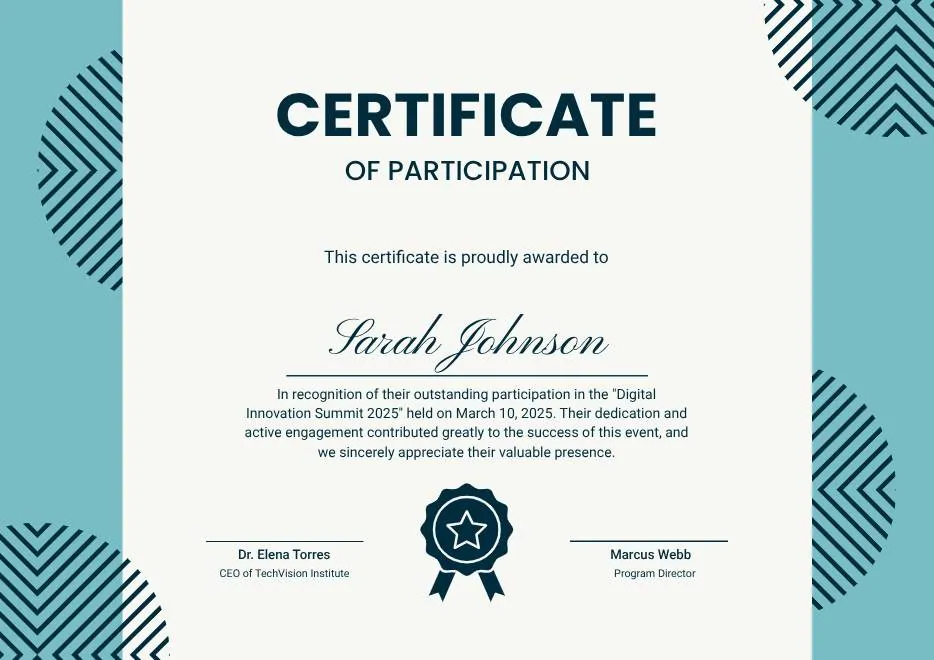
Teal Geometric Participation Certificate
-

Green Gold and White Modern Excellence Certificate
-
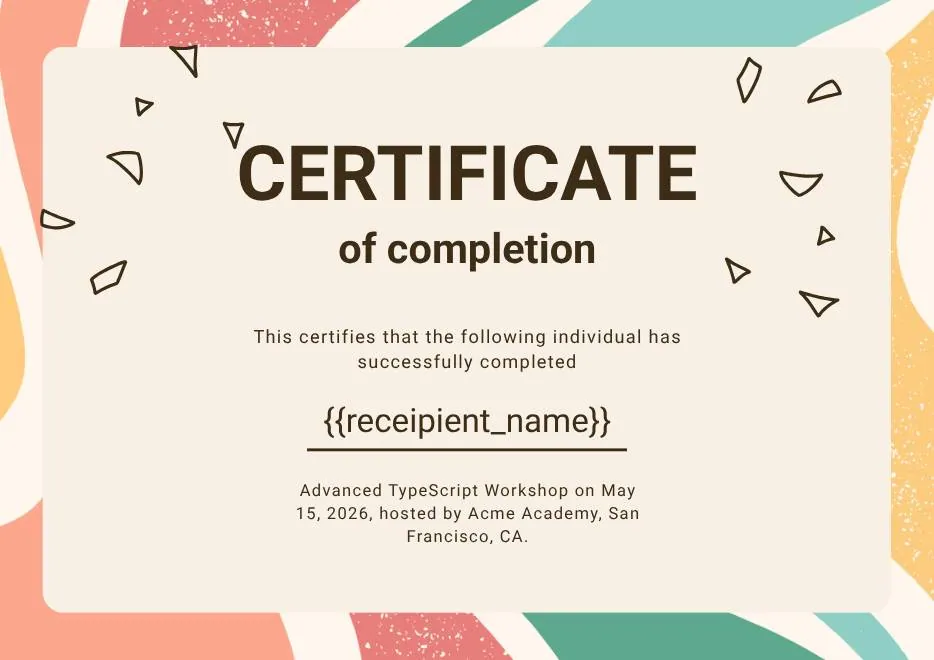
Certificate of Completion in Colorful Abstract Modern Style
-

Ivory Victorian Vintage Certificate of Excellence
-

Modern Vintage Certificate of Achievement
-
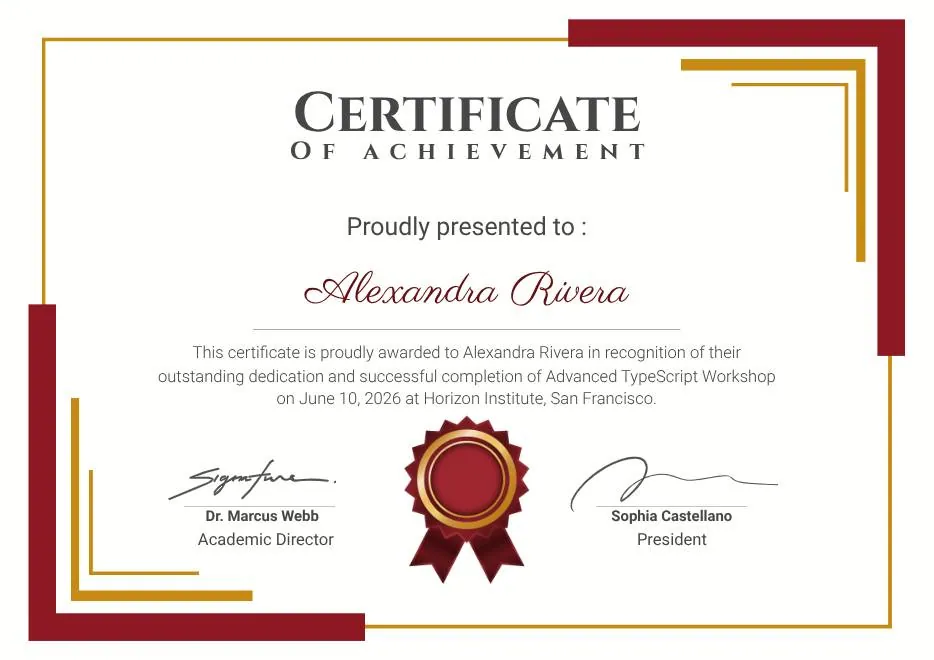
Red and Gold Achievement Certificate
-
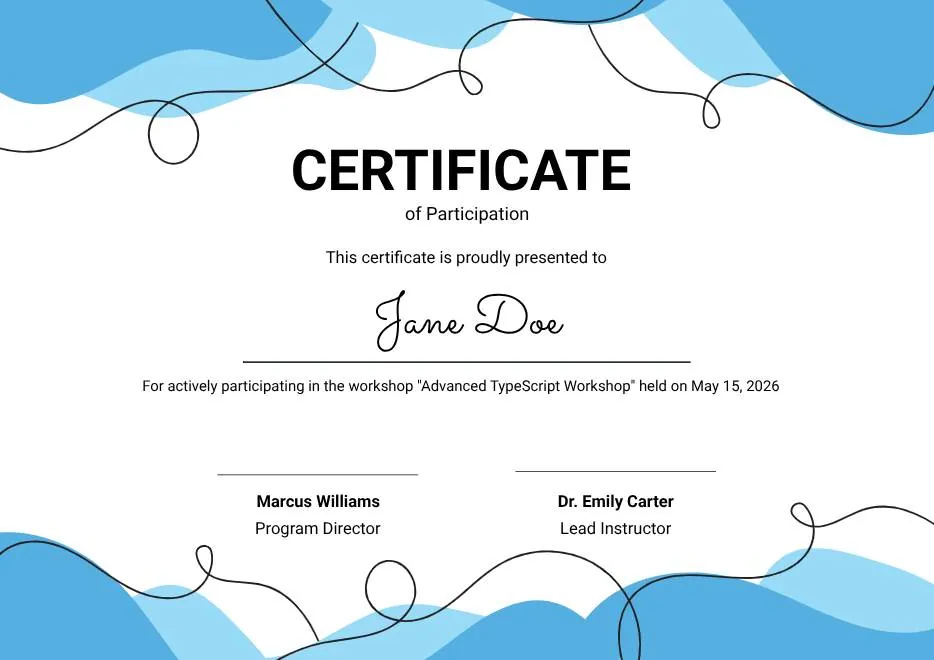
Blue Abstract Waves Participation Certificate
-
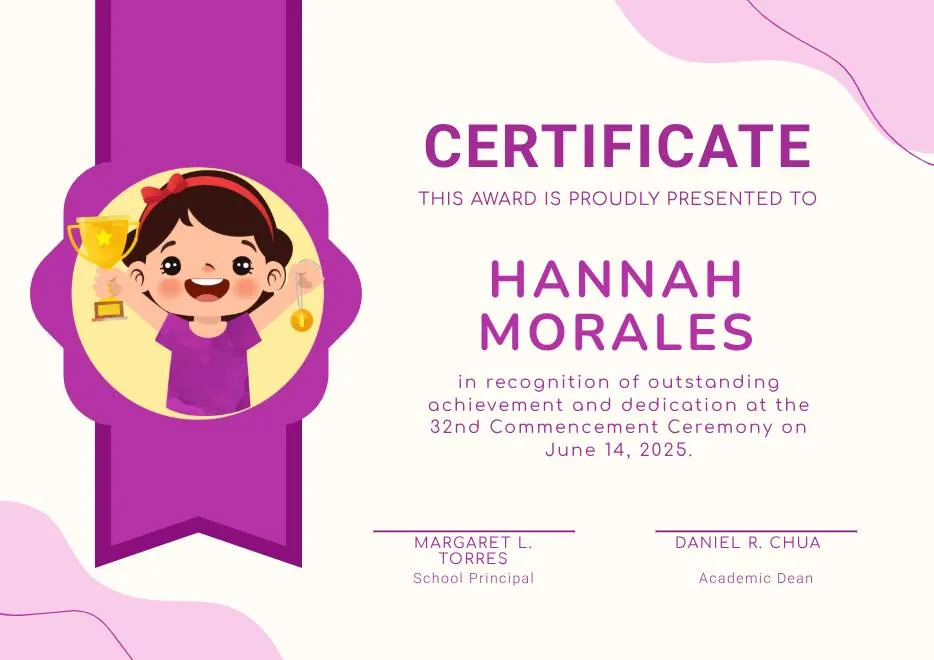
Purple Playfun Kids Award Certificate
-
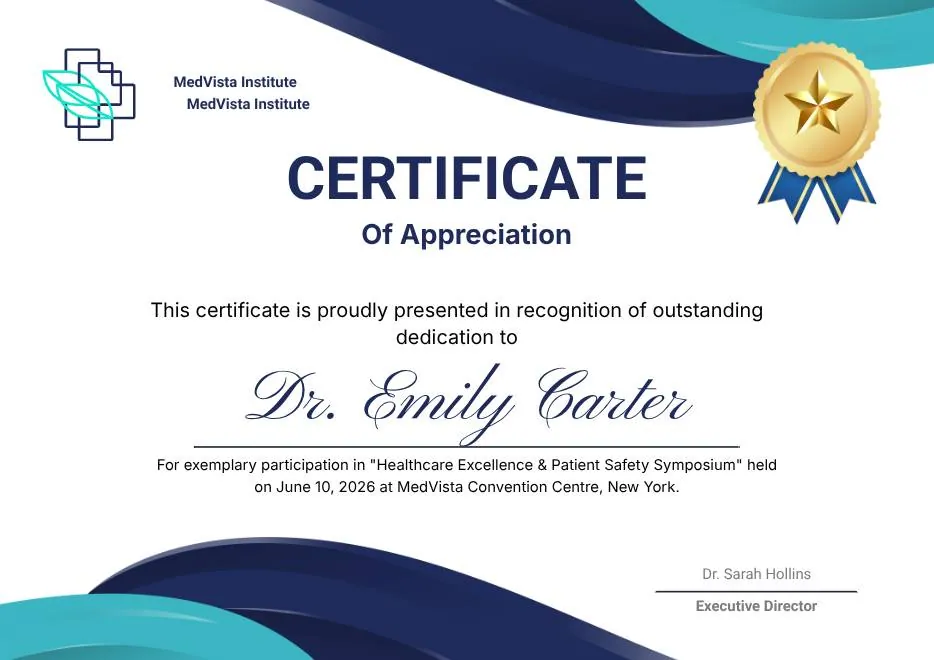
Blue Navy and Tosca Elegant Modern Medical Appreciation Certificate
-
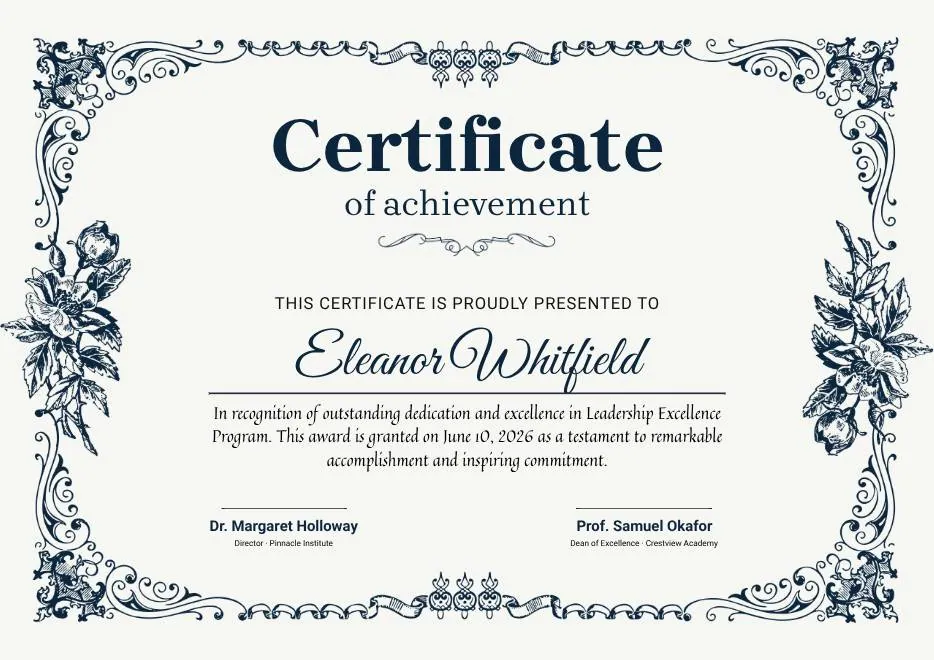
Modern Vintage Certificate of Achievement
-
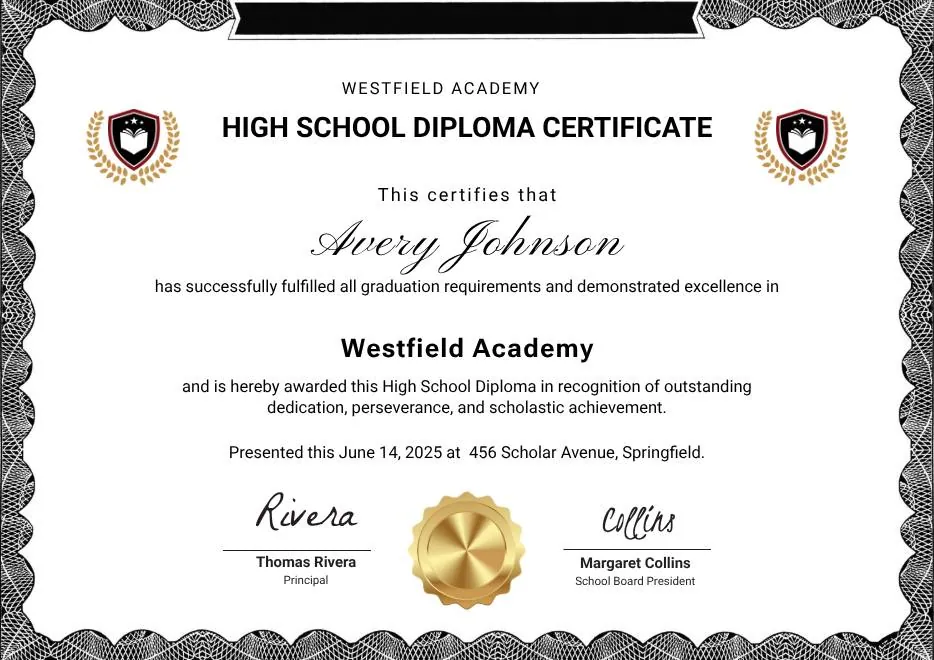
Black and White Modern High School Diploma Certificate
-
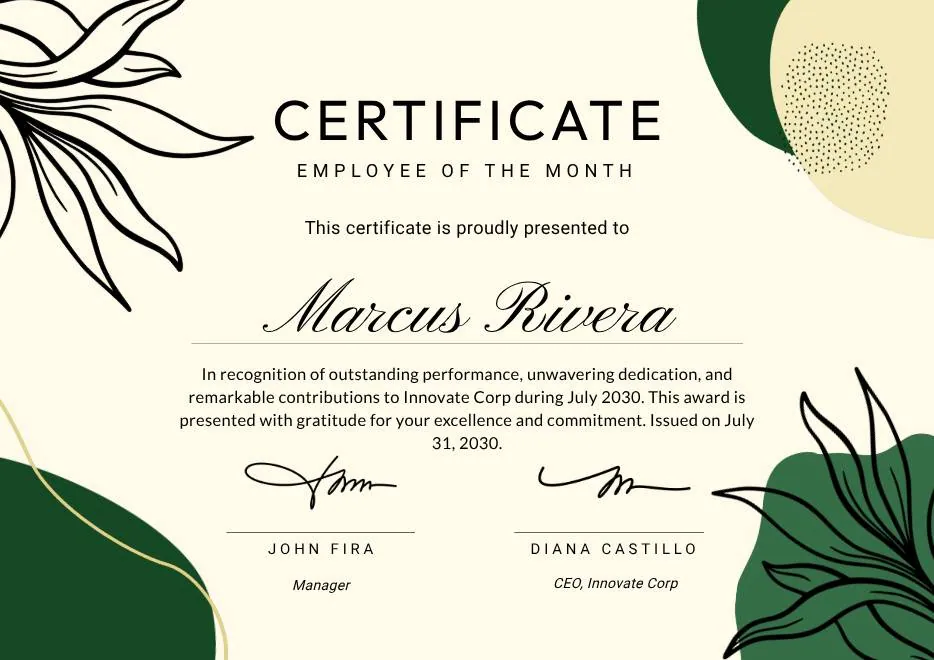
Green and Beige Botanical Employee of the Month Certificate
-
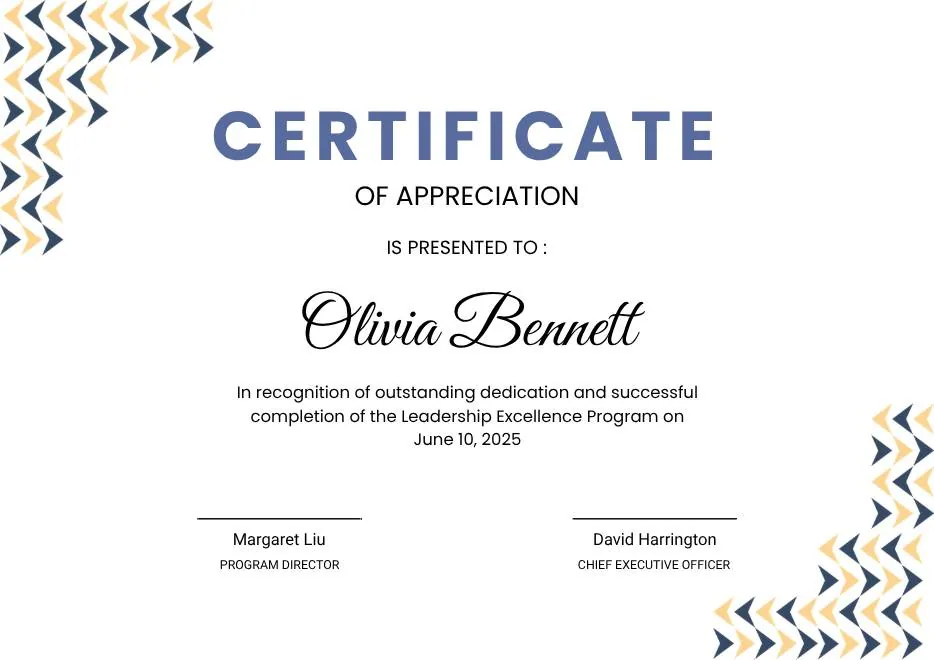
Blue Modern Certificate of Appreciation
-

Blue Modern Event Completion Certificate
-
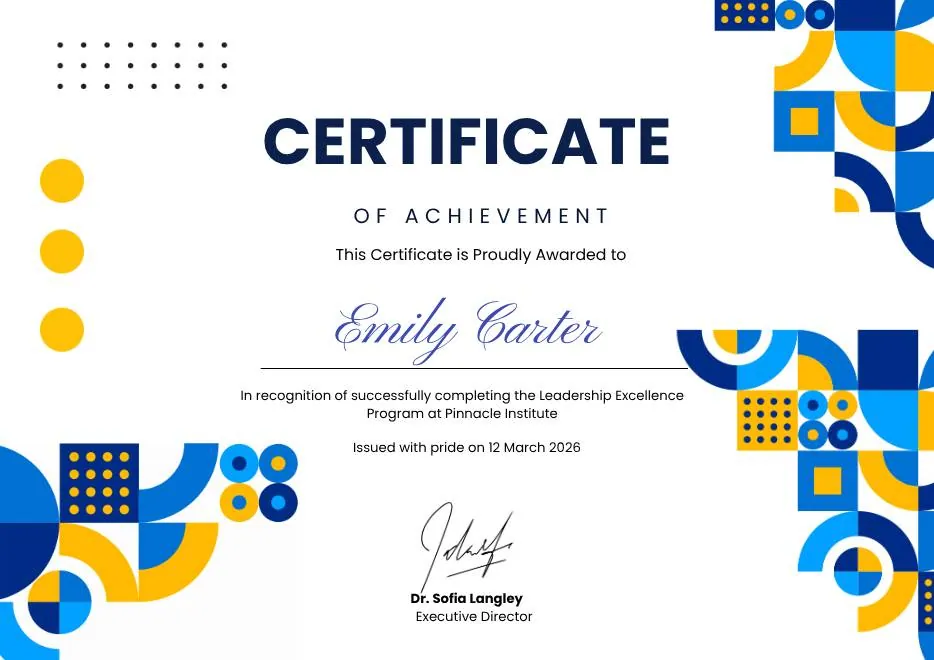
Blue and Yellow Geometric Achievement Certificate
-
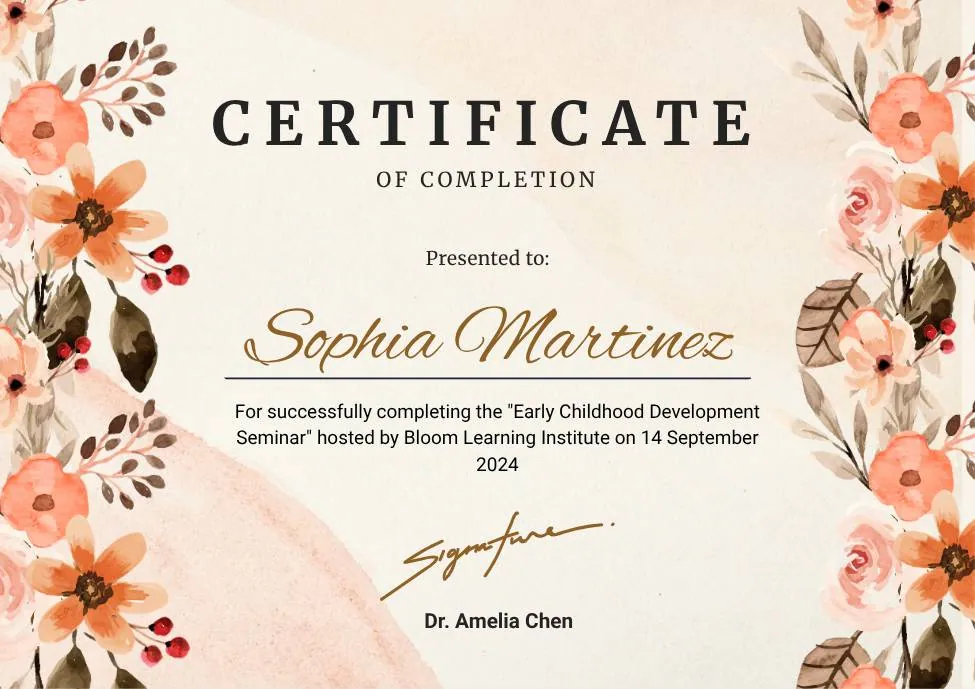
Beige Watercolor Floral Certificate of Completion
-
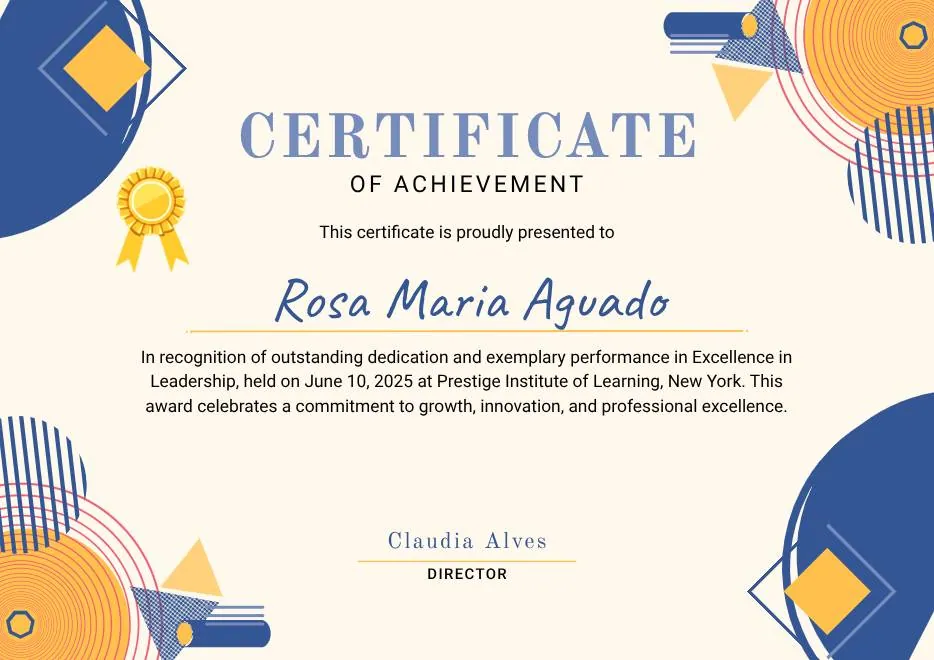
Blue Orange Modern Memphis Certificate of Achievement
-

Nexus Institute Bold Geometric Certificate of Achievement
-
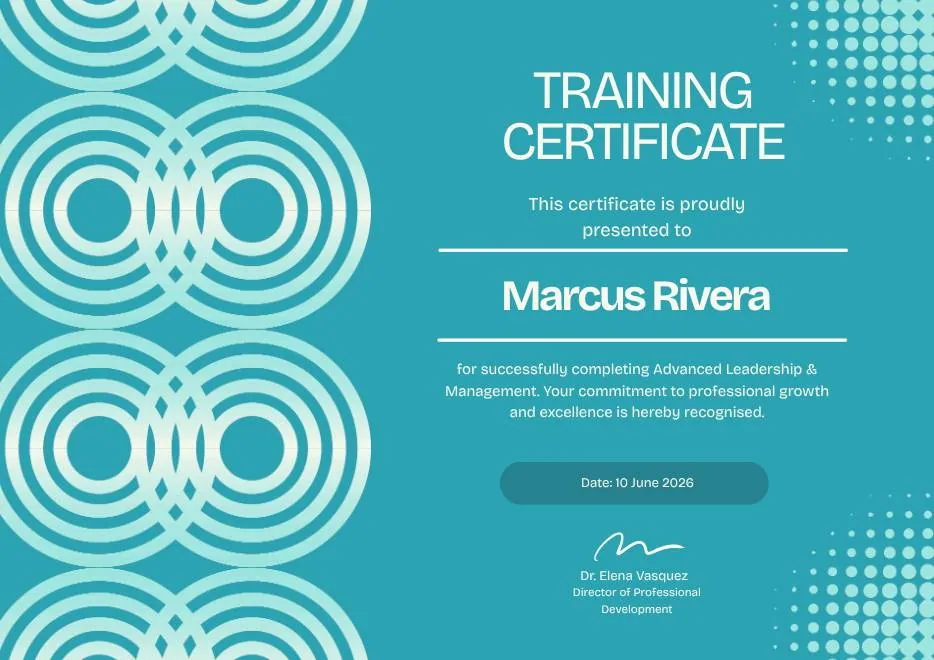
Blue Tosca Geometric Training Certificate
-
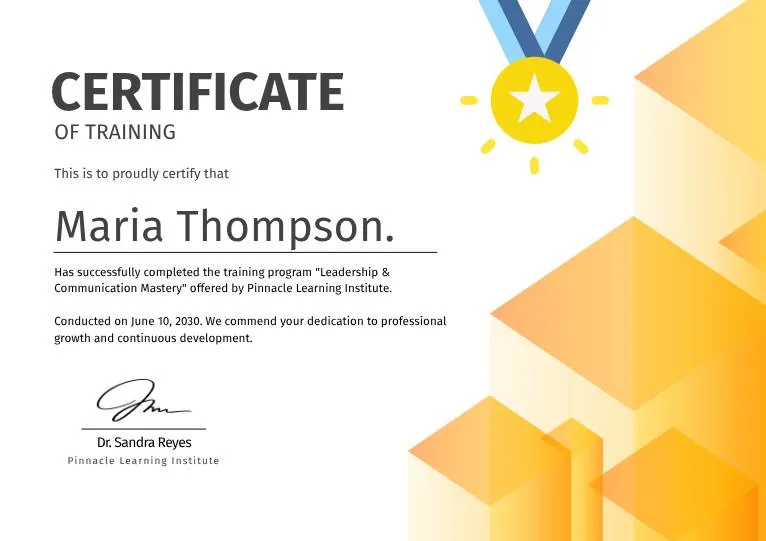
White and Yellow Modern Leadership Training Certificate
-

Junior Astronaut Training Certificate in Colorful Playful Style
-
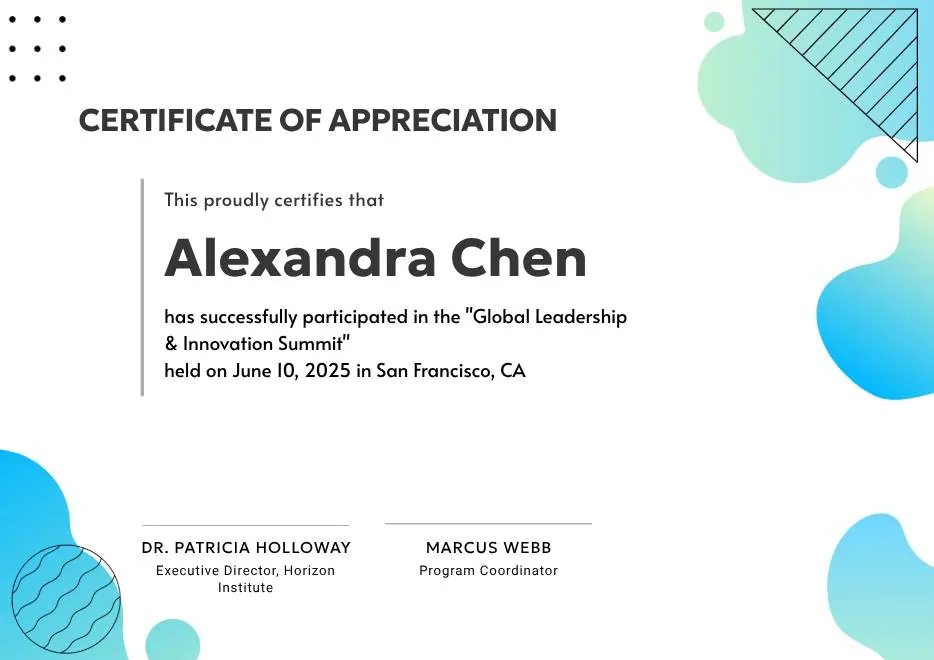
Certificate of Appreciation — Summit & Event Participation
-
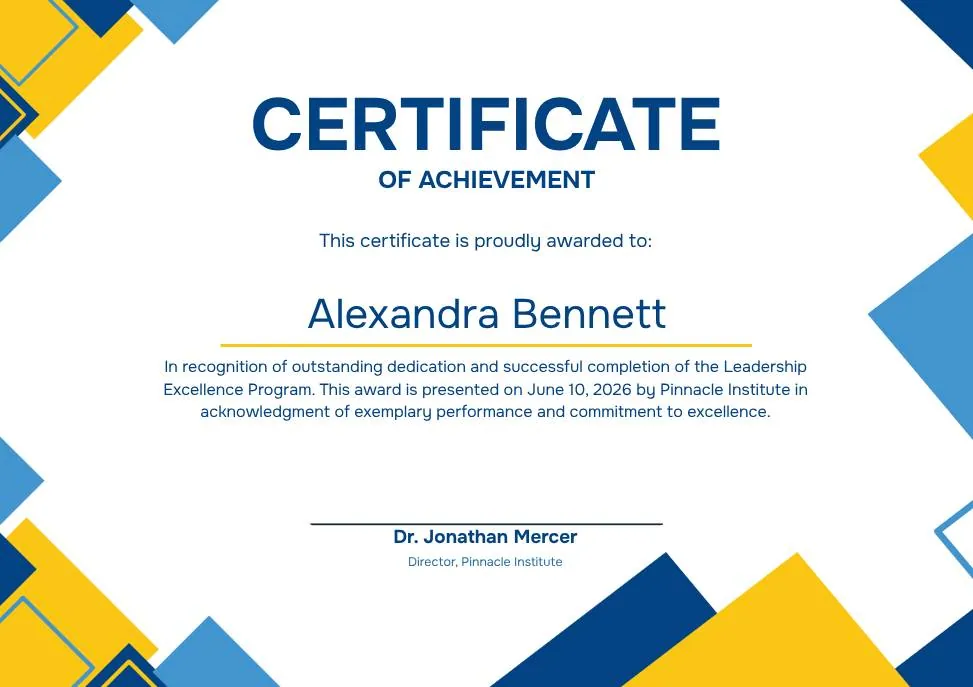
Blue Yellow Modern Geometric Certificate of Achievement
-
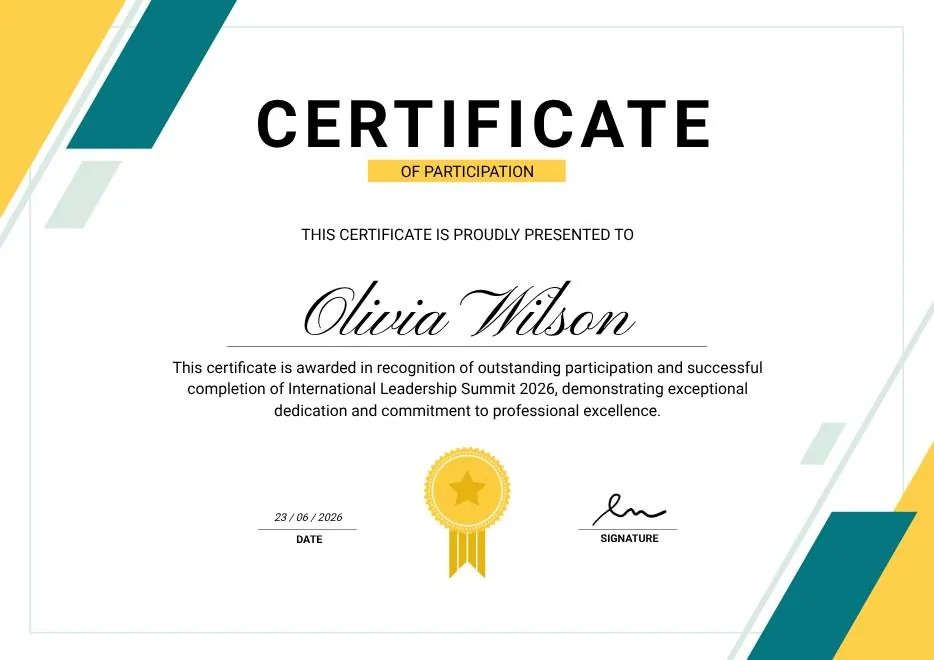
Green & Yellow Minimalist Certificate of Participation
-
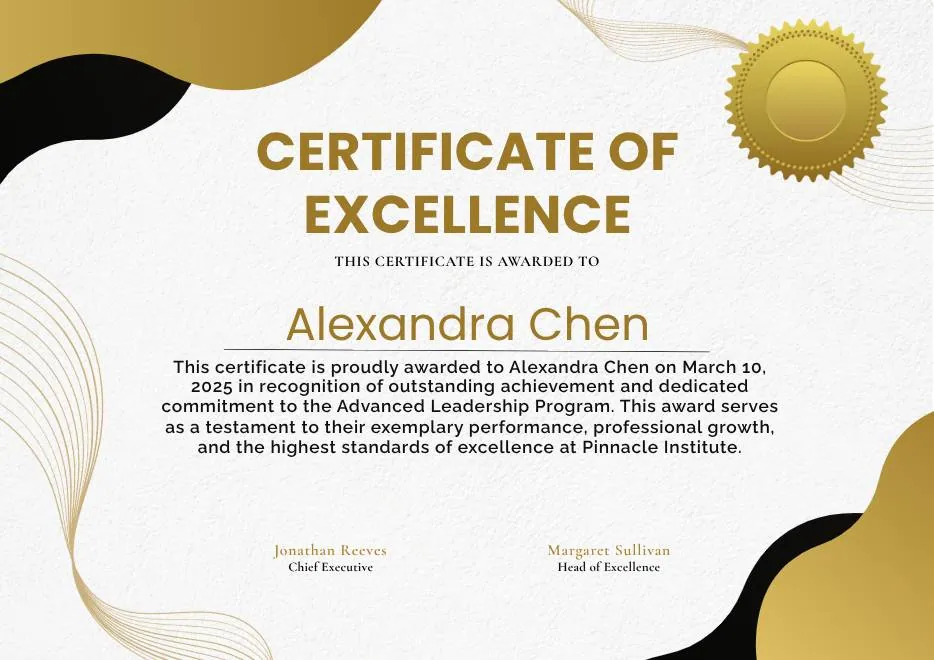
White and Gold Modern Awards Certificate
-

Gray Teal Simple Internship Certificate
-
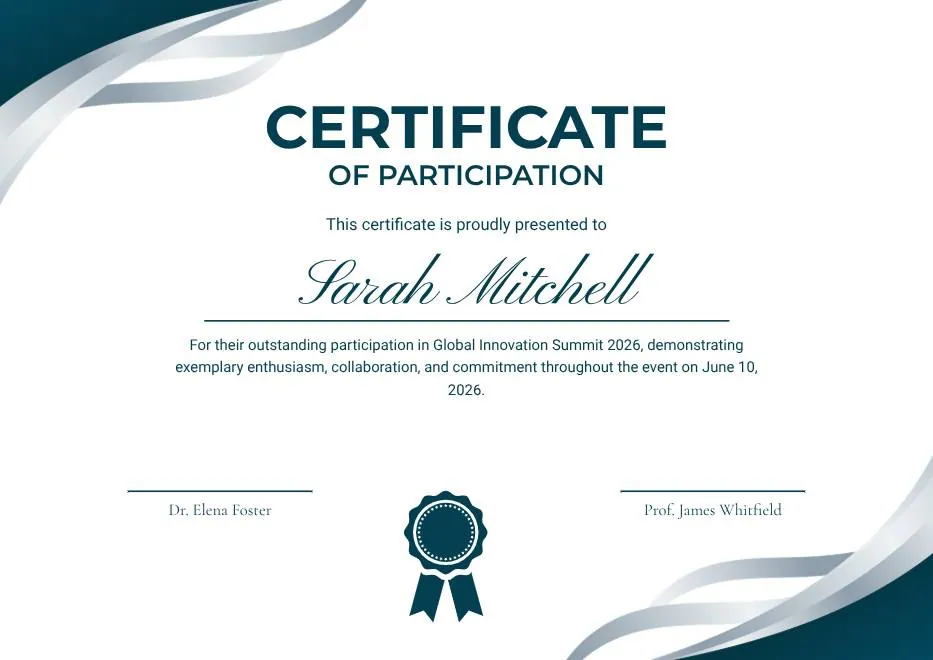
Teal and White Modern Participation Certificate
-
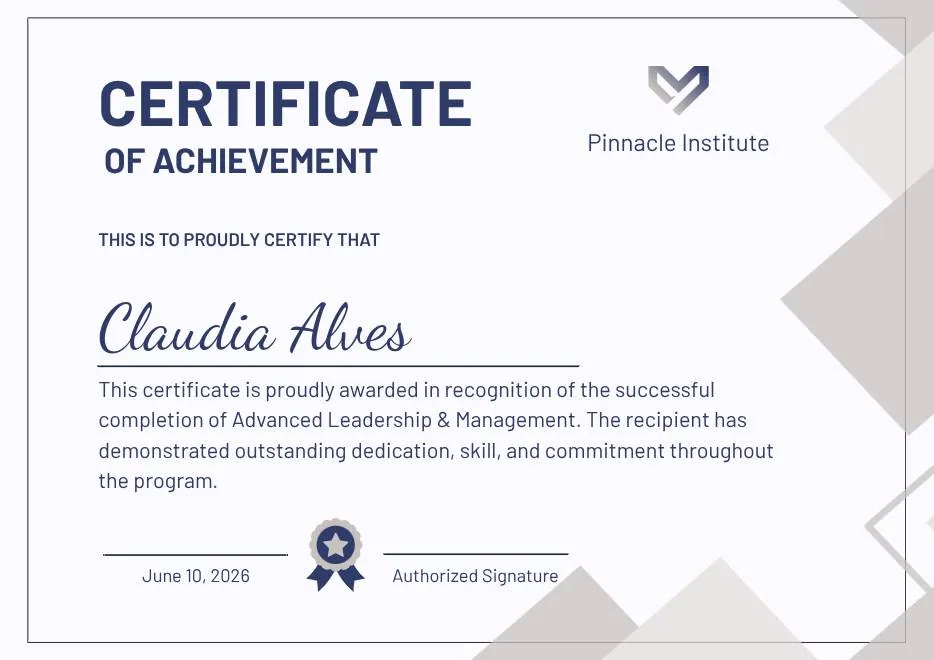
Gray and Blue Modern Achievement Certificate
-
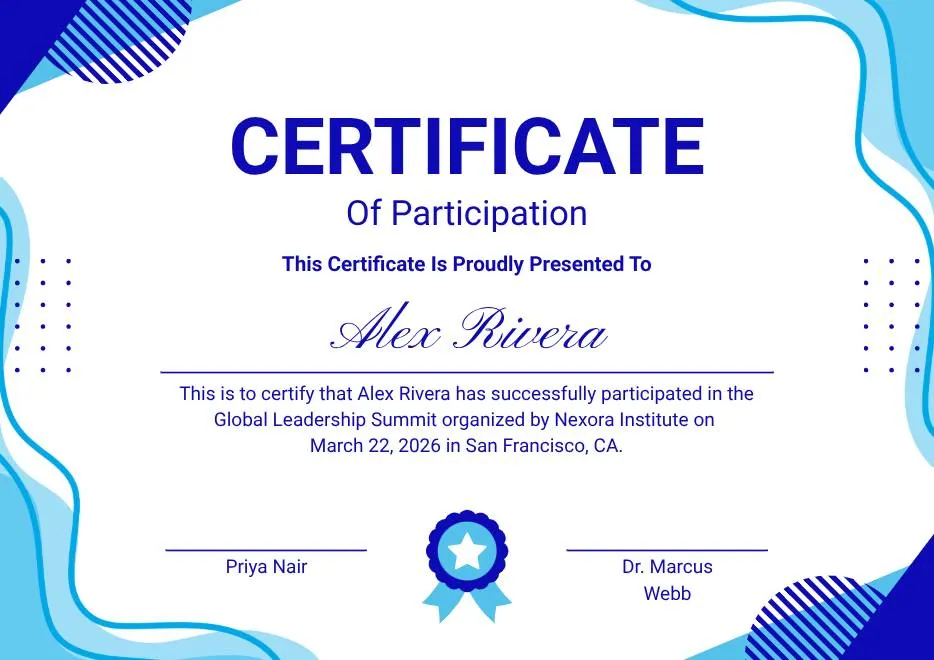
Blue and White Modern Participation Certificate
-
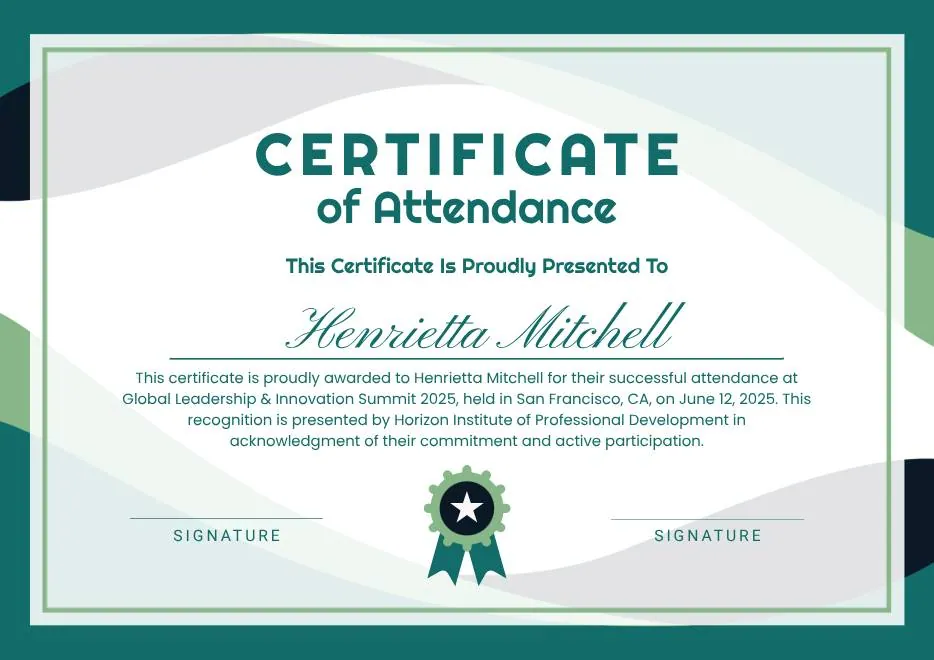
White and Green Minimalist Certificate of Attendance
-
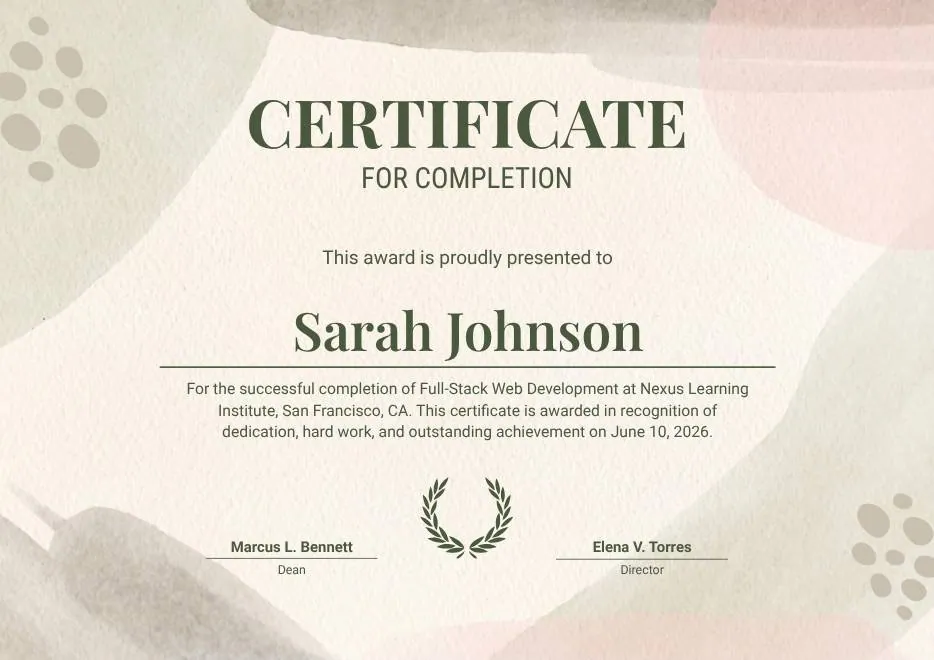
Beige Organic Completion Certificate
-
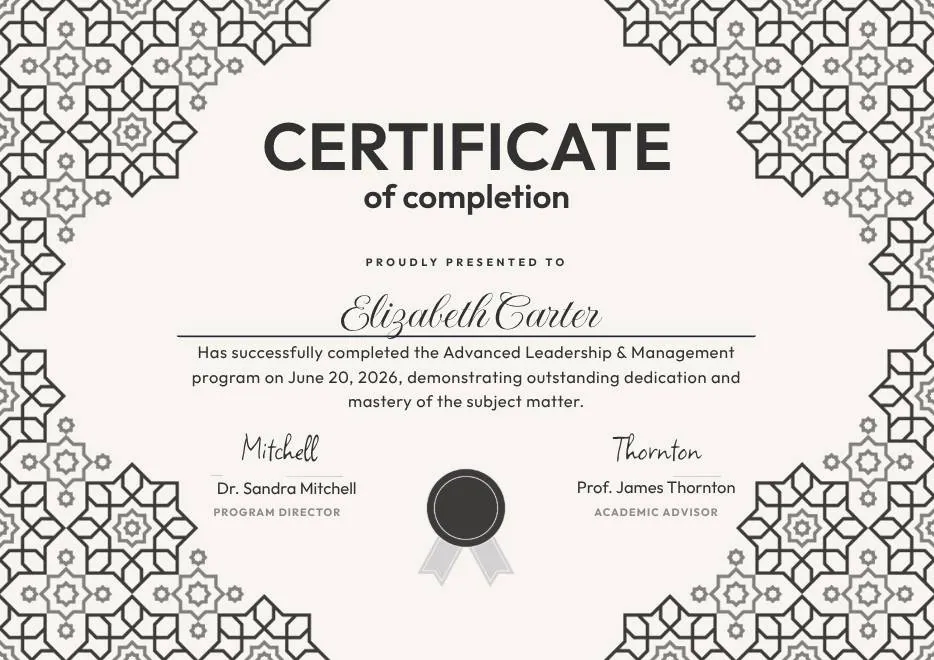
Black and White Geometric Completion Certificate
-
Blue Modern Certificate of Completion
-
Teal Geometric Participation Certificate
-
Green Gold and White Modern Excellence Certificate
-
Certificate of Completion in Colorful Abstract Modern Style
-
Ivory Victorian Vintage Certificate of Excellence
-
Modern Vintage Certificate of Achievement
-
Red and Gold Achievement Certificate
-
Blue Abstract Waves Participation Certificate
-
Purple Playfun Kids Award Certificate
-
Blue Navy and Tosca Elegant Modern Medical Appreciation Certificate
-
Modern Vintage Certificate of Achievement
-
Black and White Modern High School Diploma Certificate
-
Green and Beige Botanical Employee of the Month Certificate
-
Blue Modern Certificate of Appreciation
-
Blue Modern Event Completion Certificate
-
Blue and Yellow Geometric Achievement Certificate
-
Beige Watercolor Floral Certificate of Completion
-
Blue Orange Modern Memphis Certificate of Achievement
-
Nexus Institute Bold Geometric Certificate of Achievement
-
Blue Tosca Geometric Training Certificate
-
White and Yellow Modern Leadership Training Certificate
-
Junior Astronaut Training Certificate in Colorful Playful Style
-
Certificate of Appreciation — Summit & Event Participation
-
Blue Yellow Modern Geometric Certificate of Achievement
-
Green & Yellow Minimalist Certificate of Participation
-
White and Gold Modern Awards Certificate
-
Gray Teal Simple Internship Certificate
-
Teal and White Modern Participation Certificate
-
Gray and Blue Modern Achievement Certificate
-
Blue and White Modern Participation Certificate
-
White and Green Minimalist Certificate of Attendance
-
Beige Organic Completion Certificate
-
Black and White Geometric Completion Certificate
-
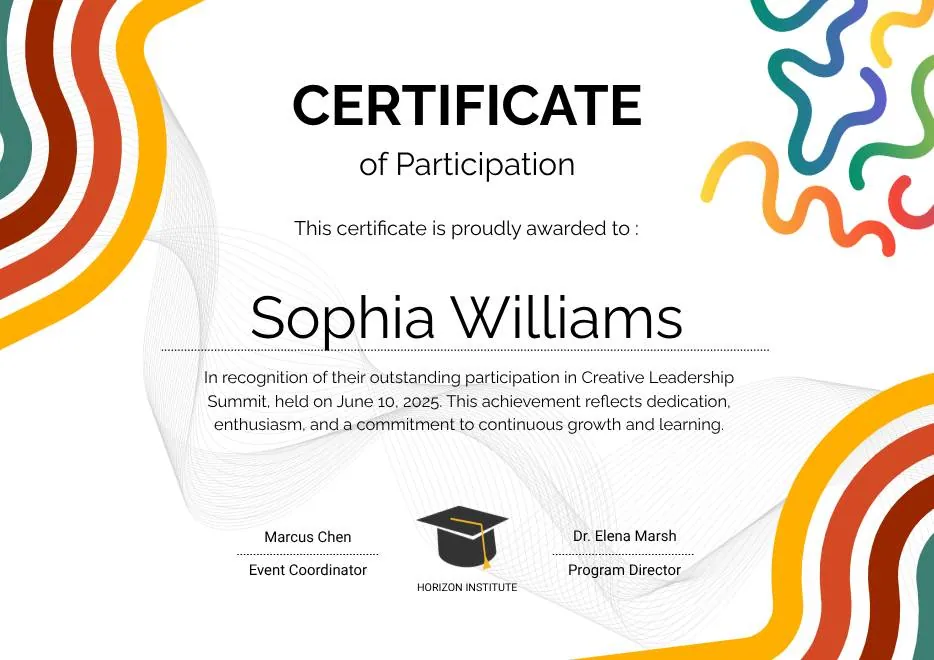
Colorful Abstract Waves Modern Participation Certificate
-
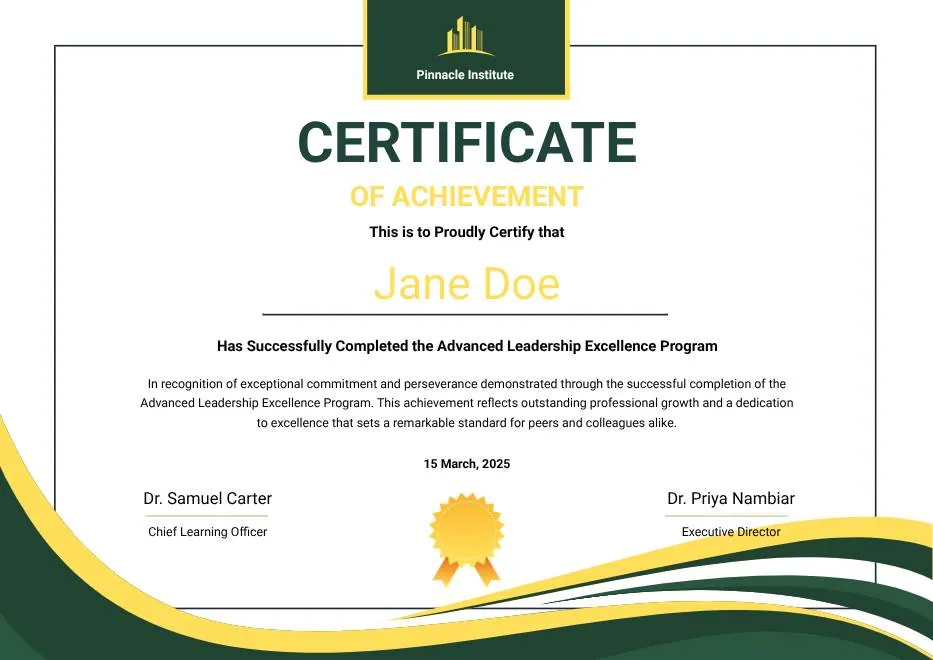
Green and Gold Modern Leadership Achievement Certificate
-

Teal Watercolor Elegant Certificate of Excellence
-
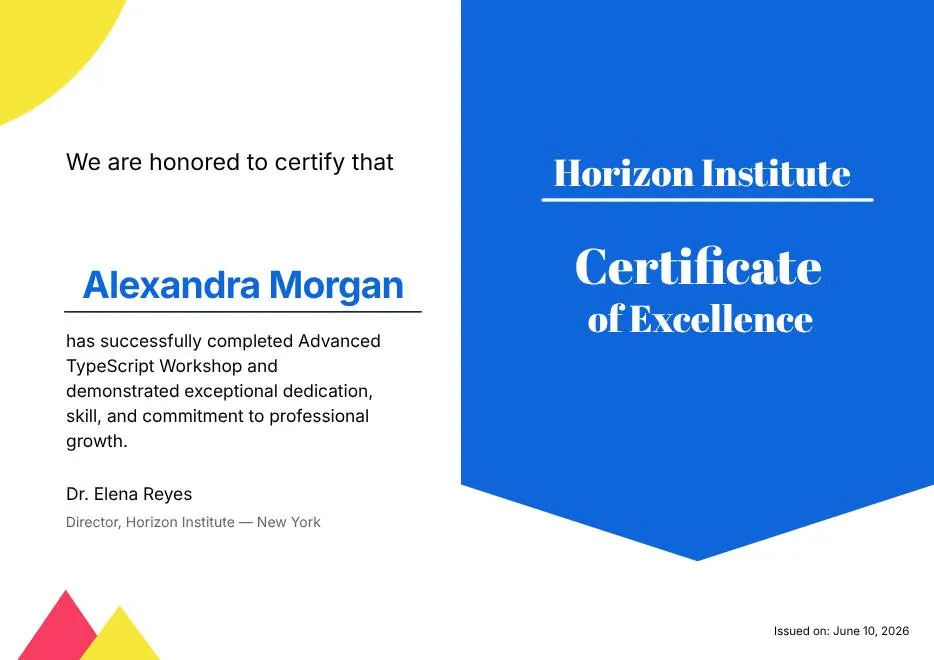
Blue and Yellow Modern Certificate of Excellence
-

Classic Floral Border Certificate of Achievement
-

Modern White and Green Certificate of Excellence
-

Beige Classic Certificate of Achievement
-

Colorful Brushstroke Art Certificate of Participation
-
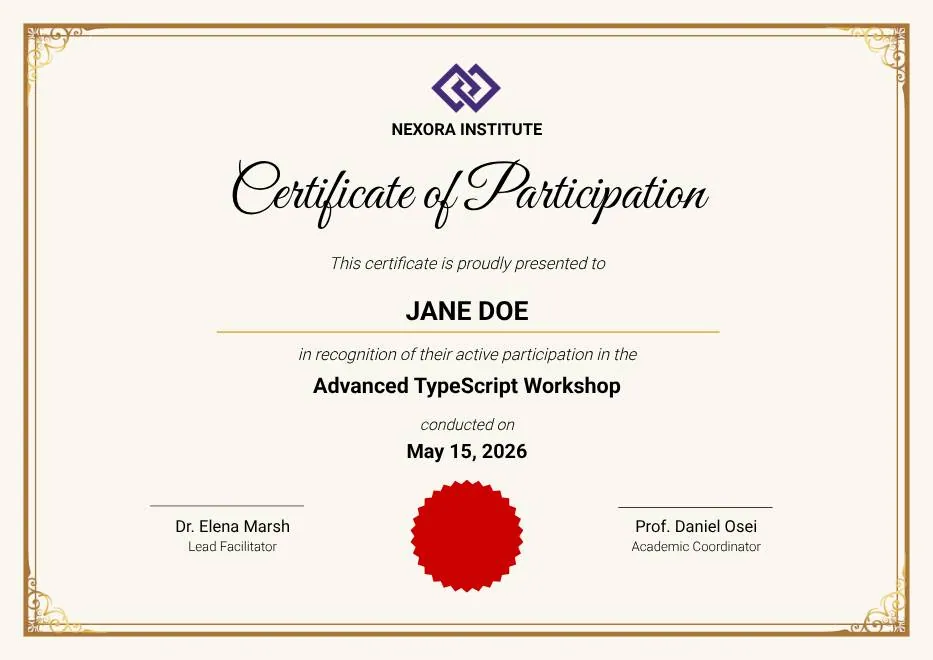
Gold Elegant Workshop Participation Certificate
-
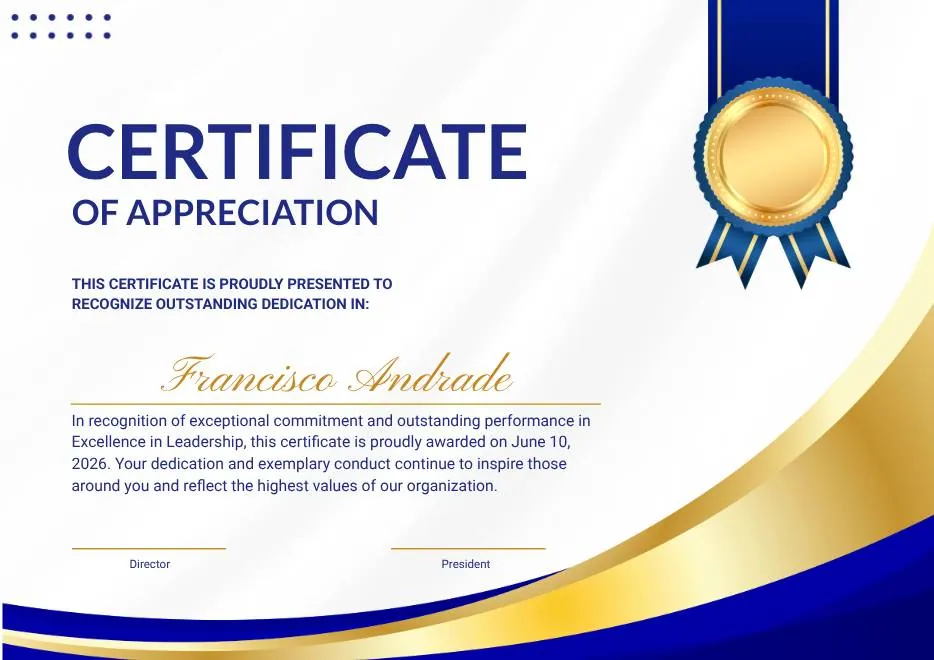
Blue and Gold Modern Certificate of Appreciation
-
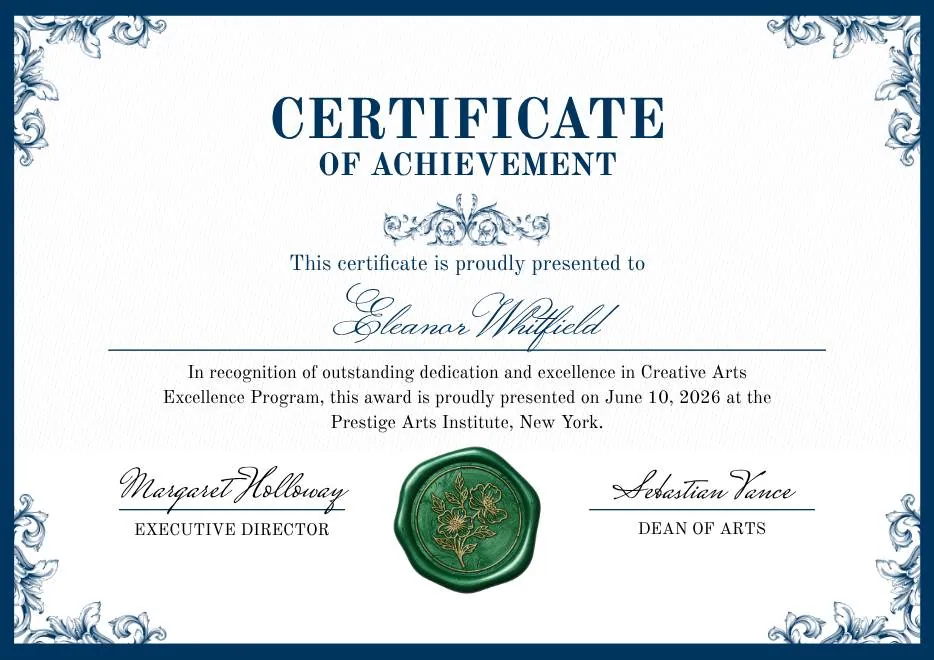
Blue and Green Traditional Certificate of Achievement
-
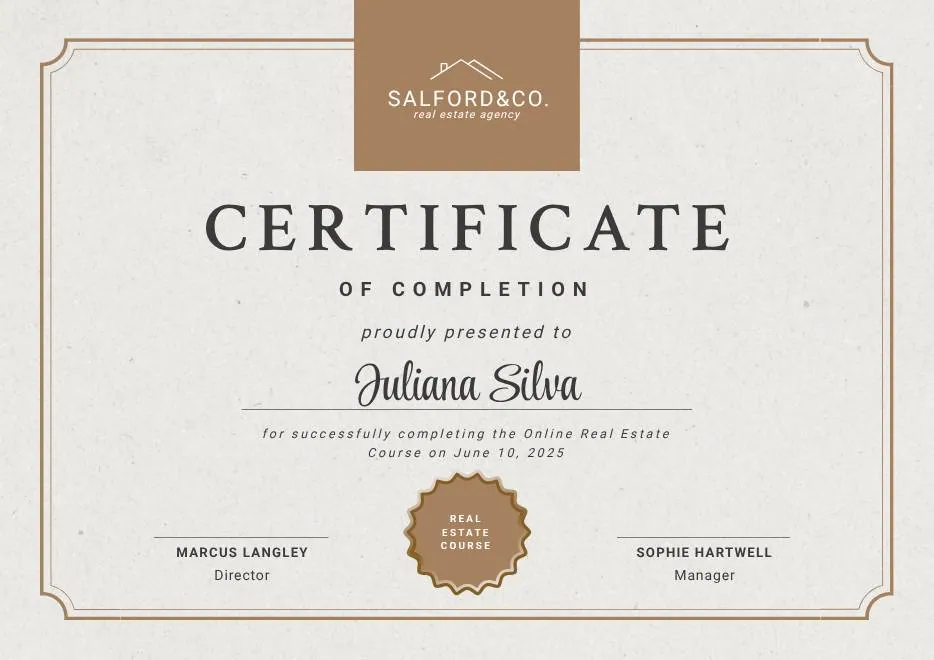
Beige Brown Aesthetic Real Estate Course Completion Certificate
-
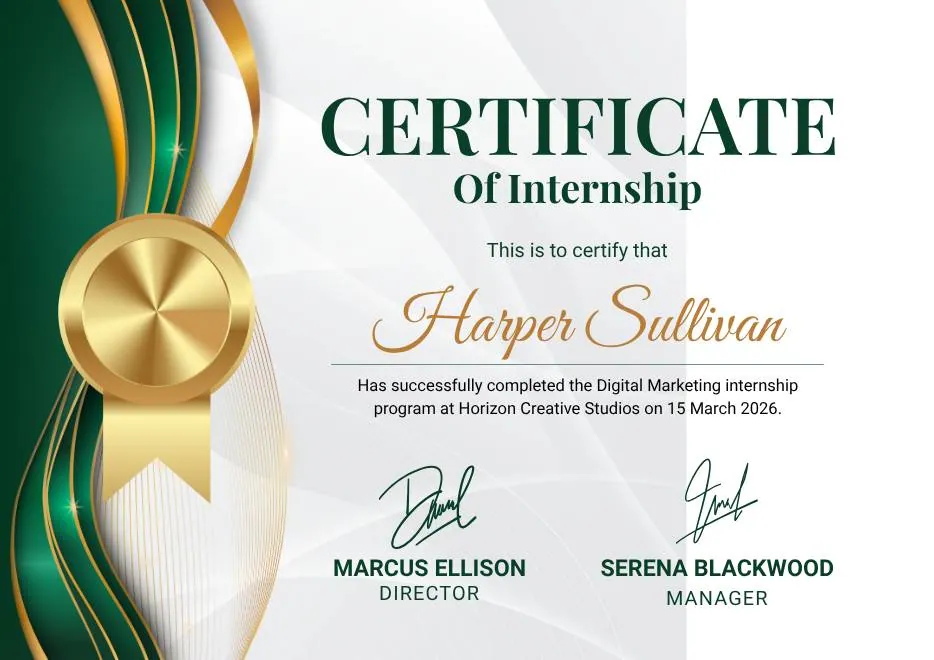
Green and Gold Elegant Internship Certificate
-
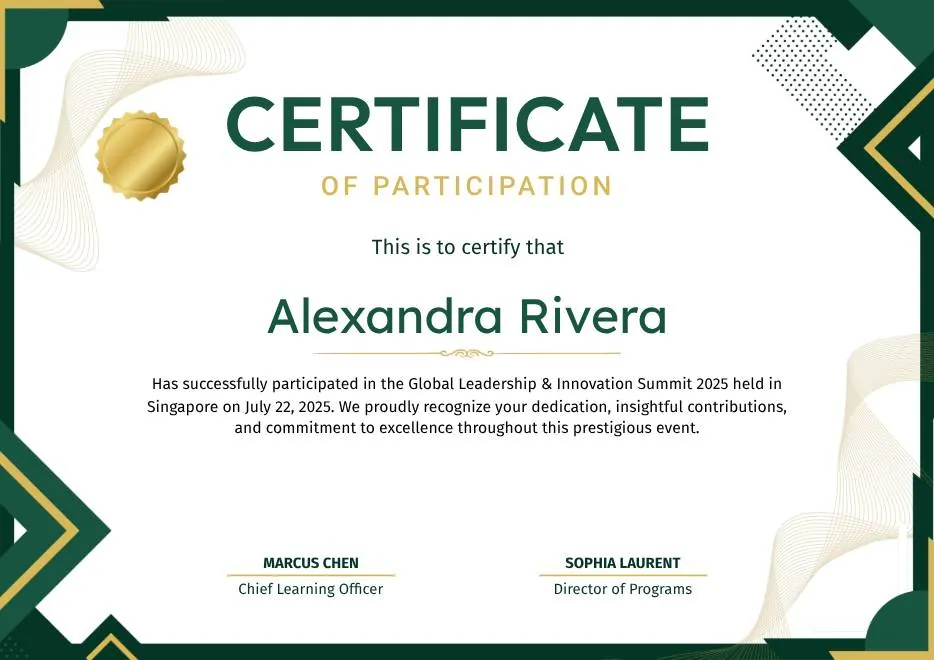
Green and Gold Geometric Modern Certificate of Participation
-
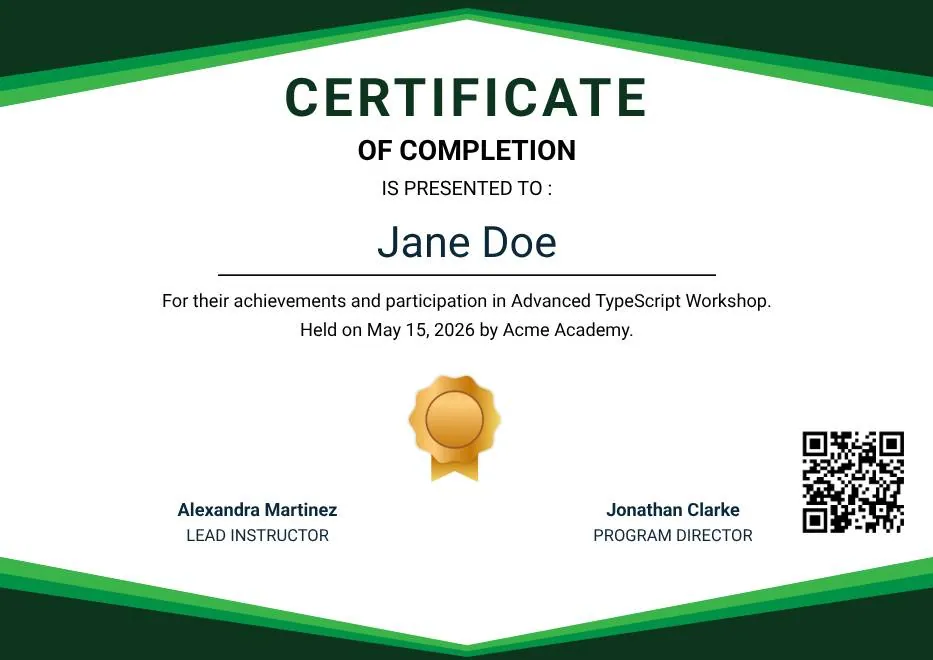
Green Modern Event Completion Certificate
-
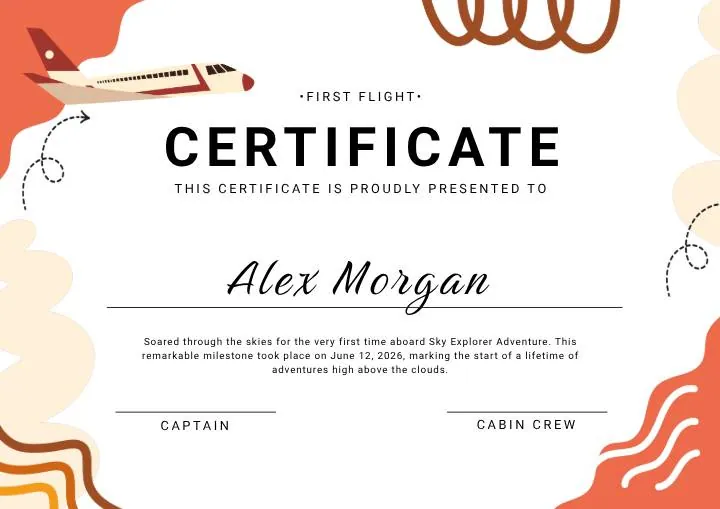
Orange and Brown Colorful Illustrated First Flight Certificate
-
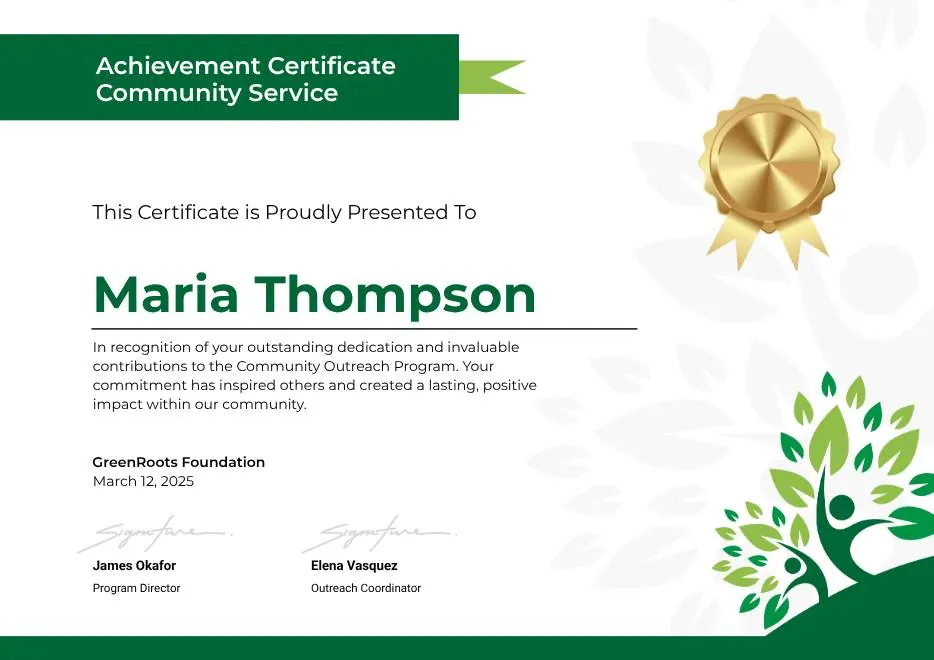
Green Clean Achievement Community Service Certificate
-
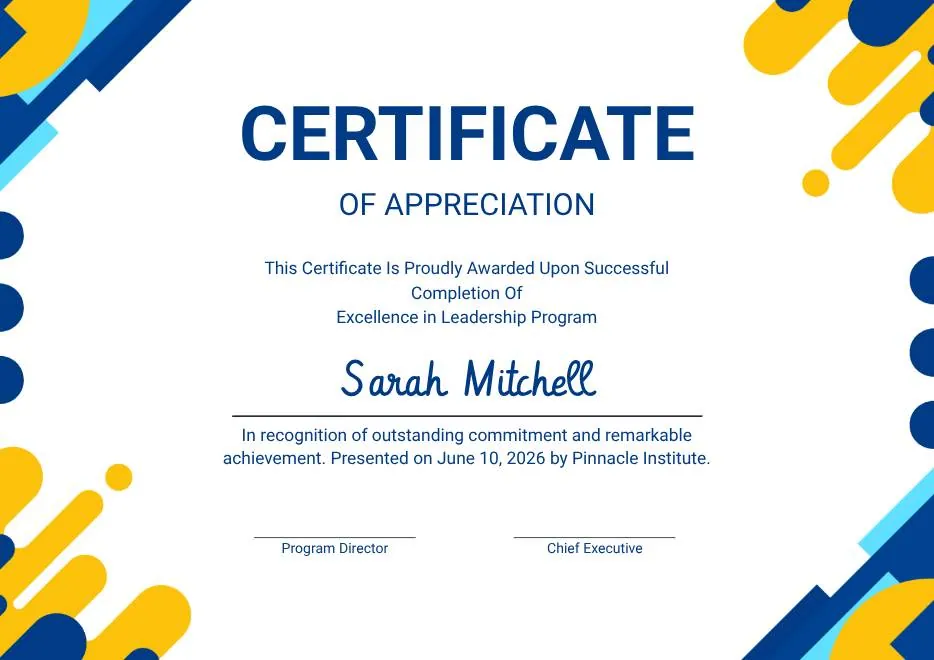
Yellow and Blue Modern Certificate of Appreciation
-

Colorful Funny Dinosaur Kids Certificate
-
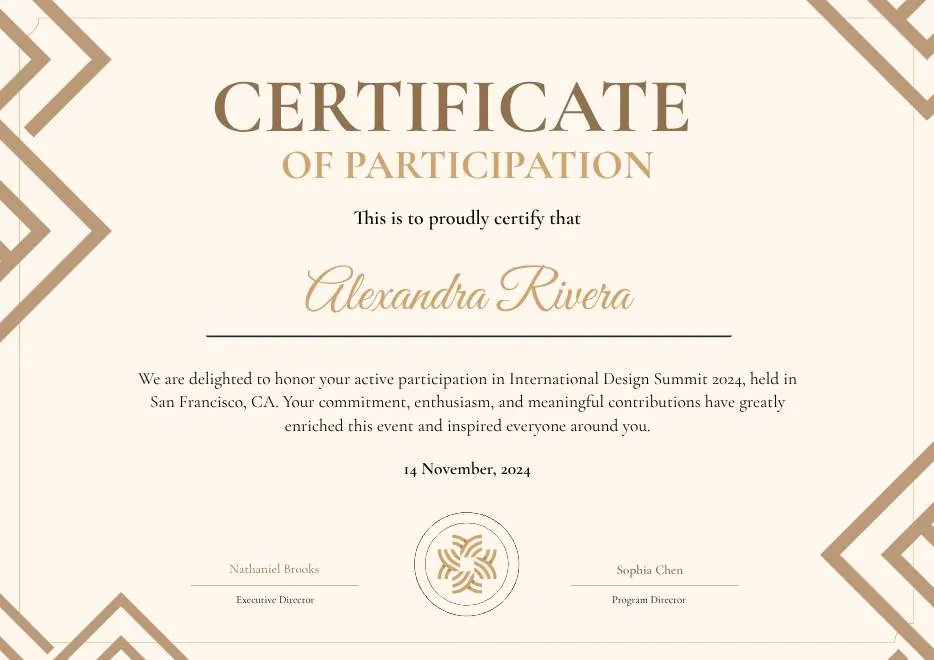
Brown Modern Geometric Participation Certificate
-
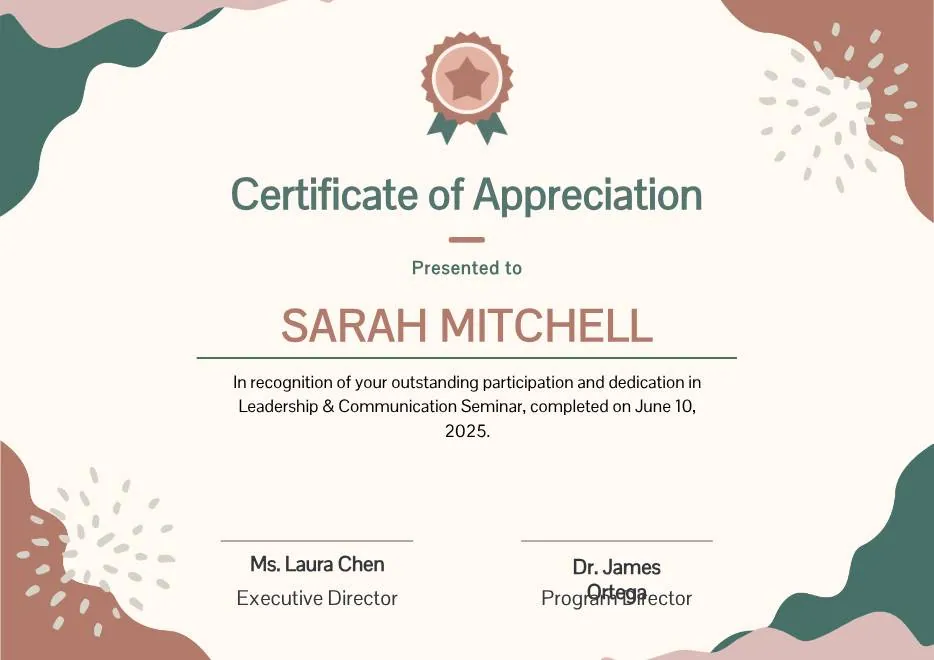
Beige Blob Appreciation Seminar Certificate
-
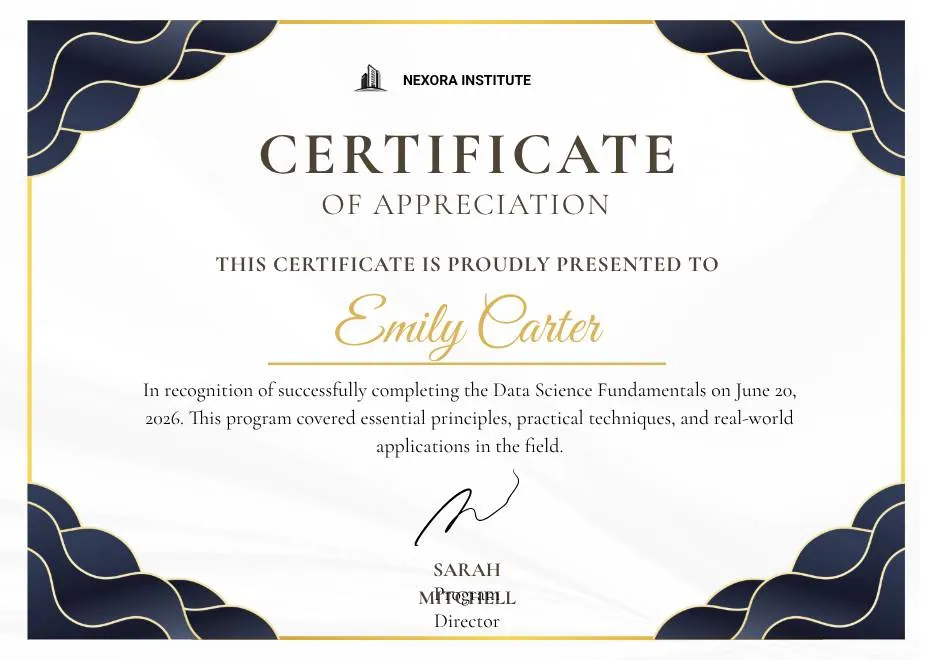
Navy and Gold Modern Appreciation Certificate
-
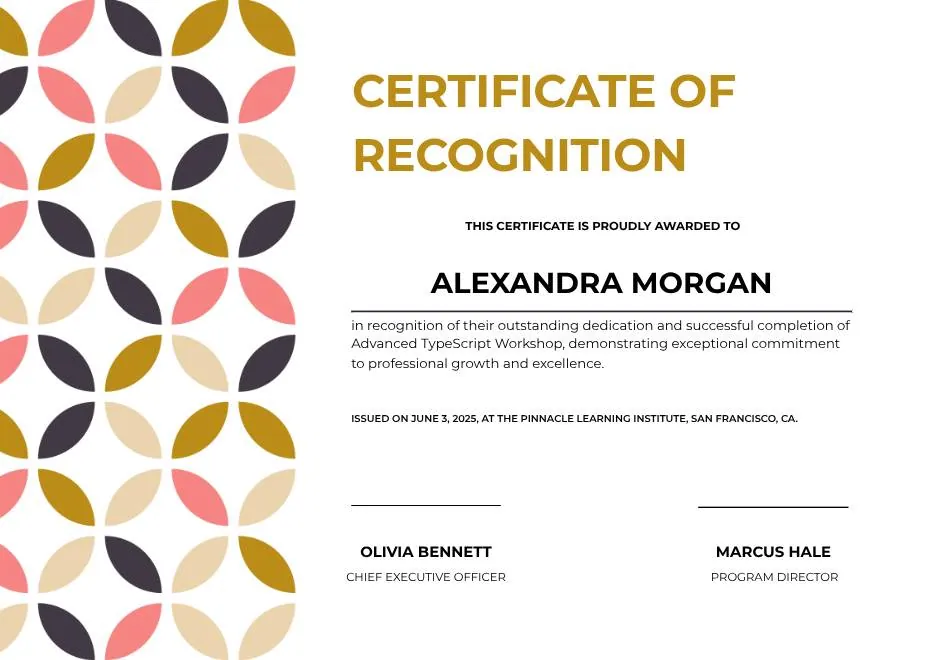
White Geometric Petal Pattern Certificate of Recognition
-
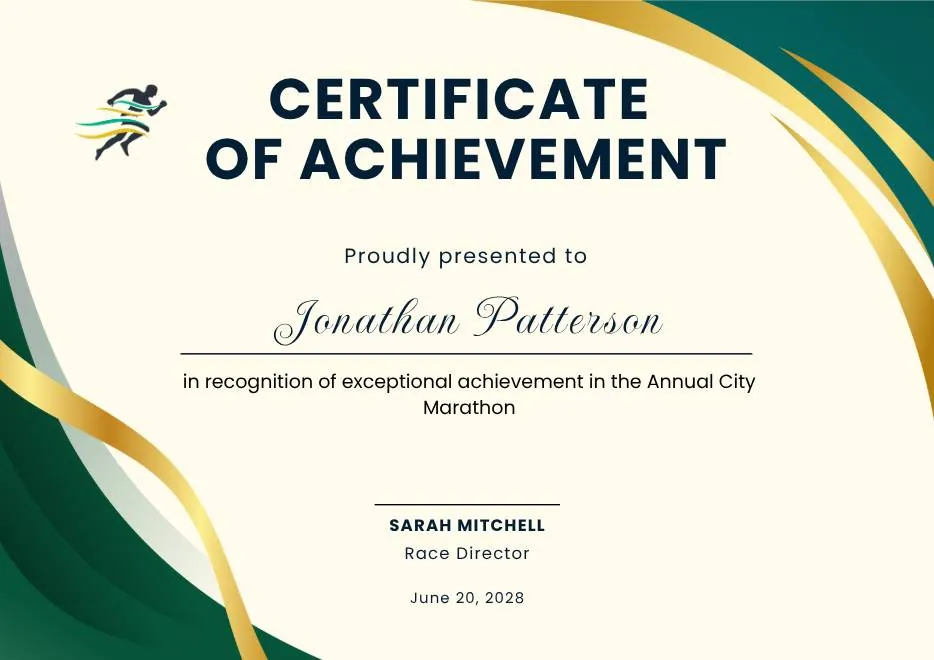
Green and Gold Modern Elegant Sport Achievement Certificate
-
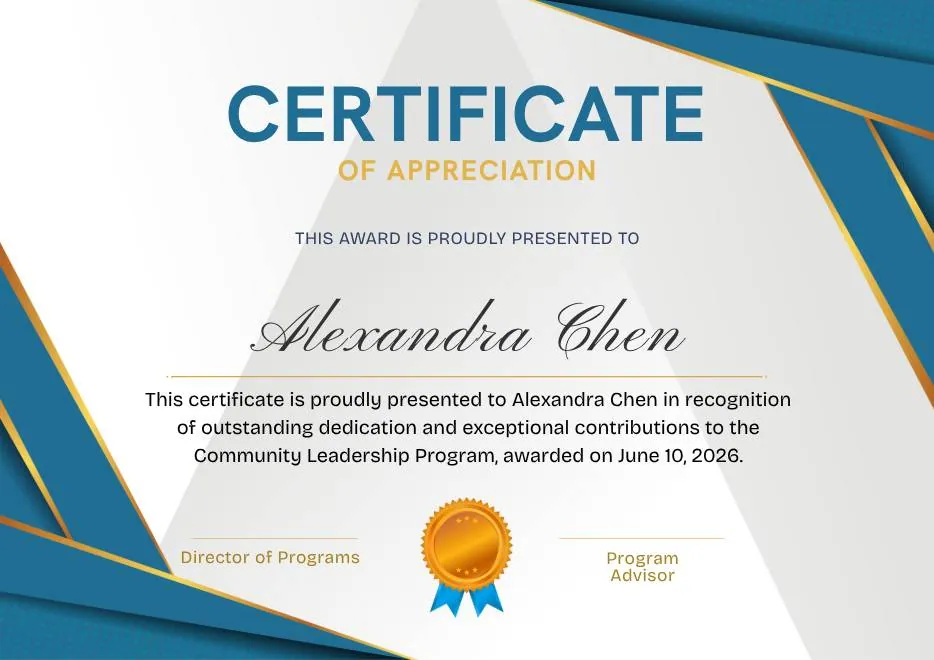
Blue and Gold Appreciation Certificate
-
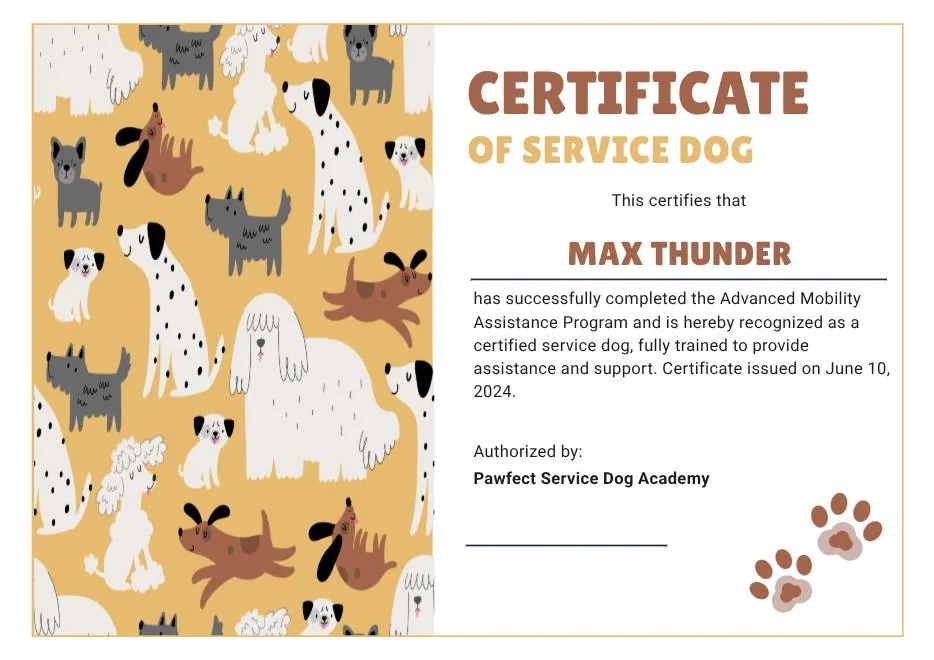
Tan White and Black Illustrated Service Dog Certificate
-
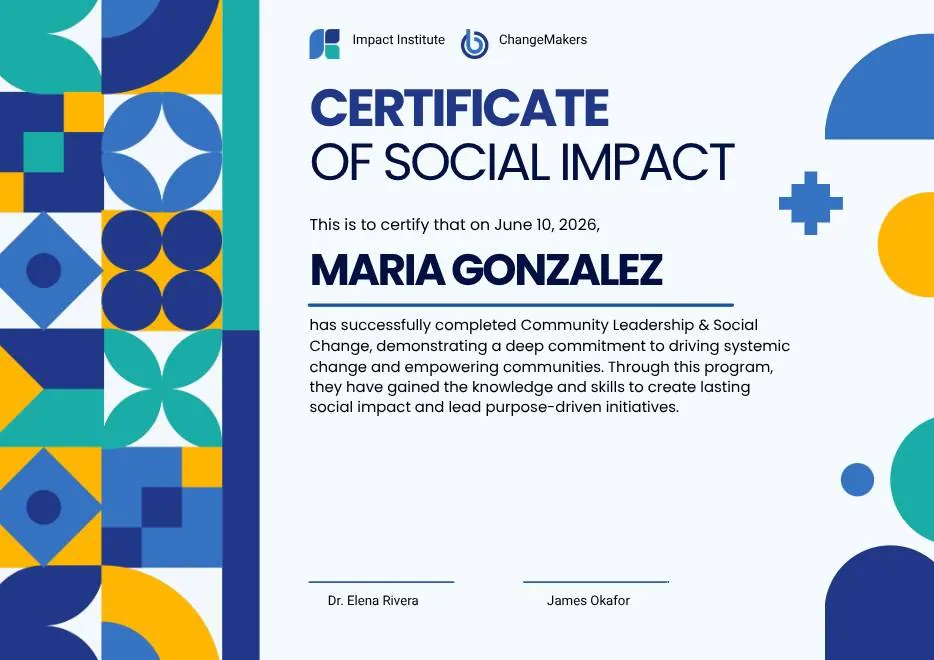
Blue and Yellow Geometric Certificate of Social Impact
-
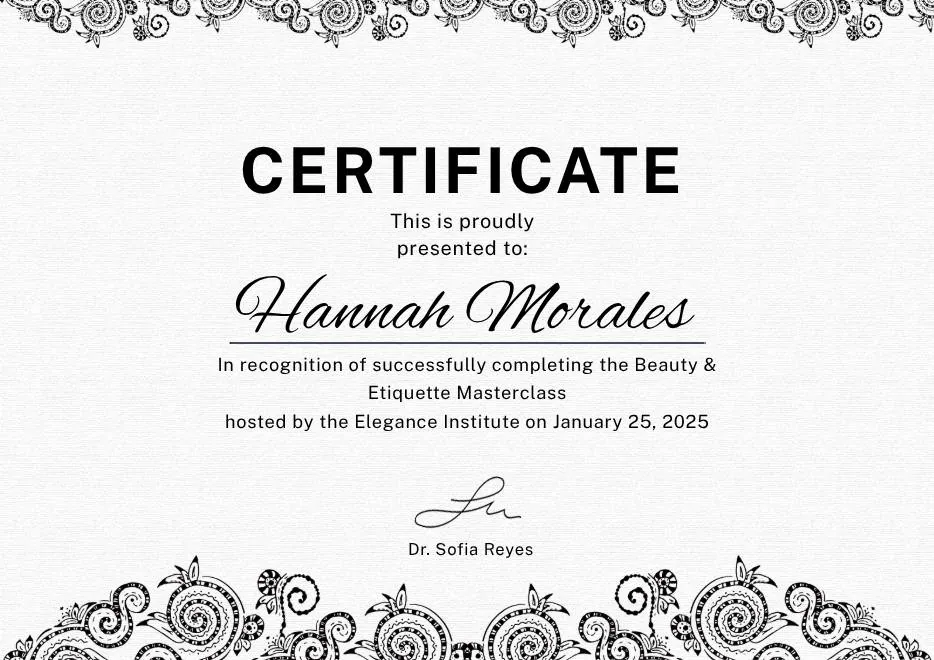
Black White Elegant Certificate Template
-
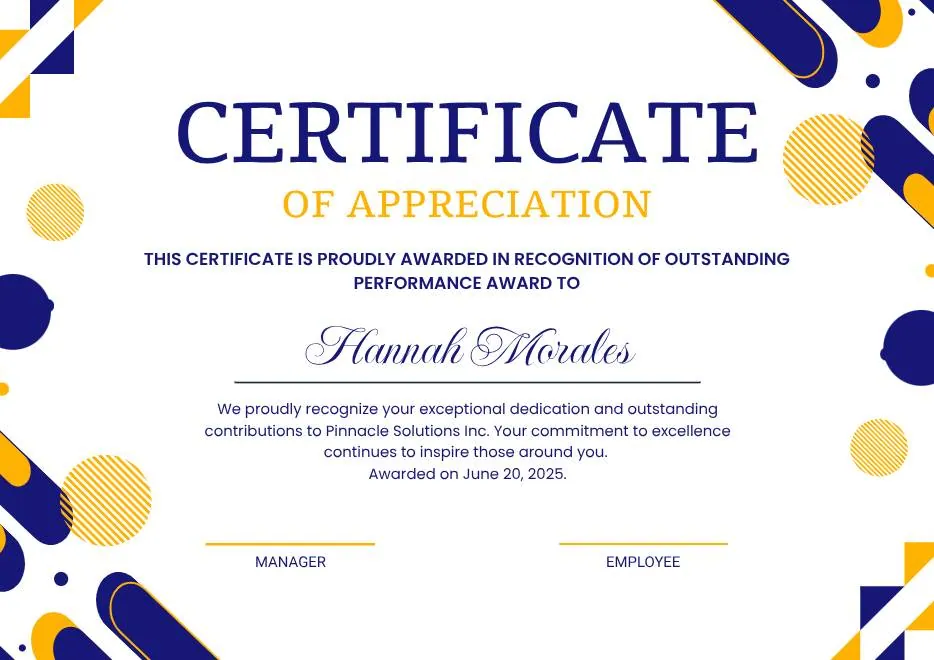
Blue Yellow and White Modern Appreciation Certificate
-
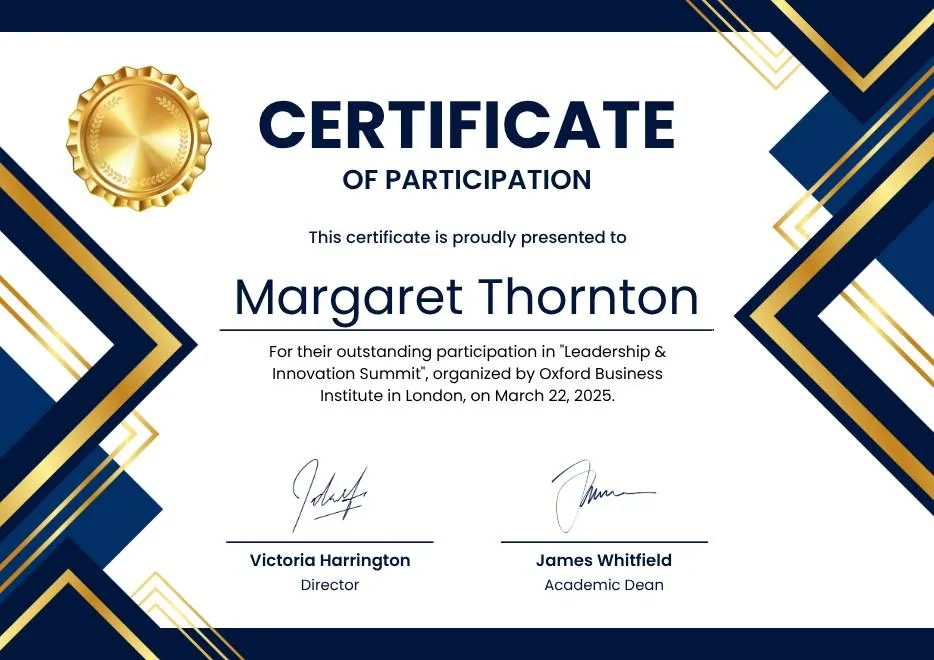
Blue White Gold Modern Participation Certificate
-
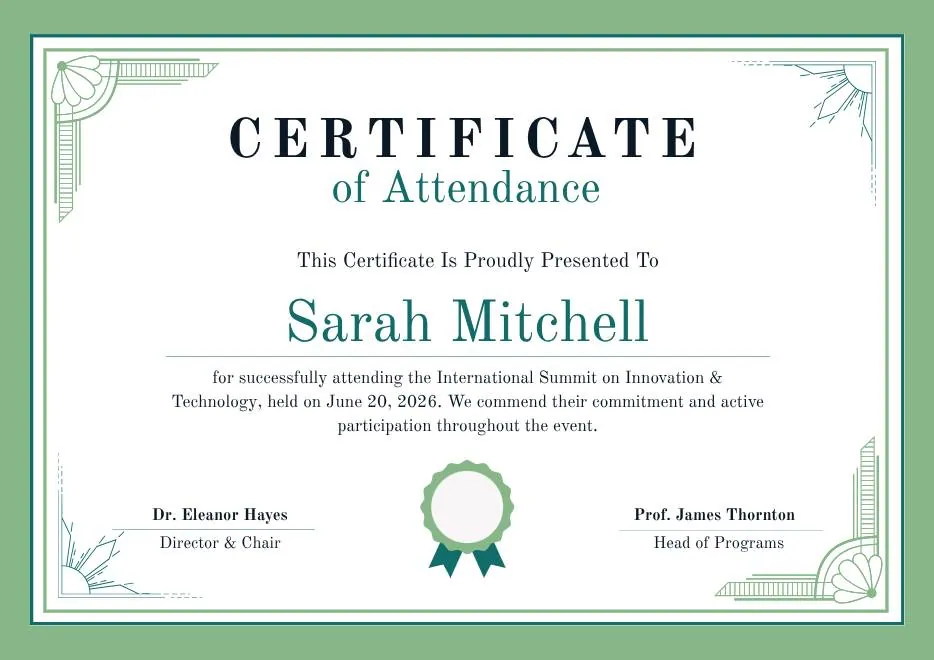
Green White Classic Minimalist Attendance Certificate
-
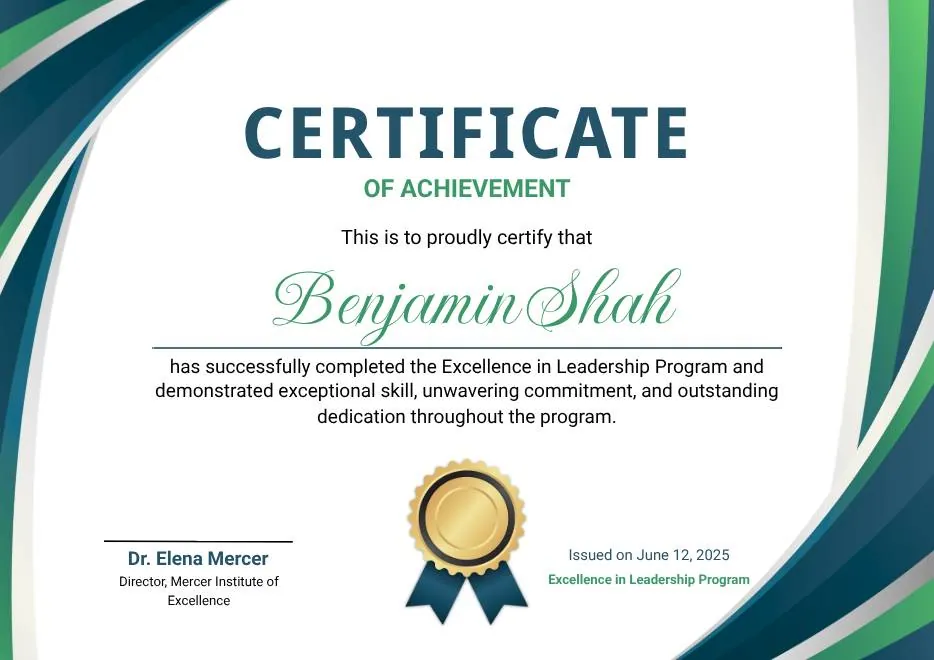
Blue and Green Modern Achievement Certificate
-
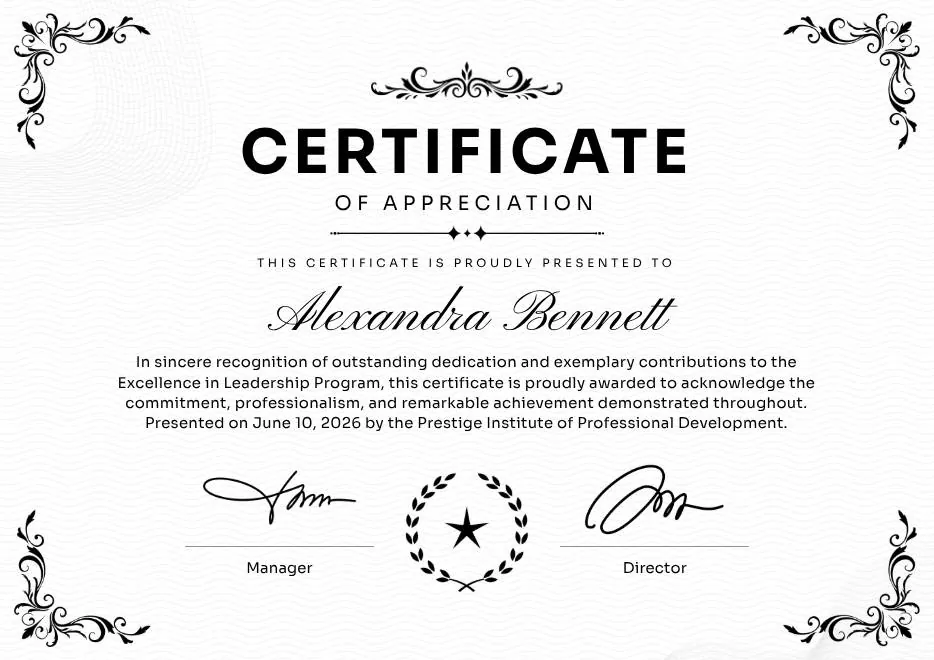
Black and White Traditional Appreciation Certificate A4
-
Colorful Abstract Waves Modern Participation Certificate
-
Green and Gold Modern Leadership Achievement Certificate
-
Teal Watercolor Elegant Certificate of Excellence
-
Blue and Yellow Modern Certificate of Excellence
-
Classic Floral Border Certificate of Achievement
-
Modern White and Green Certificate of Excellence
-
Beige Classic Certificate of Achievement
-
Colorful Brushstroke Art Certificate of Participation
-
Gold Elegant Workshop Participation Certificate
-
Blue and Gold Modern Certificate of Appreciation
-
Blue and Green Traditional Certificate of Achievement
-
Beige Brown Aesthetic Real Estate Course Completion Certificate
-
Green and Gold Elegant Internship Certificate
-
Green and Gold Geometric Modern Certificate of Participation
-
Green Modern Event Completion Certificate
-
Orange and Brown Colorful Illustrated First Flight Certificate
-
Green Clean Achievement Community Service Certificate
-
Yellow and Blue Modern Certificate of Appreciation
-
Colorful Funny Dinosaur Kids Certificate
-
Brown Modern Geometric Participation Certificate
-
Beige Blob Appreciation Seminar Certificate
-
Navy and Gold Modern Appreciation Certificate
-
White Geometric Petal Pattern Certificate of Recognition
-
Green and Gold Modern Elegant Sport Achievement Certificate
-
Blue and Gold Appreciation Certificate
-
Tan White and Black Illustrated Service Dog Certificate
-
Blue and Yellow Geometric Certificate of Social Impact
-
Black White Elegant Certificate Template
-
Blue Yellow and White Modern Appreciation Certificate
-
Blue White Gold Modern Participation Certificate
-
Green White Classic Minimalist Attendance Certificate
-
Blue and Green Modern Achievement Certificate
-
Black and White Traditional Appreciation Certificate A4
Questions about Excel imports
What people ask before they upload
Which columns does my Excel file need?
Can I use Google Sheets instead of Excel?
Can I add more people after the first import?
How is this different from the bulk generator?
Do I need a design first?
Turn your spreadsheet into certificates
Free for your first 100 certificates a year — no credit card required.