Getting started
Manage API keys
Last updated: July 19, 2026
API keys let you issue and manage certificates programmatically — straight from your LMS, CRM, or any backend. Each key is scoped to a single workspace and shown in full exactly once.
Open API Keys in the left sidebar. From here you create keys, see when each was last used, and revoke keys you no longer need. Every key is bound to the current workspace, so requests made with it act inside that workspace.
Create a key
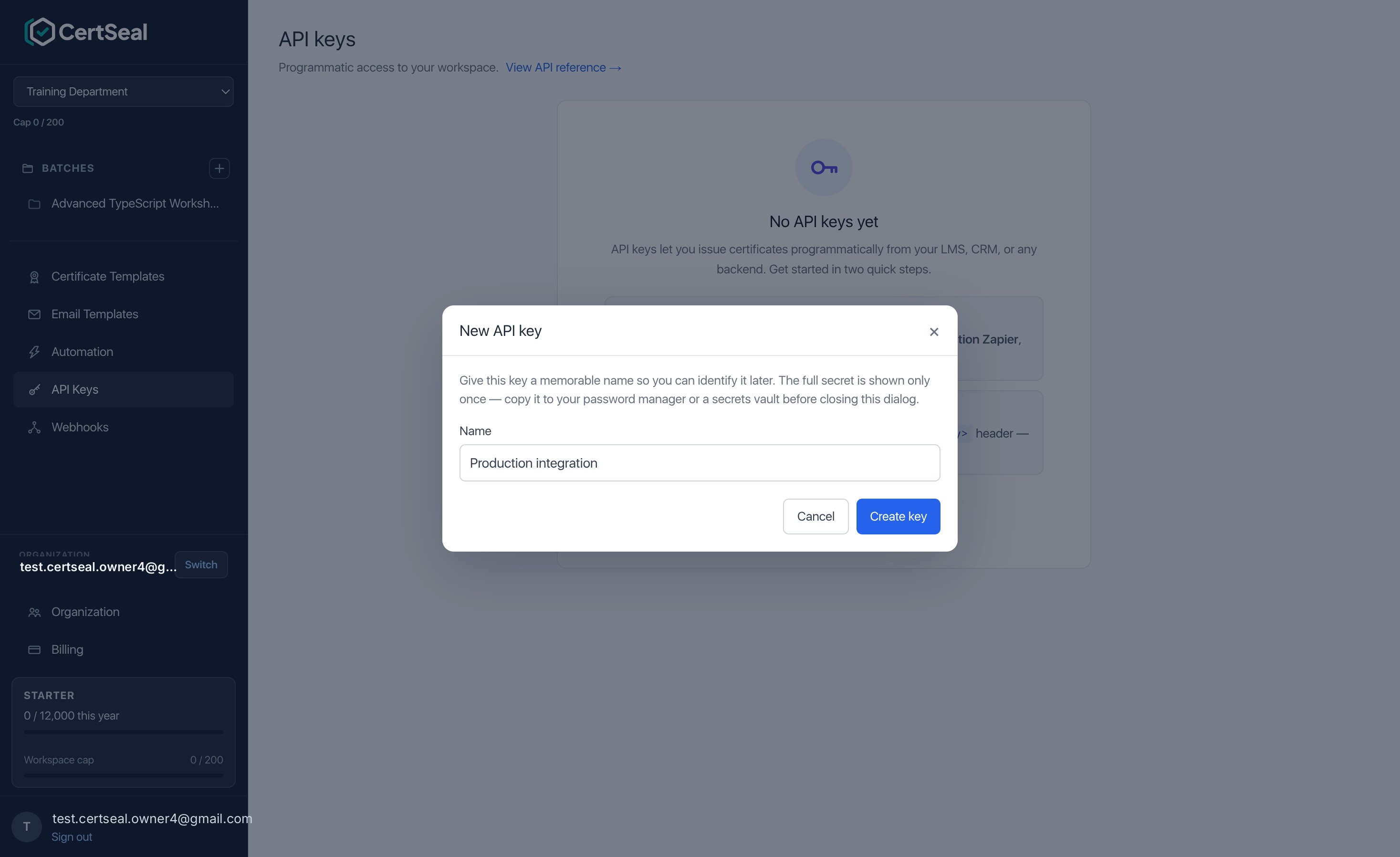
Click New API key, give it a memorable name (for example, “Production integration” or “LMS sync”), and click Create key.
Copy the secret — it’s shown once
After you create a key, CertSeal shows the full secret exactly once. Copy it immediately into a password manager or secrets vault — once you close the dialog it can’t be recovered, only re-created.
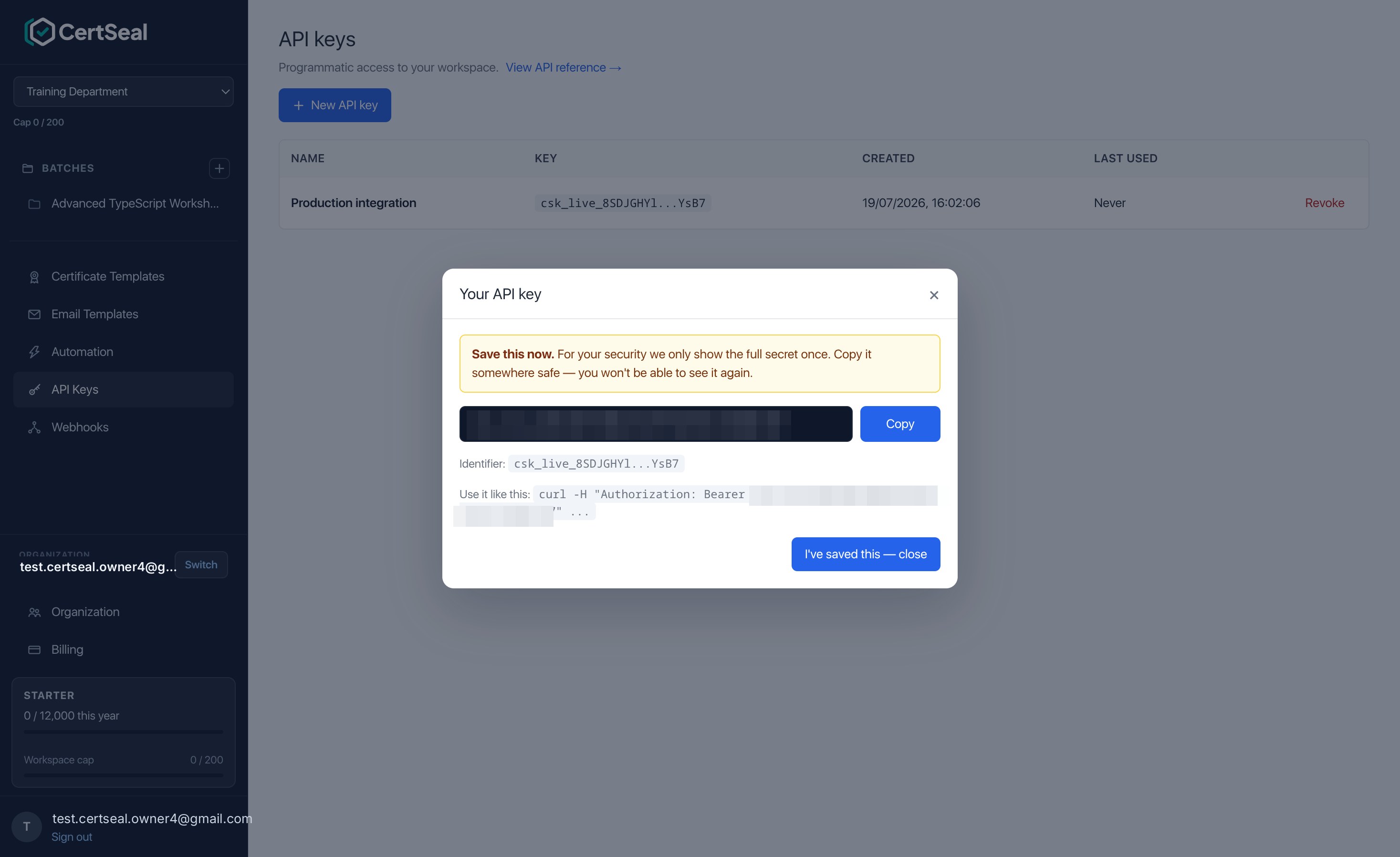
Keys look like csk_live_ followed by a random body. CertSeal only stores a hash of the secret, so it can never show it to you again — and a database leak can’t expose live keys.
Use the key
Send the key as a Bearer token on every request to the REST API:
curl -X POST https://app.certseal.com/api/v1/batches/<BATCH_ID>/recipients \
  -H "Authorization: Bearer csk_live_xxxxxxxxxxxxxxxxxxxxxxxxxxxxxxxx" \
  -H "Content-Type: application/json" \
  -d '{ "name": "Jane Doe", "email": "jane@example.com", "send": true }'
The <BATCH_ID> comes from the Batches page. The response includes the new certificate ID, share token, and a ready-to-share certUrl. For the full endpoint reference, see the REST API guide and the API reference.
Manage and rotate keys
The API Keys list shows each key’s name, a masked identifier (the first characters and last four — the rest is unrecoverable), when it was created, and when it was last used.
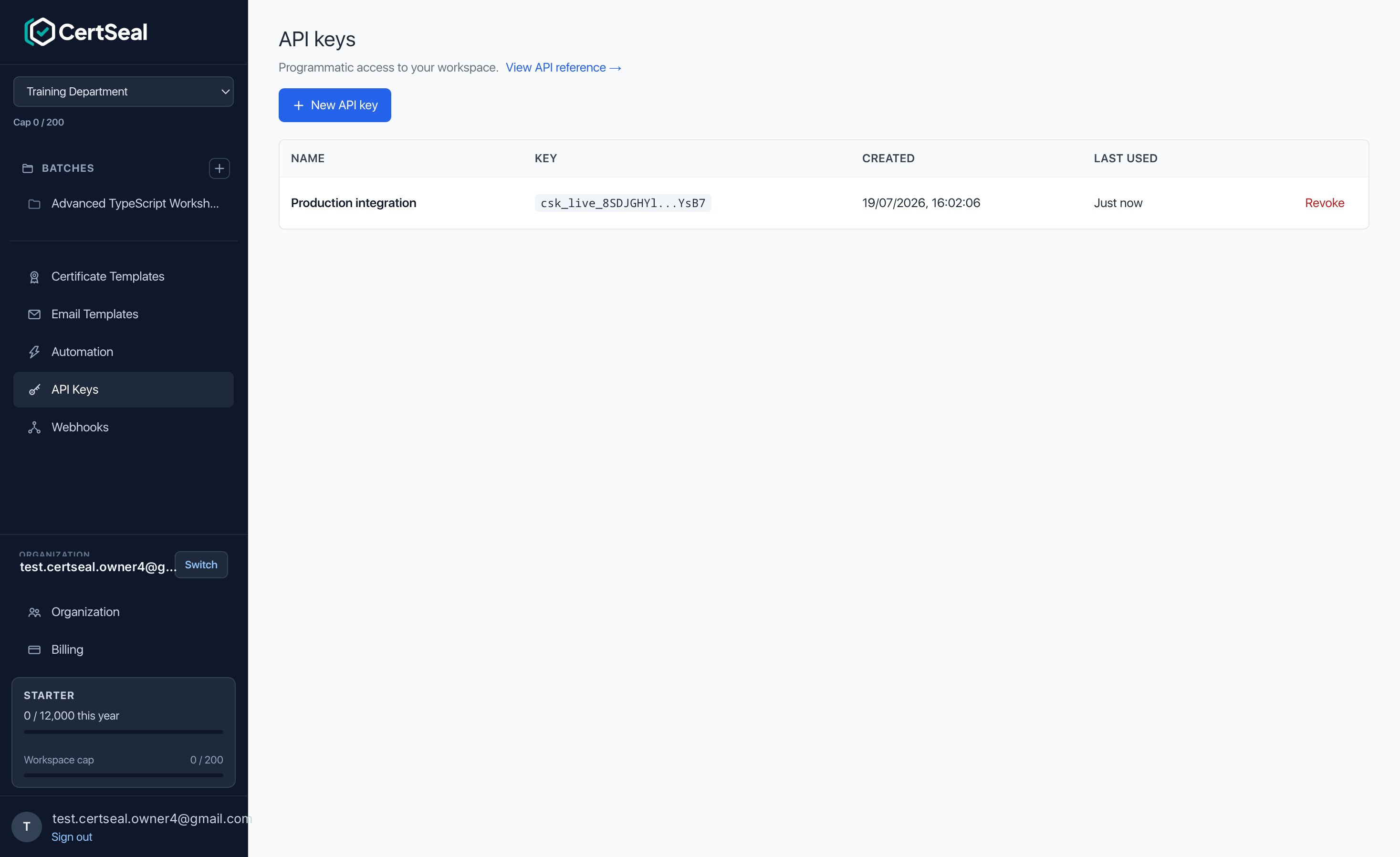
To rotate a key safely, create a new one, point your integration at it, confirm everything works, then Revoke the old key. Revocation is immediate — any request using a revoked key fails right away, so rotate before you revoke to avoid downtime.
Support
Questions about API keys or authentication? Email support@certseal.com and a real person will reply, typically within 1 business day (Monday–Friday, 9:00 AM–6:00 PM SGT). See the support guide for all contact options.