Getting started
Manage certificate templates
Last updated: July 19, 2026
A certificate template — called a design in the editor — is the layout every recipient receives. Build it once with dynamic fields, and CertSeal personalizes a copy for each person in your batches.
Open Certificate Templates in the left sidebar to see your designs. Each design is a reusable certificate layout you can attach to any batch.
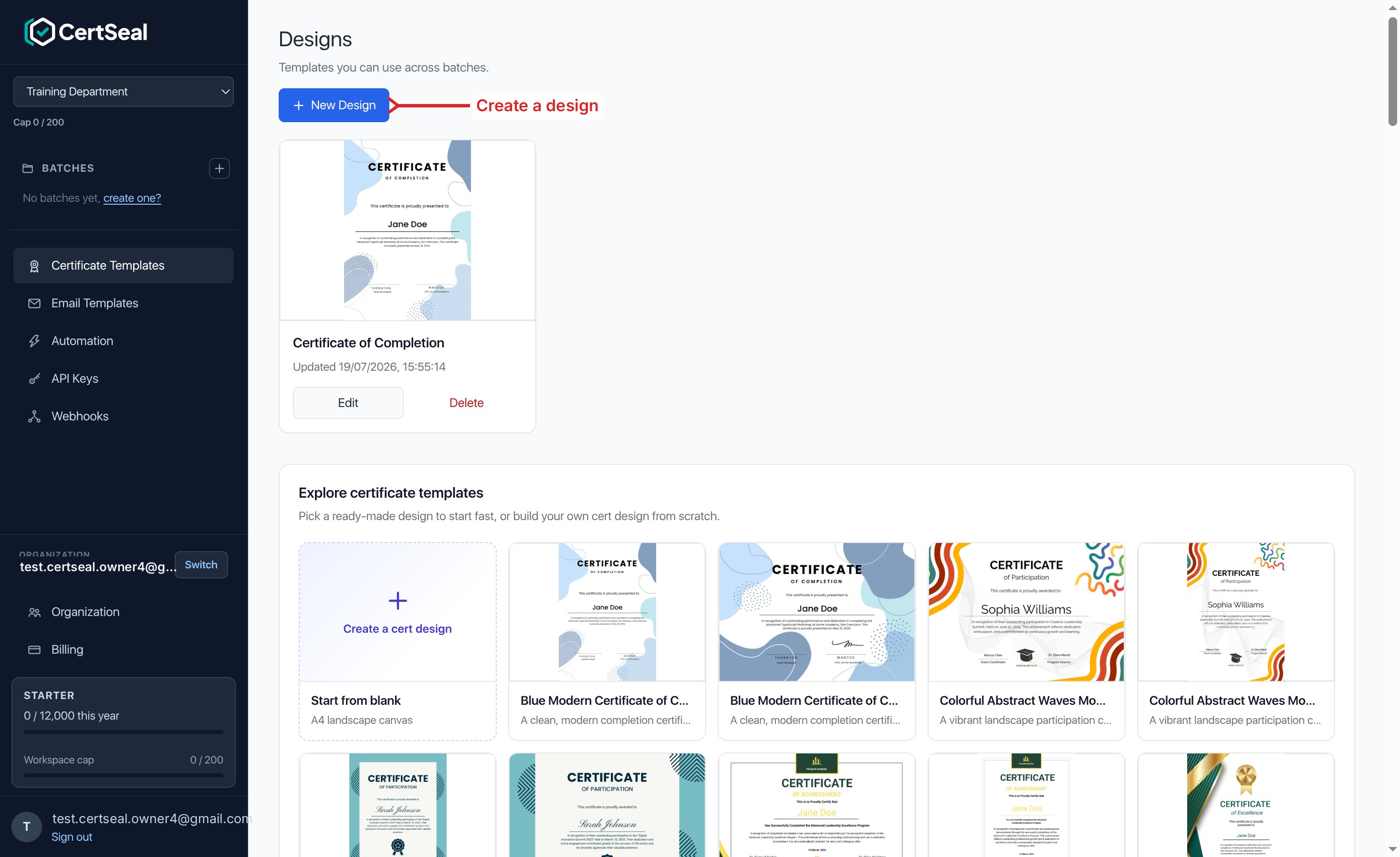
Create a design
You have three ways to start:
- New Design — click New Design (top left) to create a design and jump straight into the editor.
- Start from a template — in the Explore certificate templates gallery, pick a ready-made design that’s close to what you want, then customize it.
- Start from blank — choose Create a cert design / Start from blank in the gallery for an empty canvas.
Starting from a ready-made template is the quickest path — you get a polished layout and dynamic fields already in place.
Edit in the design editor
The editor has a tools panel on the left, the certificate canvas in the middle, and controls for Save, Preview, undo/redo, and zoom along the top.
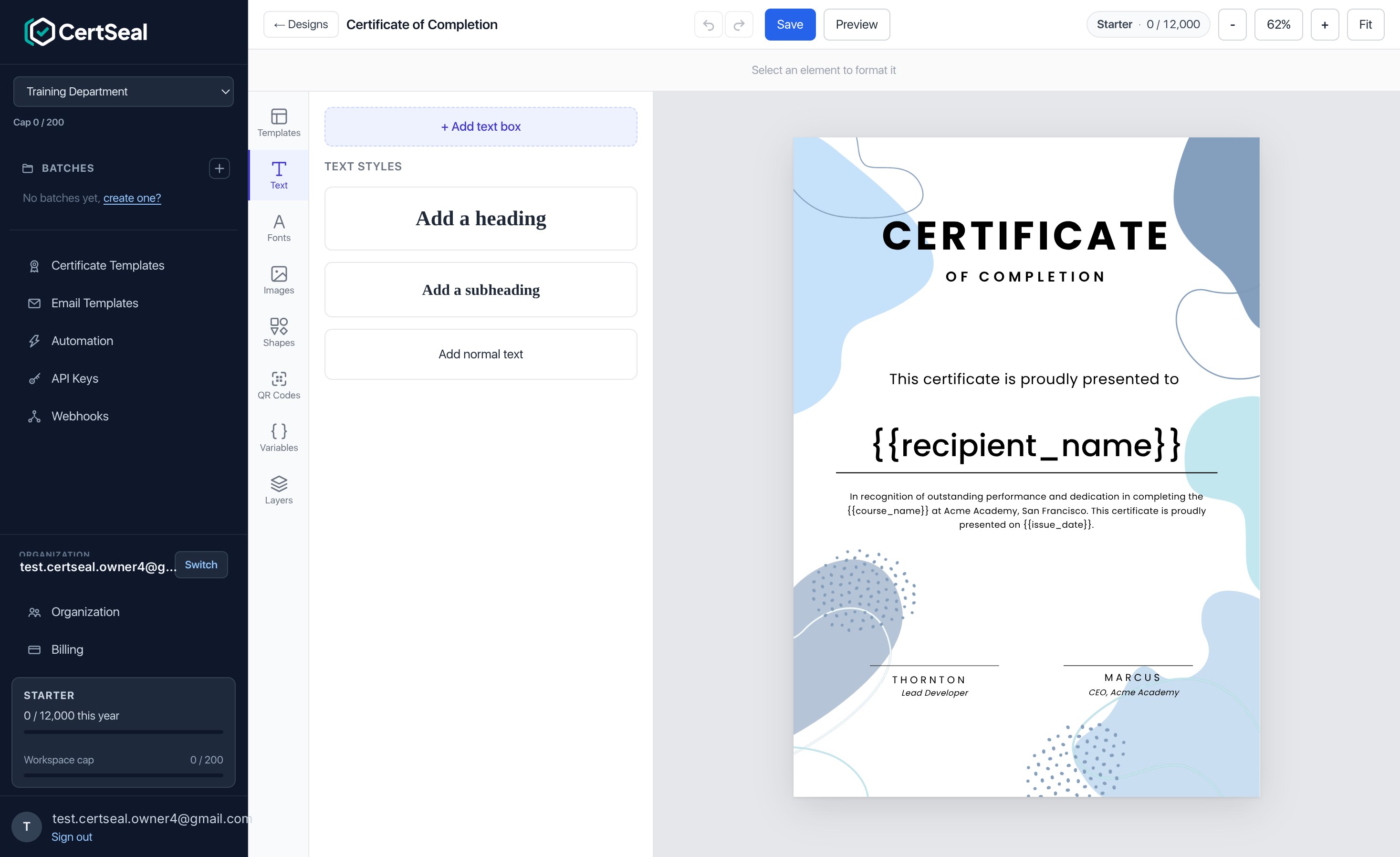
Use the tool tabs to build your certificate:
- Templates — swap in a different starting layout.
- Text — add headings, subheadings, and body text, and style fonts, size, color, and alignment.
- Fonts — browse and apply fonts.
- Images — upload a logo, signature, or background.
- Shapes — add lines, boxes, and decorative elements.
- QR Codes — add a scannable code (pair it with
{{cert_link}}for a verifiable link on the printed certificate). - Variables — insert dynamic fields (see below).
- Layers — reorder and manage every element on the canvas.
Click any element on the canvas to move, resize, or restyle it. Use Preview to see the certificate with sample data, then Save to store your changes. Rename a design by clicking its name in the top bar or inline on the Certificate Templates list.
Dynamic fields (variables)
Dynamic fields are placeholders like {{recipient_name}} that CertSeal replaces with each recipient’s data when the certificate is rendered. Open the Variables tab to insert them and set sample values for the preview.
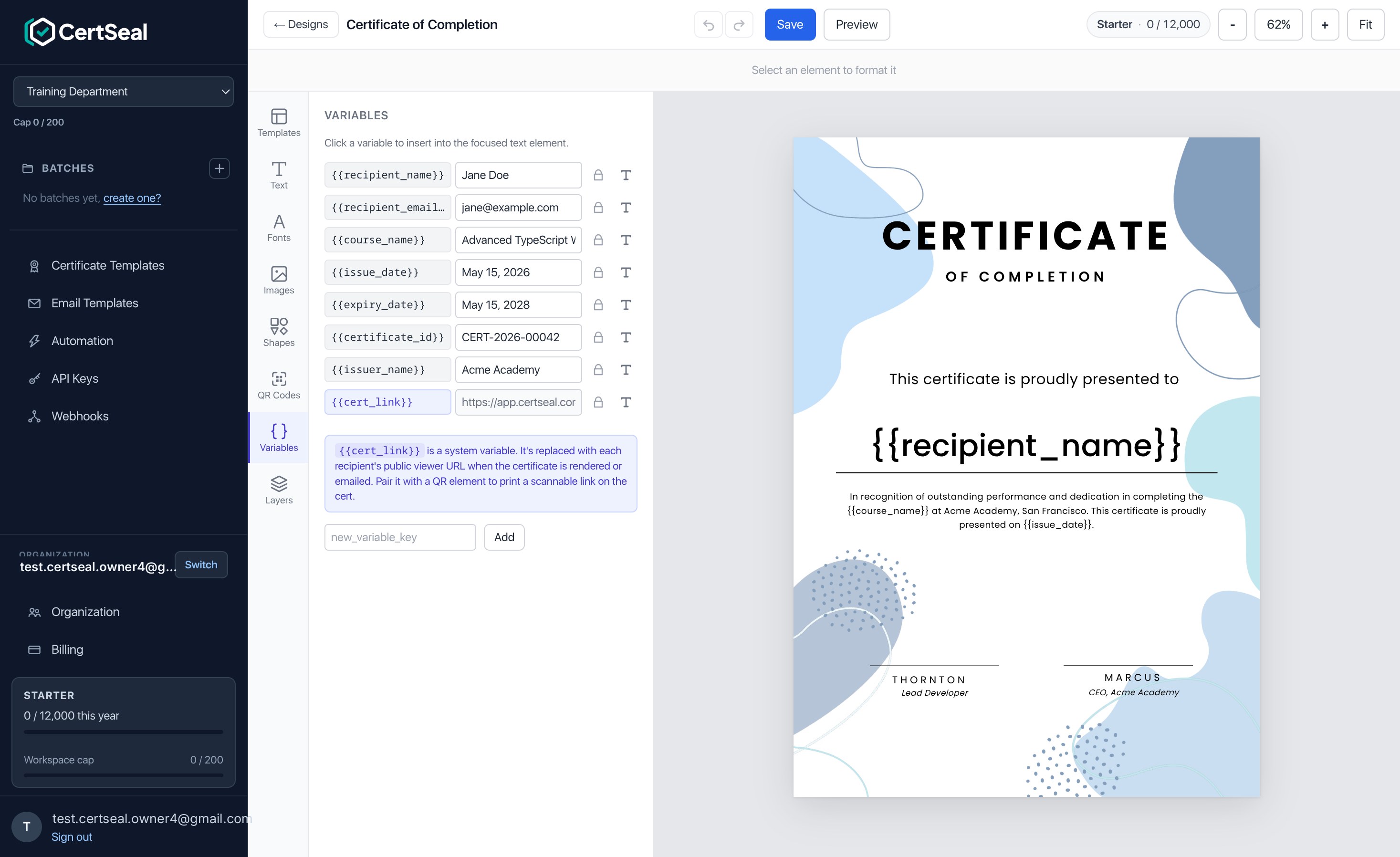
The built-in variables include:
{{recipient_name}}and{{recipient_email}}— the recipient’s name and email.{{course_name}}and{{issuer_name}}— the course/program and the issuing organization (set per batch).{{issue_date}}and{{expiry_date}}— issue and expiry dates.{{certificate_id}}— the human-readable certificate code.{{cert_link}}— the recipient’s public verification URL (great with a QR code).
You can also add your own custom variables — any extra column in your recipient file becomes a usable {{key}}. Set a sample value for each so the preview looks realistic.
Reuse, rename, and delete
Back on the Certificate Templates list you can Edit, rename (click the name), or Delete a design. To use a design, pick it when you create a batch — every recipient in that batch gets a personalized certificate from this template.
Support
Questions about the design editor? Email support@certseal.com and a real person will reply, typically within 1 business day (Monday–Friday, 9:00 AM–6:00 PM SGT). See the support guide for all contact options.