QR code certificates
A QR code on every certificate, linked to the real thing
Every certificate you issue gets its own link and certificate ID. Put a QR code on the design and anyone holding the certificate can scan it to open the copy hosted on CertSeal.
How it works
One QR code in the design, a unique link for every recipient
You don't generate codes one by one. CertSeal fills each recipient's own link into the same QR code when it renders their certificate.
A QR code on every certificate
Drop a QR code onto your design and point it at {{cert_link}}. Each recipient's certificate gets its own code — no generating and pasting one image per person.
A permanent certificate page
The code opens the recipient's certificate hosted on CertSeal, with their name, course, issuer, and certificate ID — the same certificate you issued, not a screenshot of it.
Unique certificate IDs
Every certificate gets a sequential ID such as CERT-2026-000123-000042, or bring your own from a certificate_id column. Print it next to the QR code with {{certificate_id}}.
Works on paper
Recipients download a print-ready PDF from their certificate page. The QR code still opens the hosted copy when someone scans the printed certificate on a wall or in a portfolio.
Links that don't break
Archiving a batch freezes it but keeps every certificate link and QR code working, so the codes you printed last year still resolve today.
Fix a typo without reprinting links
Correct a misspelled name after sending and the same link shows the corrected certificate. The QR code on any copy you already shared keeps pointing to the right place.
The QR flow
From design to scannable certificate in four steps
- 01
Add a QR code
Open the QR Codes tab in the certificate editor, place the code, and set its value to {{cert_link}}. Change its colors to match your design.
- 02
Import recipients
Upload a CSV or XLSX with names and emails. CertSeal assigns each recipient a certificate ID and a unique certificate link.
- 03
Send
Email every recipient their certificate. Each one carries a QR code that opens their own certificate page — never someone else's.
- 04
Scan to check
Anyone holding the certificate scans the code and sees the hosted copy, so they can compare the name, course, issuer, and ID with what's in front of them.
Templates
Add a QR code to any template
Start from a ready-made design, drop a QR code into a corner, and every certificate you issue from it links back to its hosted copy.
-

Blue Modern Certificate of Completion
-
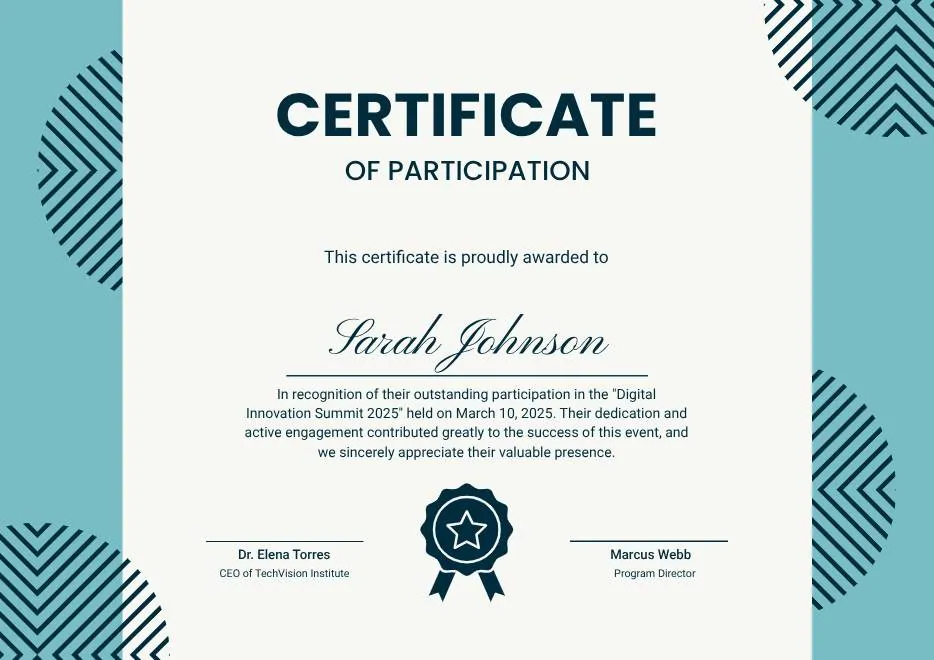
Teal Geometric Participation Certificate
-

Green Gold and White Modern Excellence Certificate
-

Certificate of Completion in Colorful Abstract Modern Style
-

Ivory Victorian Vintage Certificate of Excellence
-

Modern Vintage Certificate of Achievement
-

Red and Gold Achievement Certificate
-

Blue Abstract Waves Participation Certificate
-
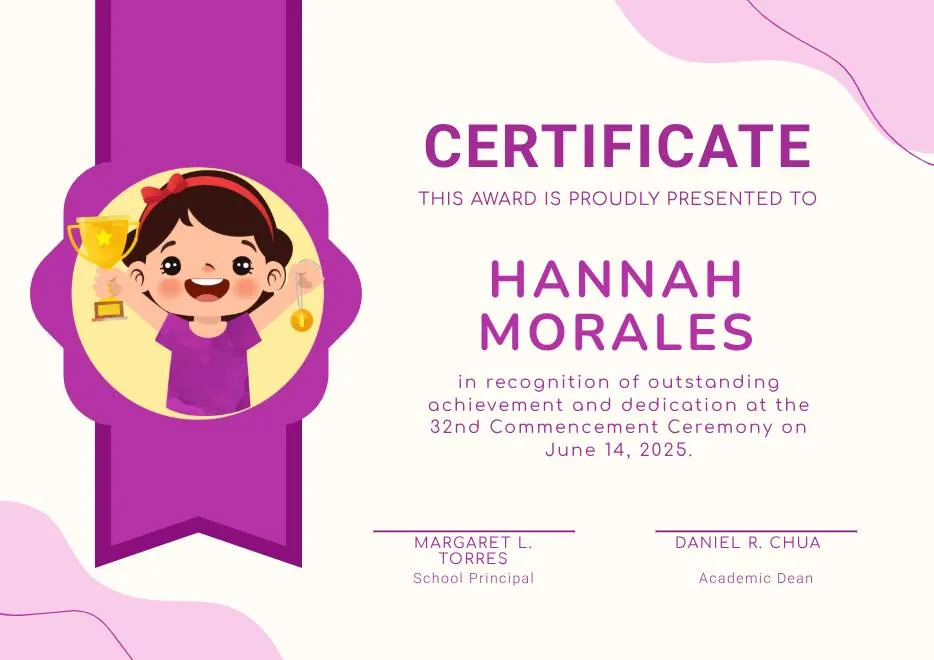
Purple Playfun Kids Award Certificate
-
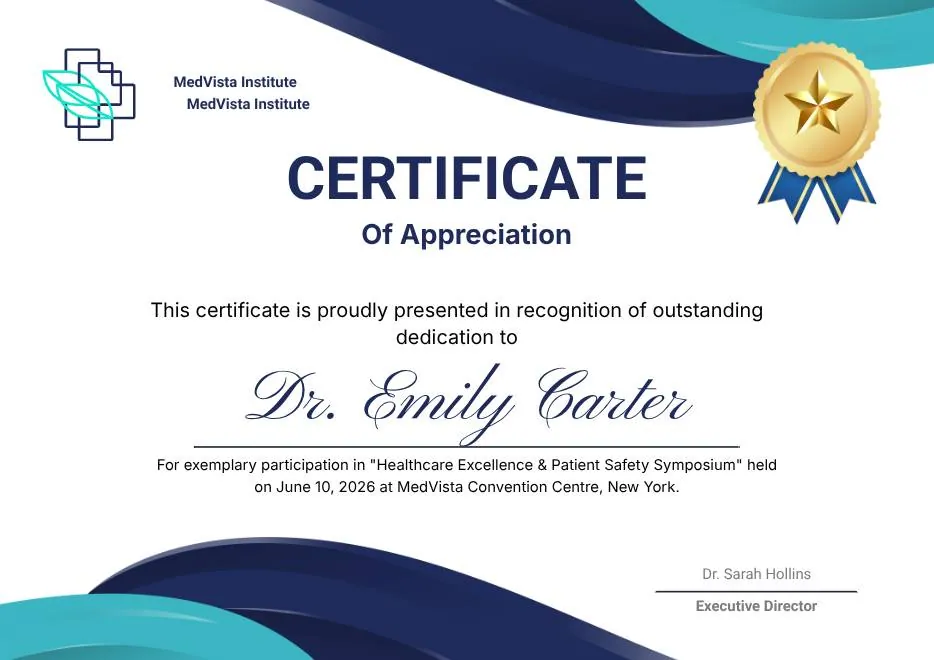
Blue Navy and Tosca Elegant Modern Medical Appreciation Certificate
-
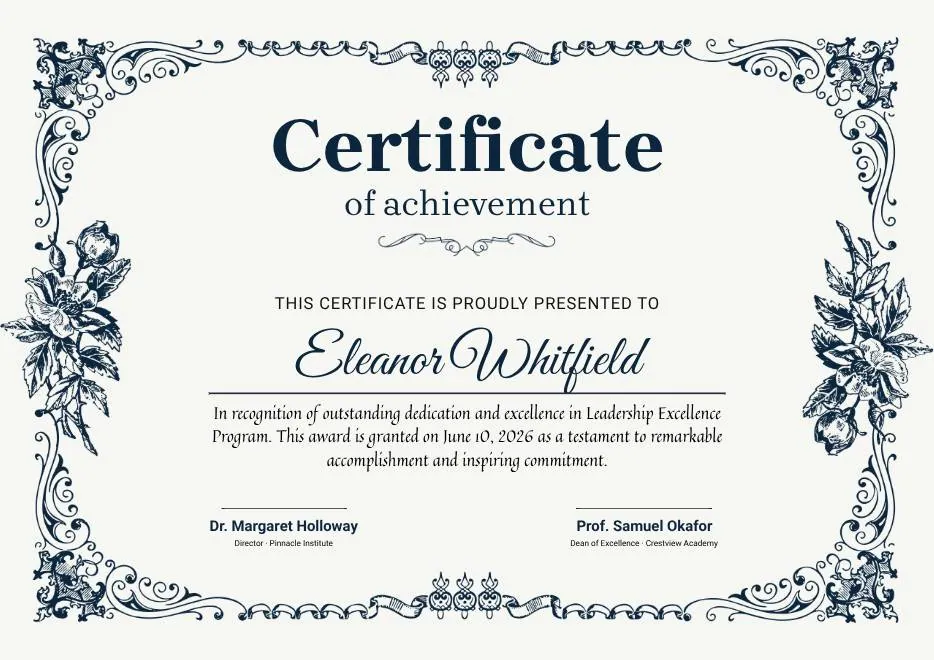
Modern Vintage Certificate of Achievement
-
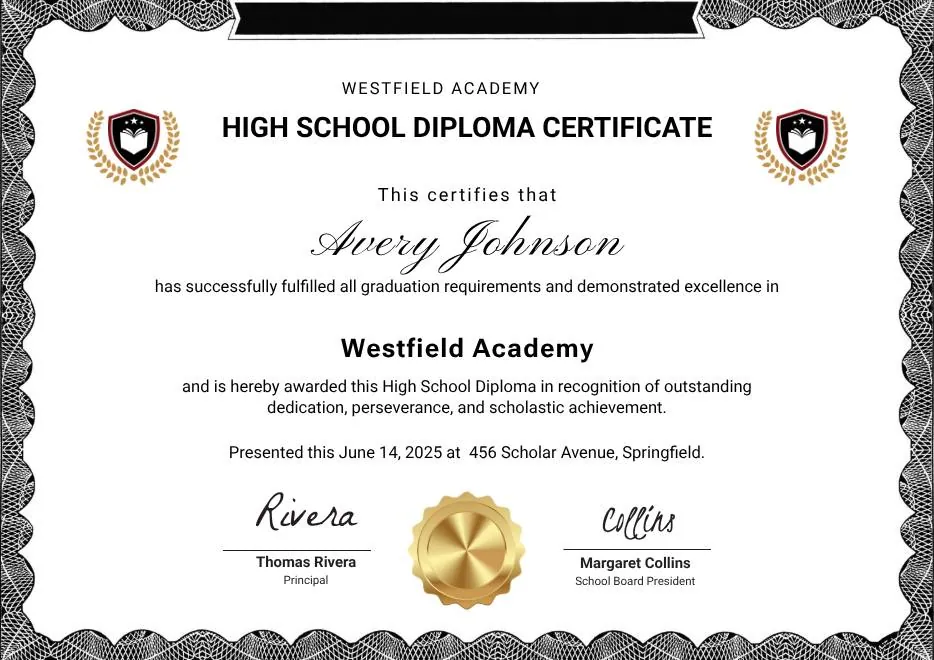
Black and White Modern High School Diploma Certificate
-
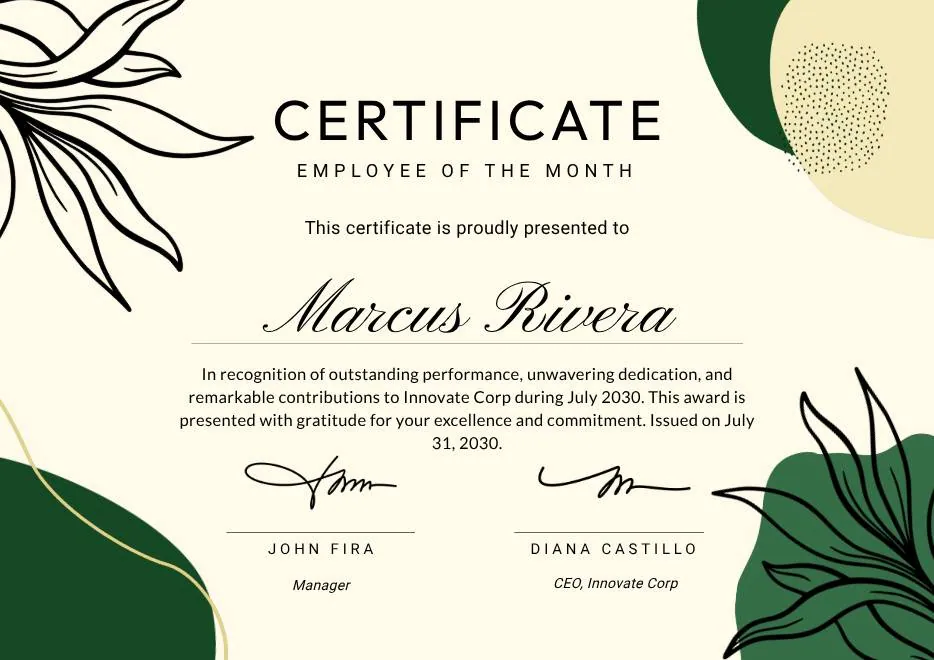
Green and Beige Botanical Employee of the Month Certificate
-

Blue Modern Certificate of Appreciation
-

Blue Modern Event Completion Certificate
-
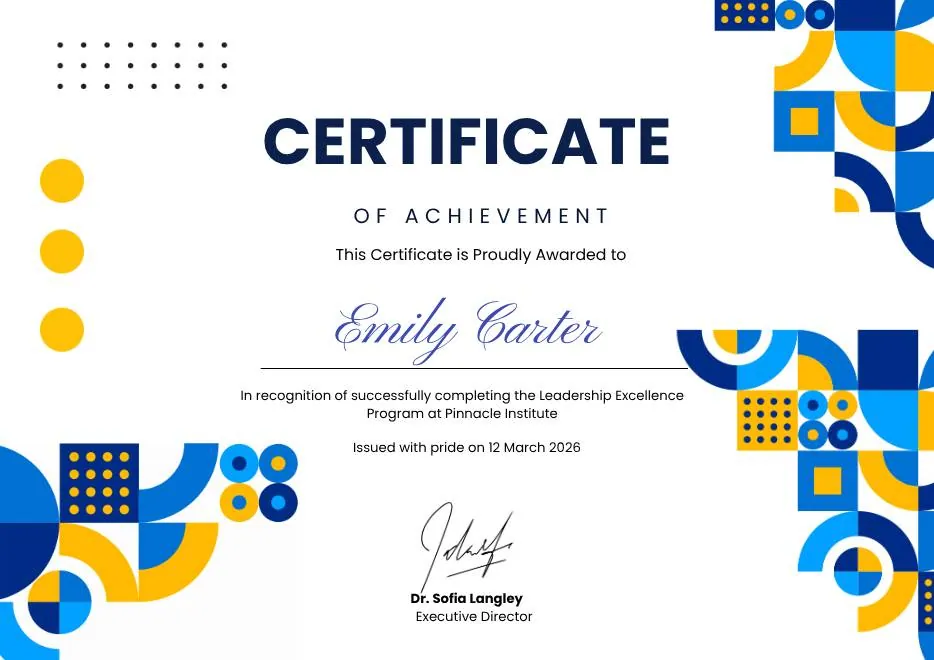
Blue and Yellow Geometric Achievement Certificate
-
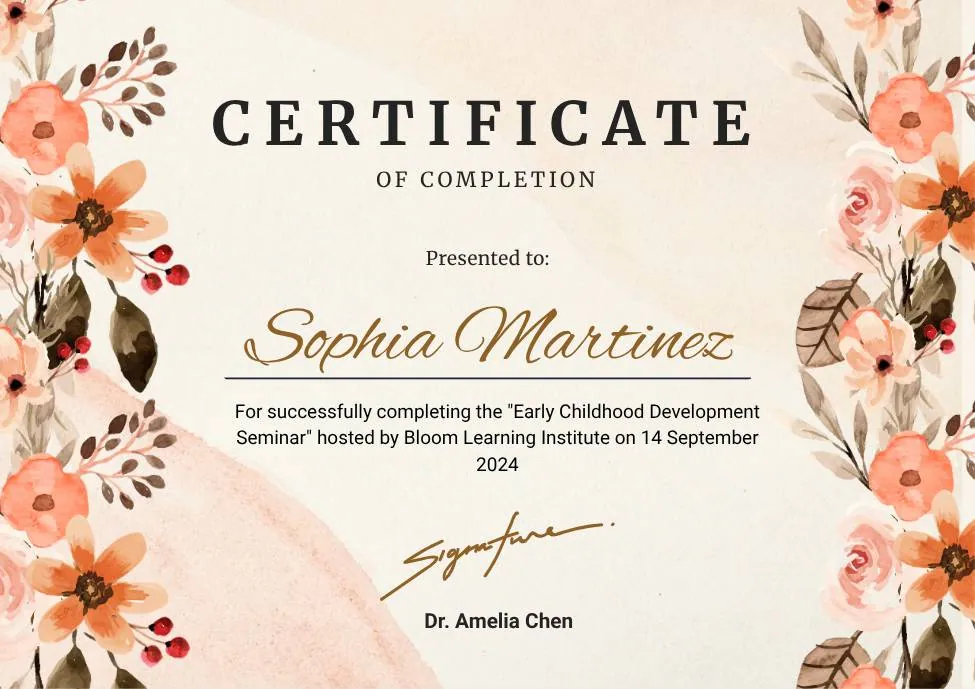
Beige Watercolor Floral Certificate of Completion
-
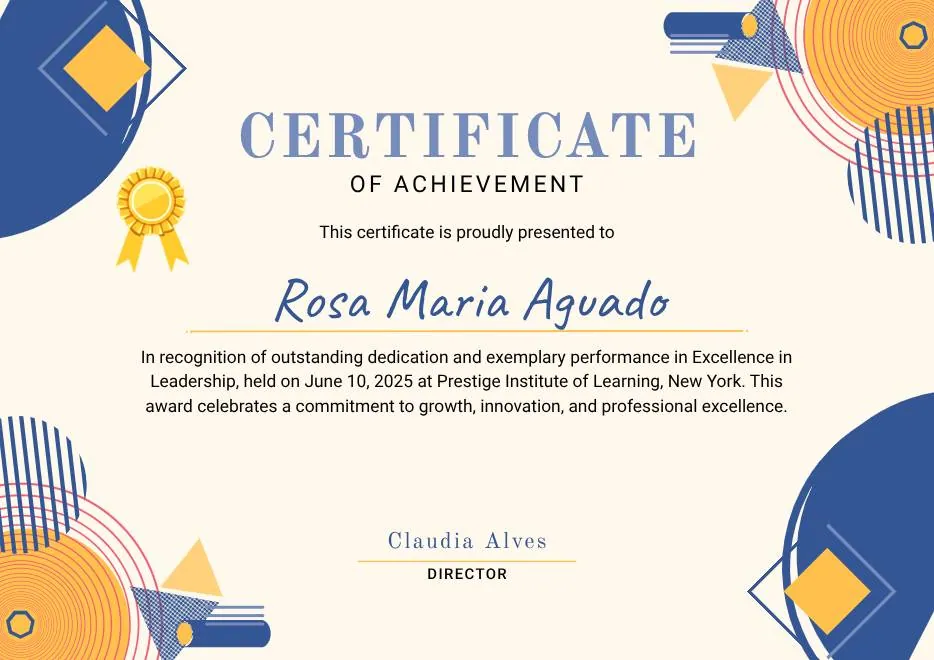
Blue Orange Modern Memphis Certificate of Achievement
-

Nexus Institute Bold Geometric Certificate of Achievement
-

Blue Tosca Geometric Training Certificate
-

White and Yellow Modern Leadership Training Certificate
-

Junior Astronaut Training Certificate in Colorful Playful Style
-

Certificate of Appreciation — Summit & Event Participation
-
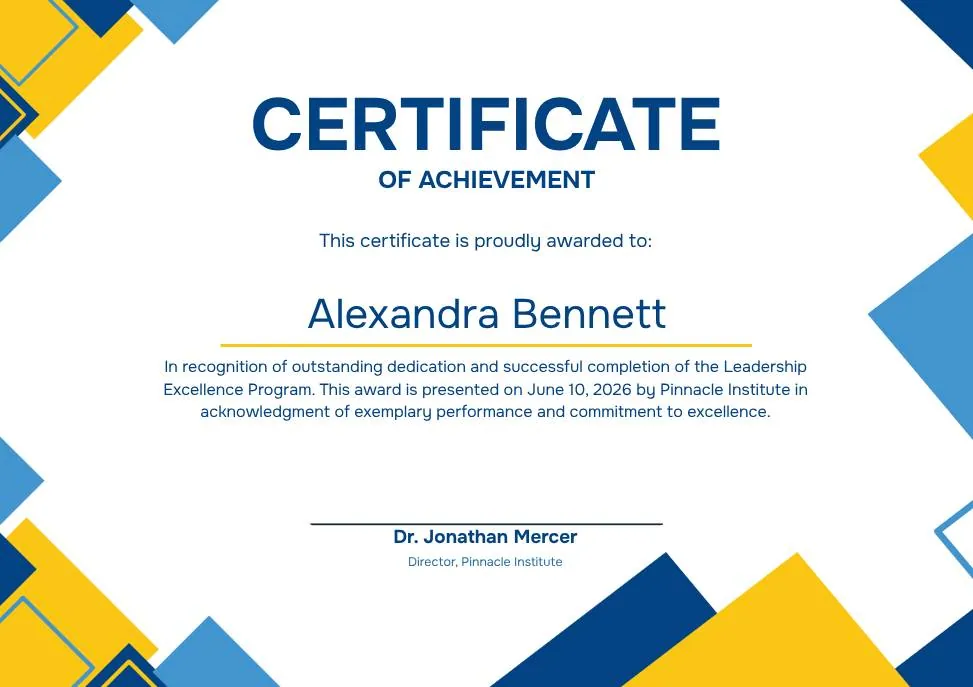
Blue Yellow Modern Geometric Certificate of Achievement
-
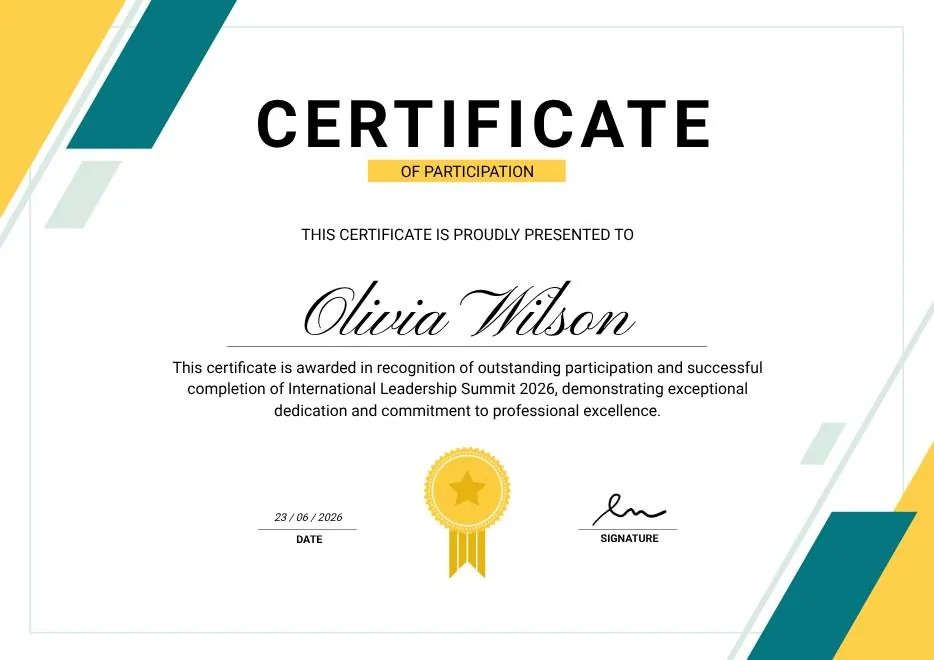
Green & Yellow Minimalist Certificate of Participation
-

White and Gold Modern Awards Certificate
-

Gray Teal Simple Internship Certificate
-

Teal and White Modern Participation Certificate
-
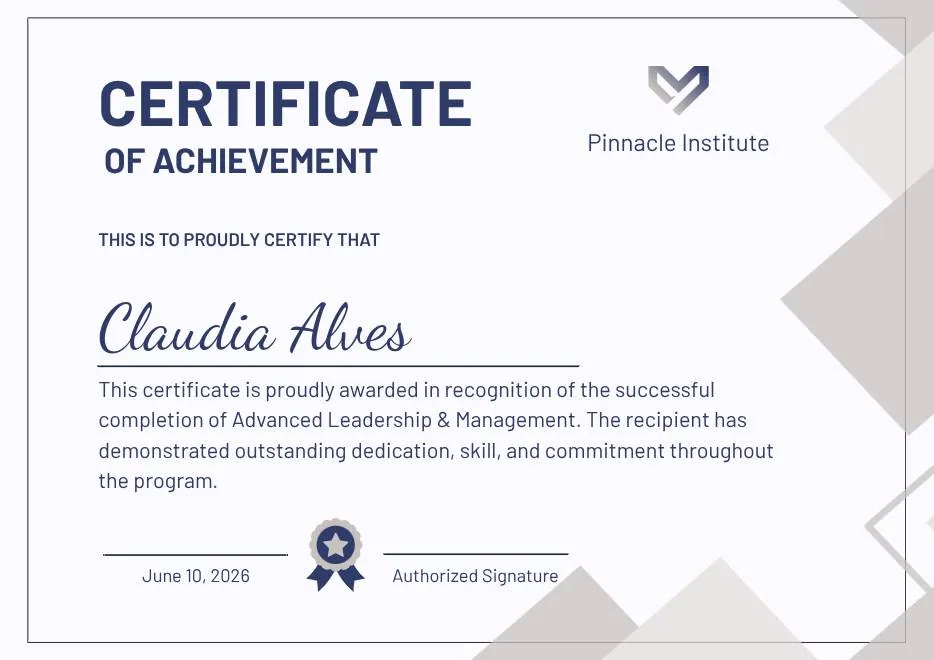
Gray and Blue Modern Achievement Certificate
-
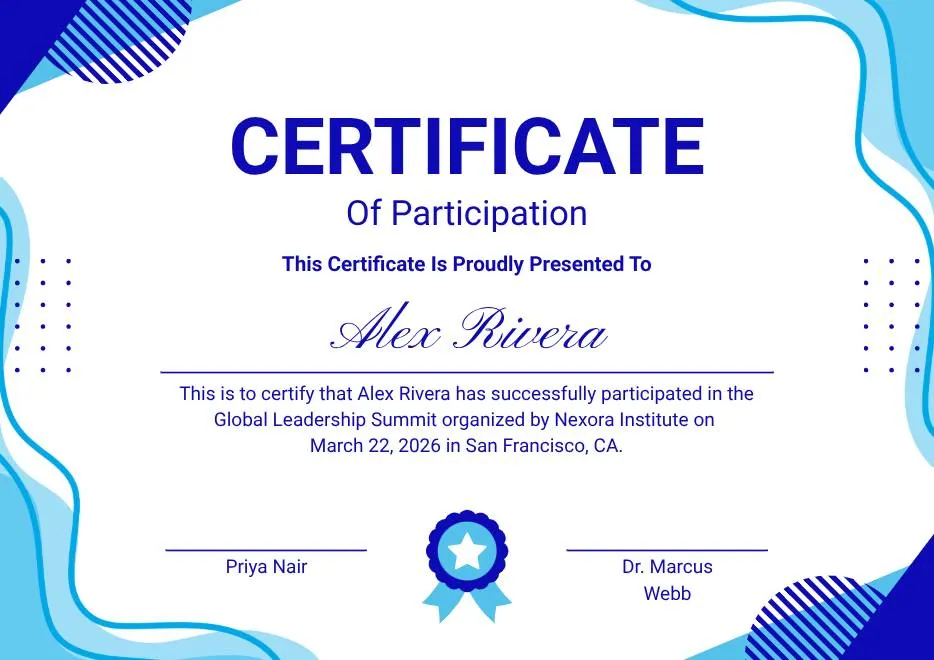
Blue and White Modern Participation Certificate
-

White and Green Minimalist Certificate of Attendance
-

Beige Organic Completion Certificate
-
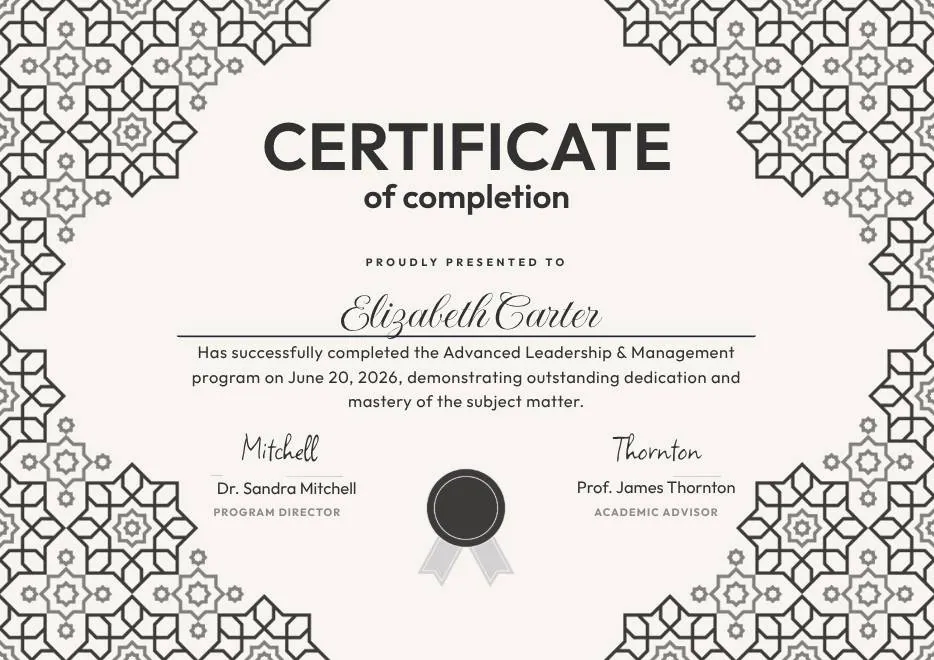
Black and White Geometric Completion Certificate
-
Blue Modern Certificate of Completion
-
Teal Geometric Participation Certificate
-
Green Gold and White Modern Excellence Certificate
-
Certificate of Completion in Colorful Abstract Modern Style
-
Ivory Victorian Vintage Certificate of Excellence
-
Modern Vintage Certificate of Achievement
-
Red and Gold Achievement Certificate
-
Blue Abstract Waves Participation Certificate
-
Purple Playfun Kids Award Certificate
-
Blue Navy and Tosca Elegant Modern Medical Appreciation Certificate
-
Modern Vintage Certificate of Achievement
-
Black and White Modern High School Diploma Certificate
-
Green and Beige Botanical Employee of the Month Certificate
-
Blue Modern Certificate of Appreciation
-
Blue Modern Event Completion Certificate
-
Blue and Yellow Geometric Achievement Certificate
-
Beige Watercolor Floral Certificate of Completion
-
Blue Orange Modern Memphis Certificate of Achievement
-
Nexus Institute Bold Geometric Certificate of Achievement
-
Blue Tosca Geometric Training Certificate
-
White and Yellow Modern Leadership Training Certificate
-
Junior Astronaut Training Certificate in Colorful Playful Style
-
Certificate of Appreciation — Summit & Event Participation
-
Blue Yellow Modern Geometric Certificate of Achievement
-
Green & Yellow Minimalist Certificate of Participation
-
White and Gold Modern Awards Certificate
-
Gray Teal Simple Internship Certificate
-
Teal and White Modern Participation Certificate
-
Gray and Blue Modern Achievement Certificate
-
Blue and White Modern Participation Certificate
-
White and Green Minimalist Certificate of Attendance
-
Beige Organic Completion Certificate
-
Black and White Geometric Completion Certificate
-

Colorful Abstract Waves Modern Participation Certificate
-
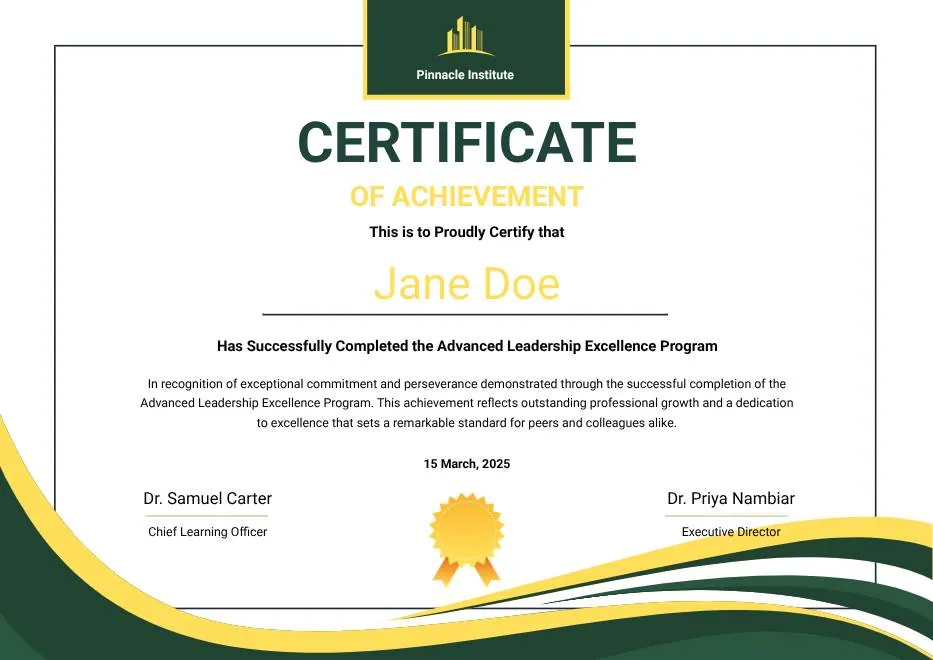
Green and Gold Modern Leadership Achievement Certificate
-

Teal Watercolor Elegant Certificate of Excellence
-
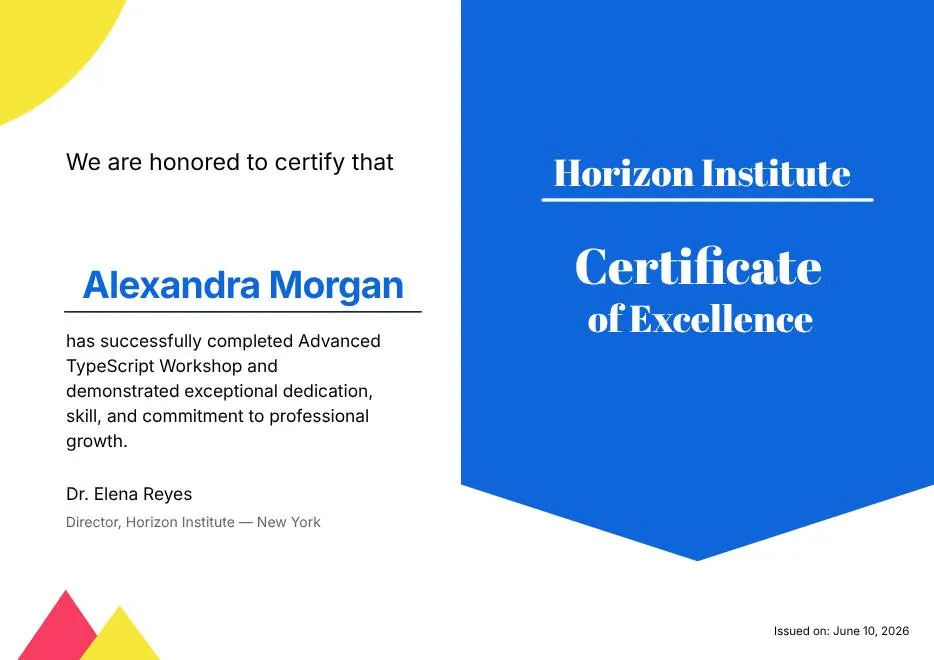
Blue and Yellow Modern Certificate of Excellence
-

Classic Floral Border Certificate of Achievement
-

Modern White and Green Certificate of Excellence
-

Beige Classic Certificate of Achievement
-

Colorful Brushstroke Art Certificate of Participation
-

Gold Elegant Workshop Participation Certificate
-
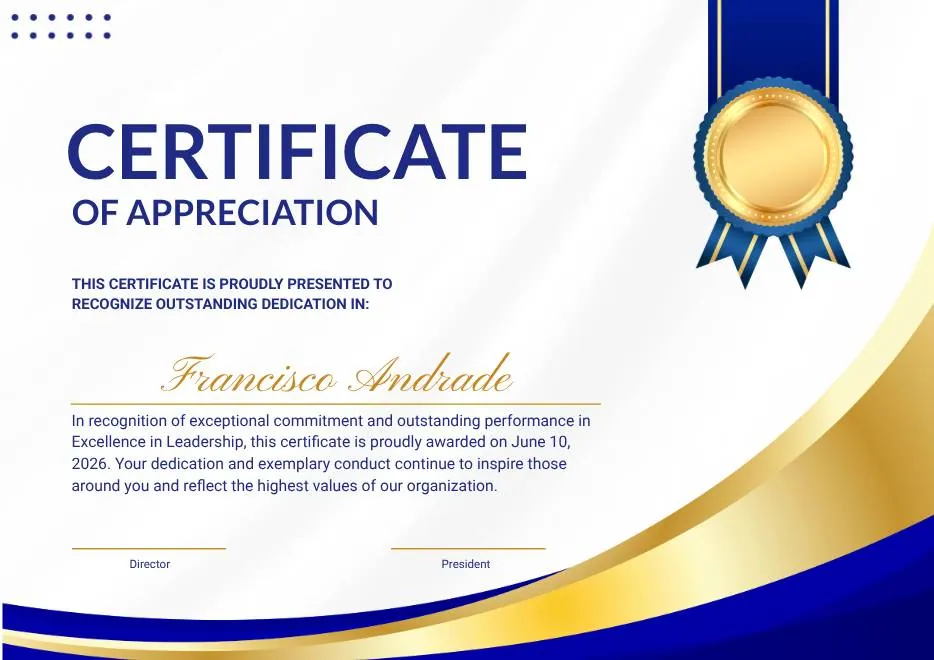
Blue and Gold Modern Certificate of Appreciation
-
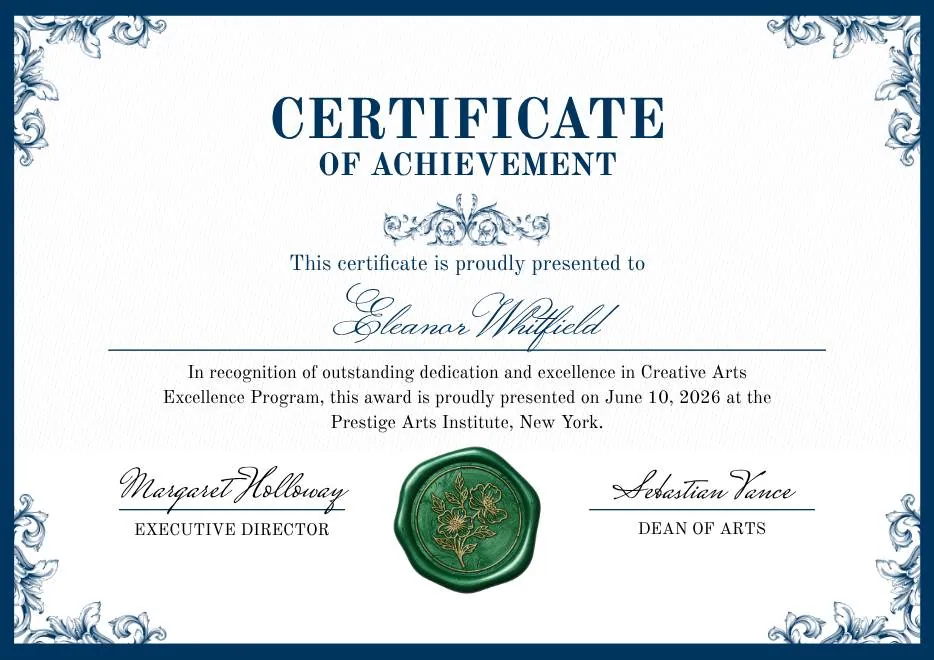
Blue and Green Traditional Certificate of Achievement
-
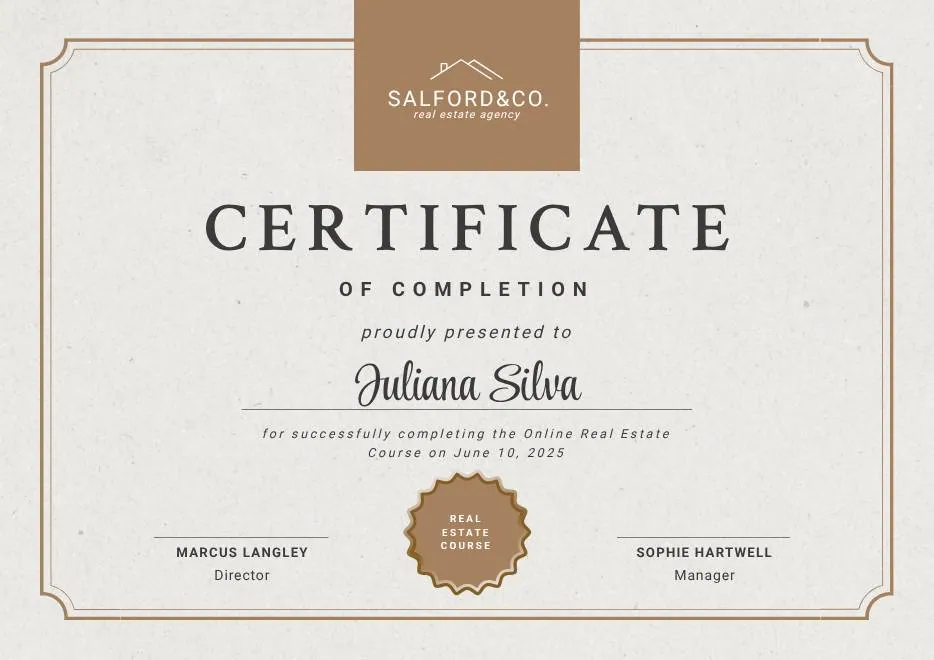
Beige Brown Aesthetic Real Estate Course Completion Certificate
-
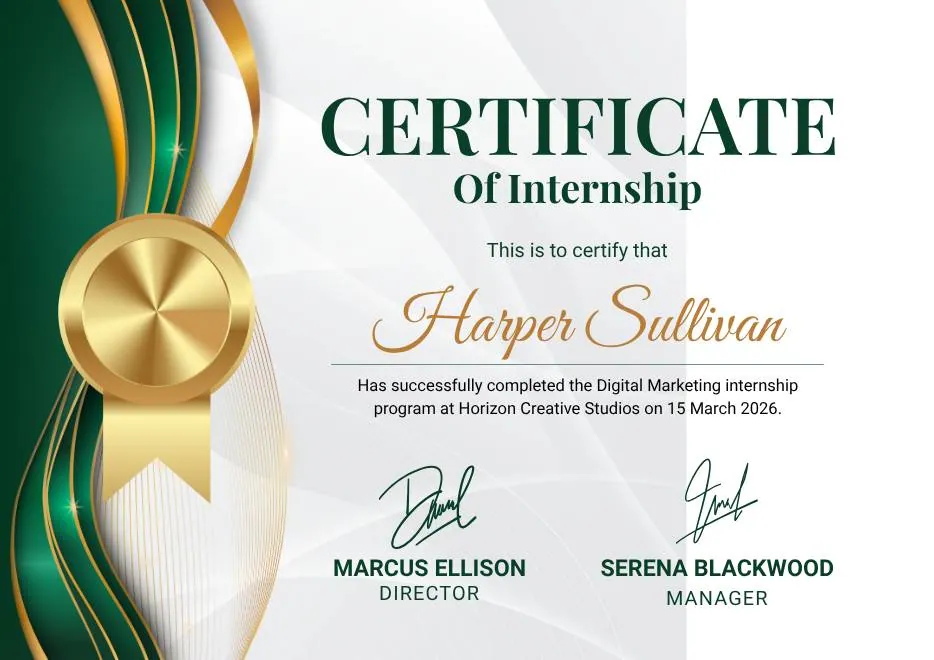
Green and Gold Elegant Internship Certificate
-
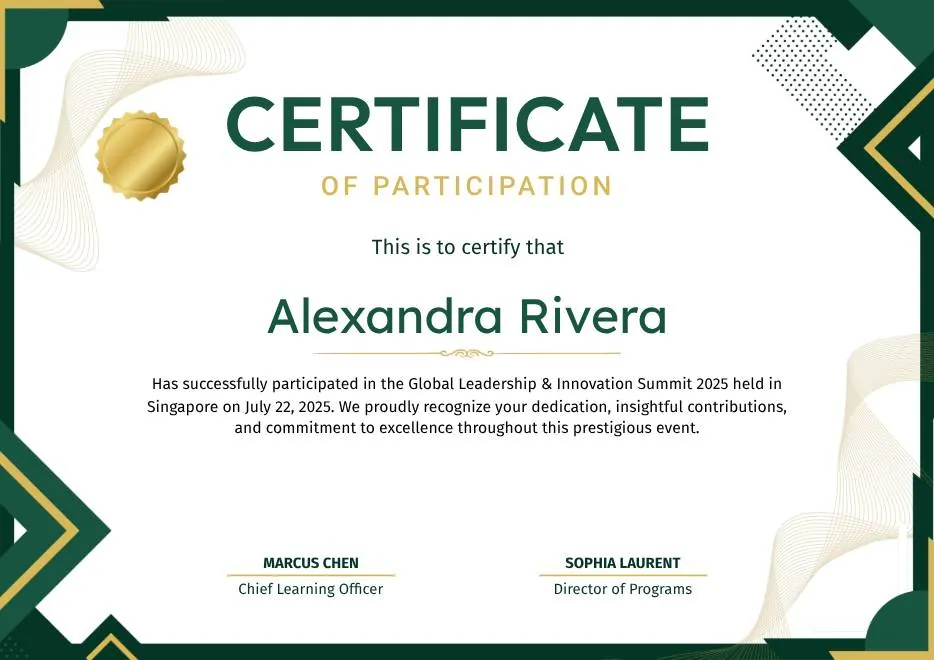
Green and Gold Geometric Modern Certificate of Participation
-

Green Modern Event Completion Certificate
-
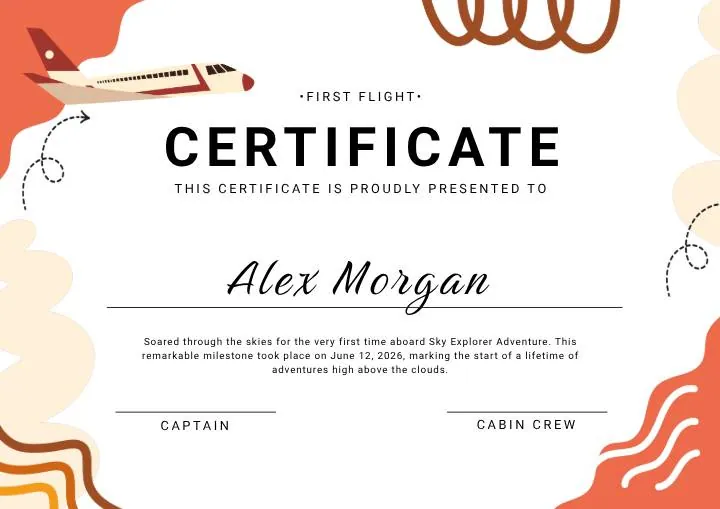
Orange and Brown Colorful Illustrated First Flight Certificate
-
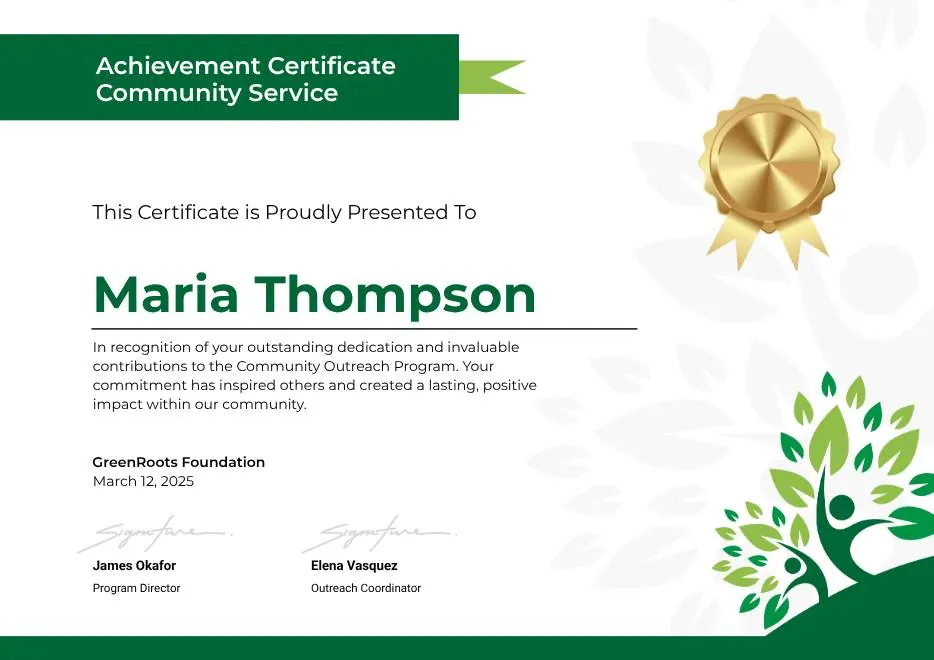
Green Clean Achievement Community Service Certificate
-
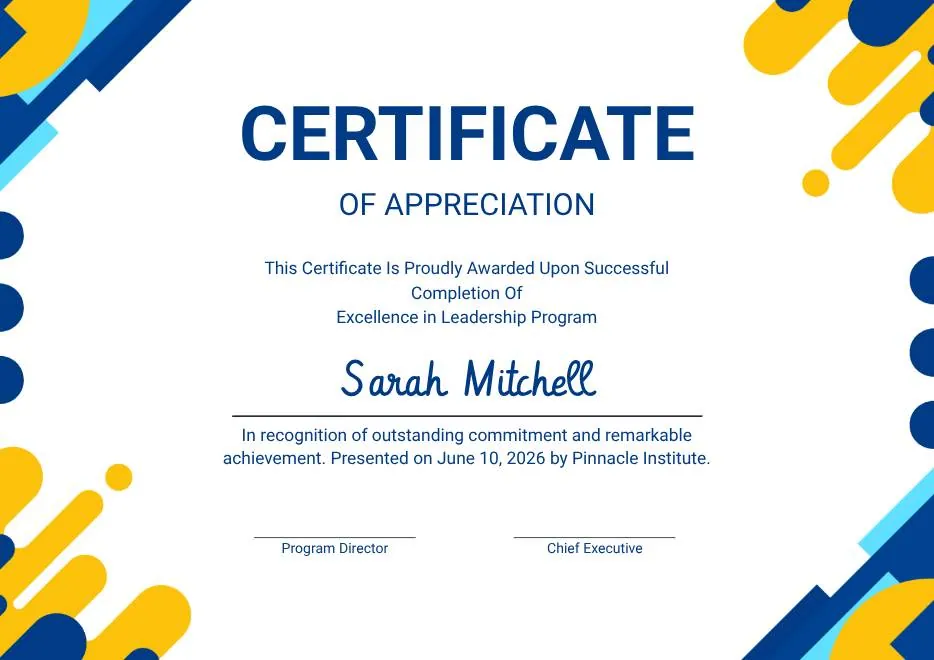
Yellow and Blue Modern Certificate of Appreciation
-

Colorful Funny Dinosaur Kids Certificate
-
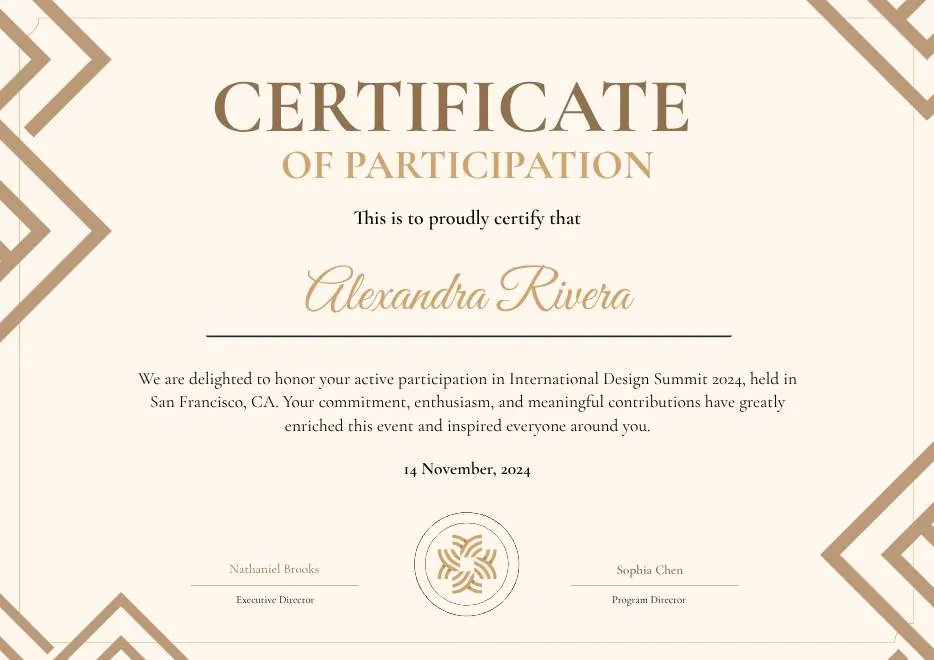
Brown Modern Geometric Participation Certificate
-
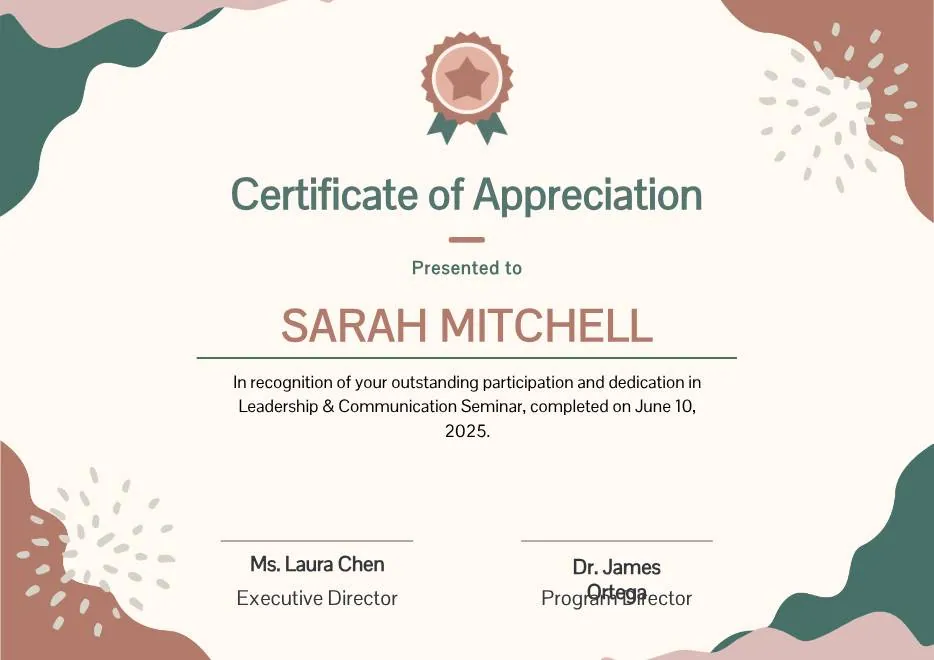
Beige Blob Appreciation Seminar Certificate
-

Navy and Gold Modern Appreciation Certificate
-
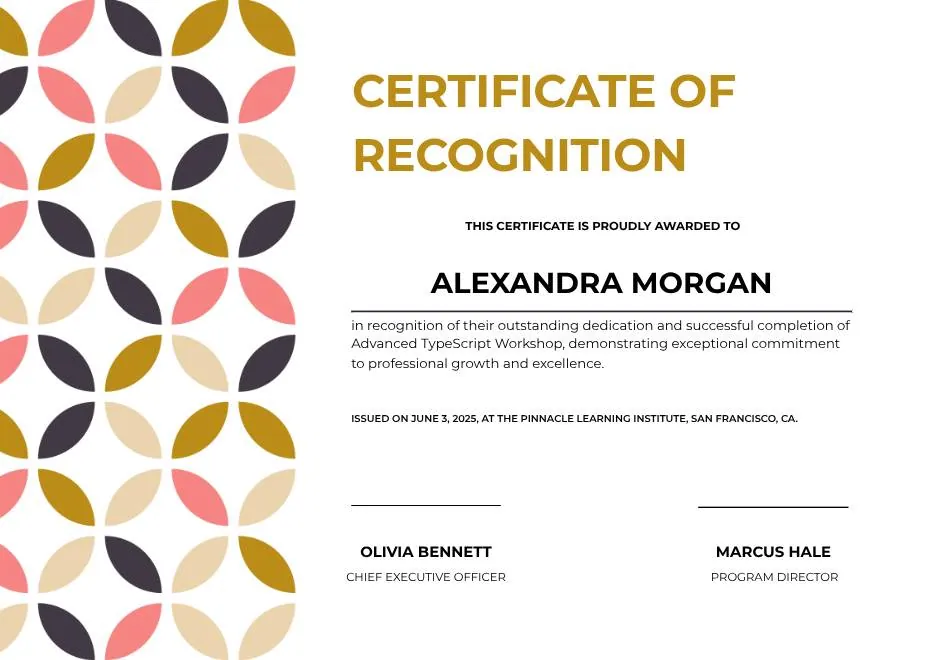
White Geometric Petal Pattern Certificate of Recognition
-

Green and Gold Modern Elegant Sport Achievement Certificate
-
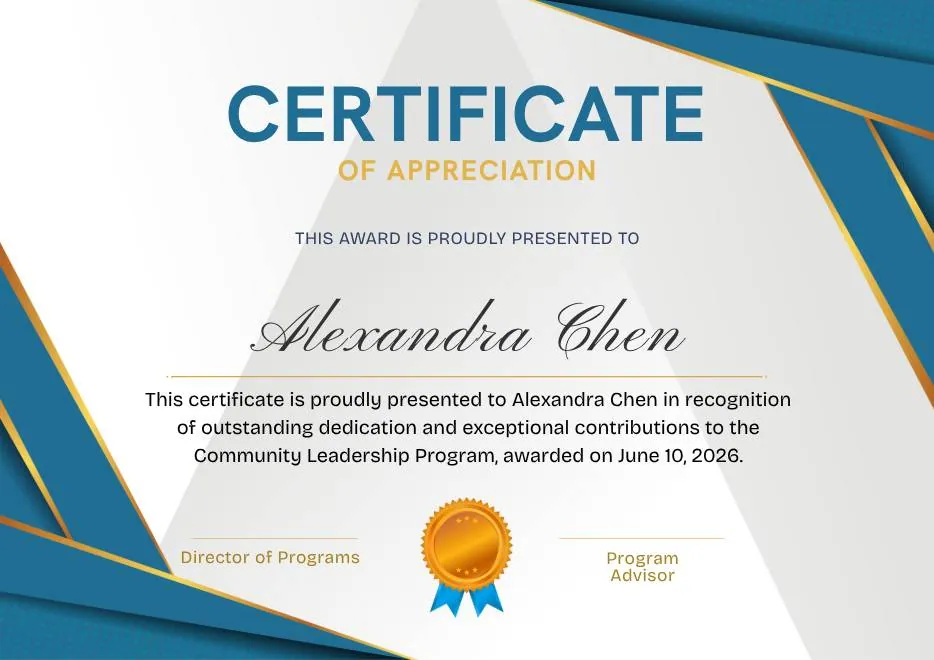
Blue and Gold Appreciation Certificate
-
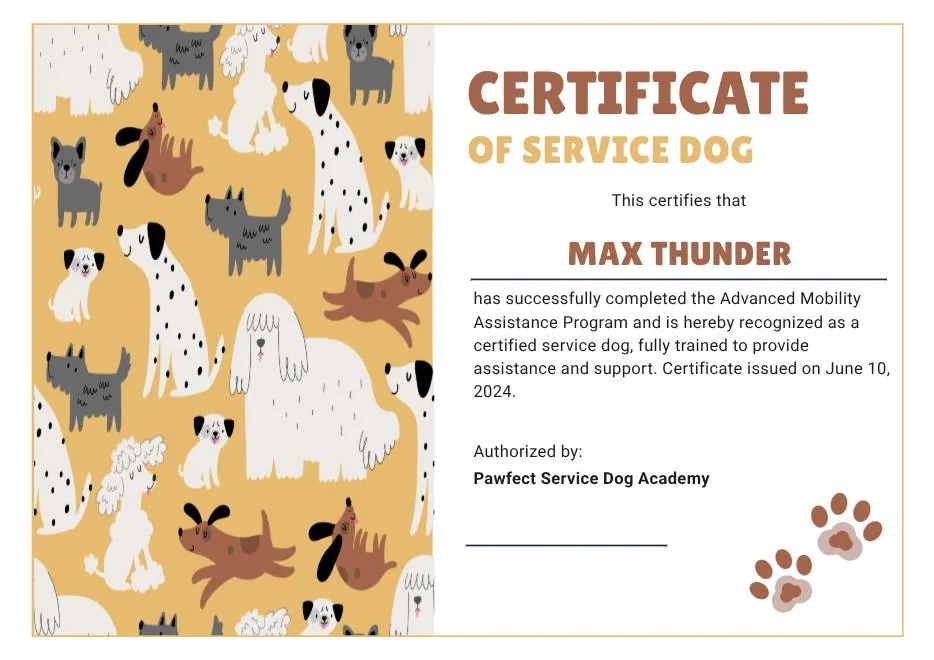
Tan White and Black Illustrated Service Dog Certificate
-
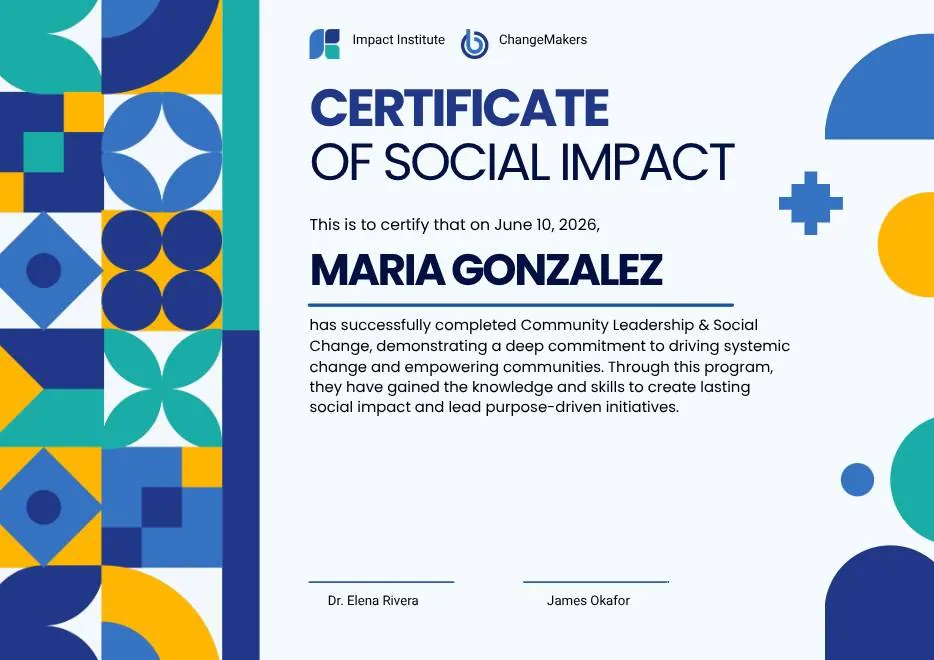
Blue and Yellow Geometric Certificate of Social Impact
-
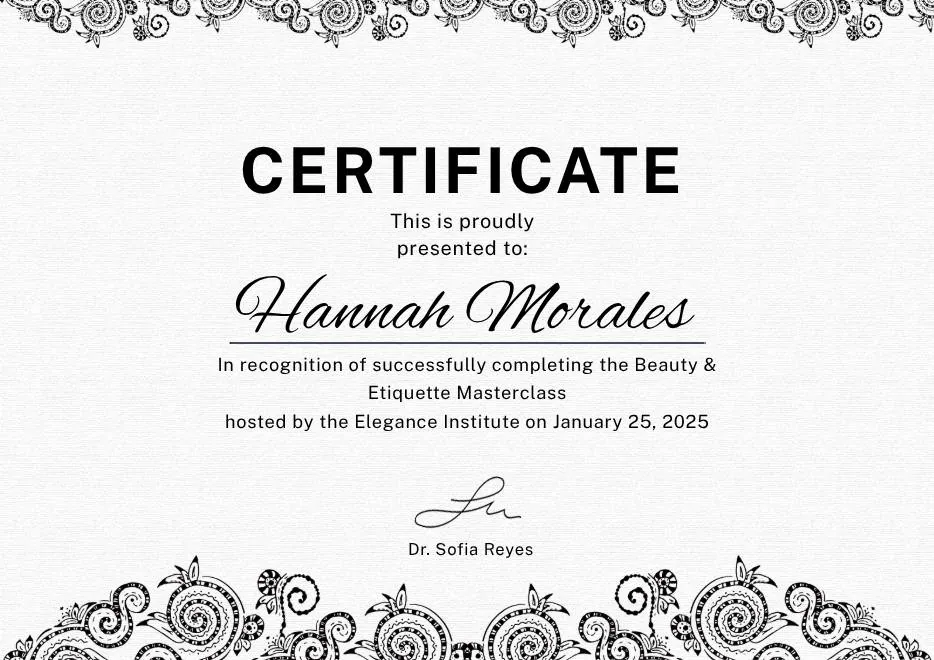
Black White Elegant Certificate Template
-
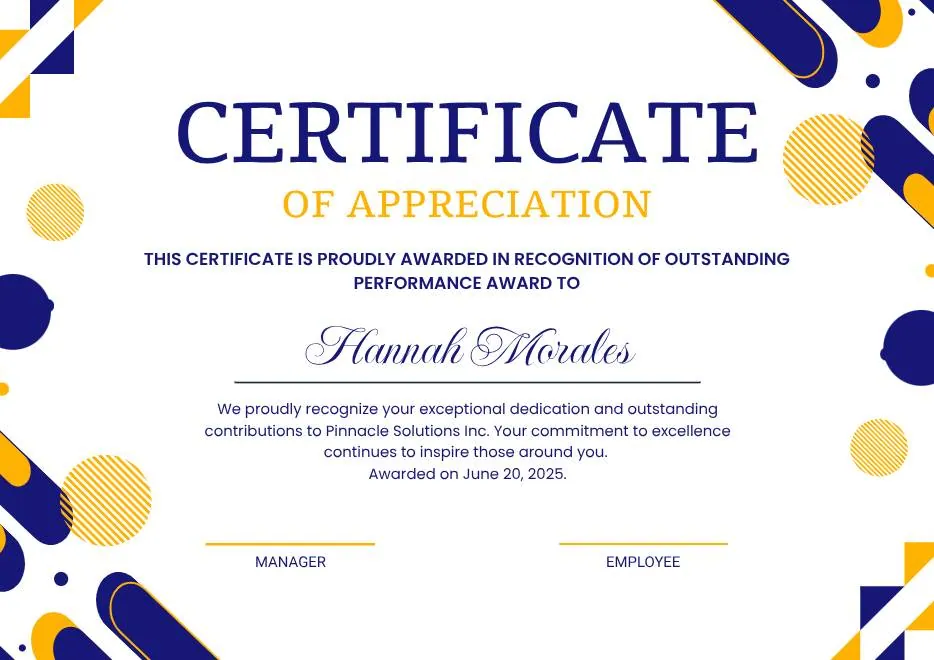
Blue Yellow and White Modern Appreciation Certificate
-
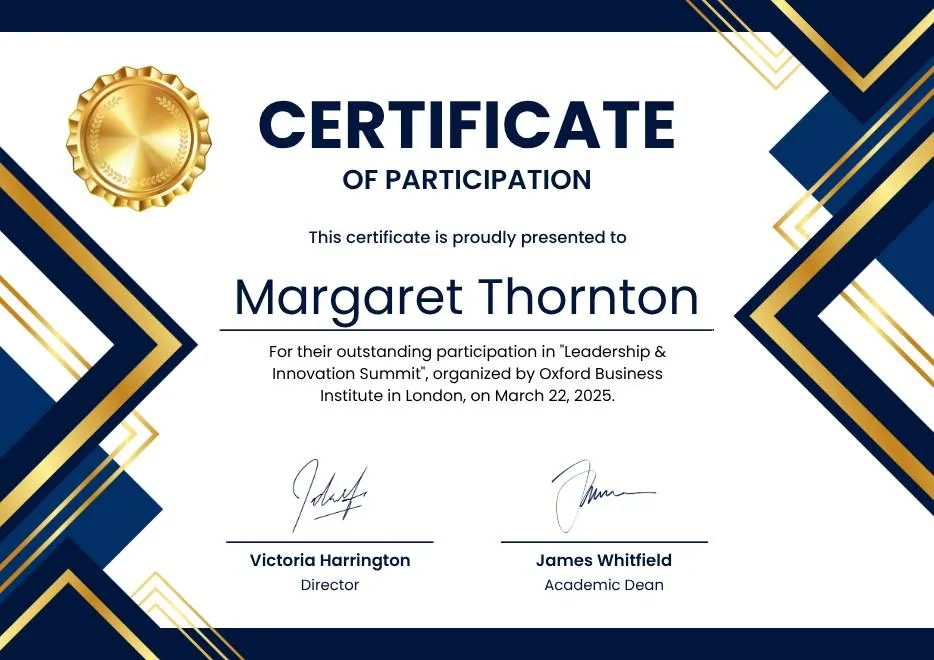
Blue White Gold Modern Participation Certificate
-

Green White Classic Minimalist Attendance Certificate
-
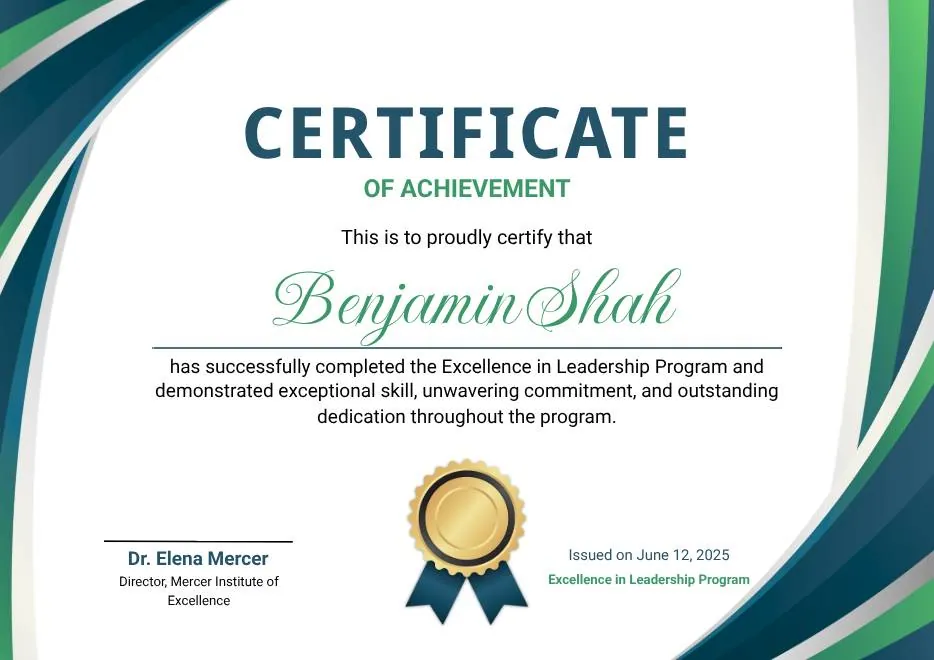
Blue and Green Modern Achievement Certificate
-
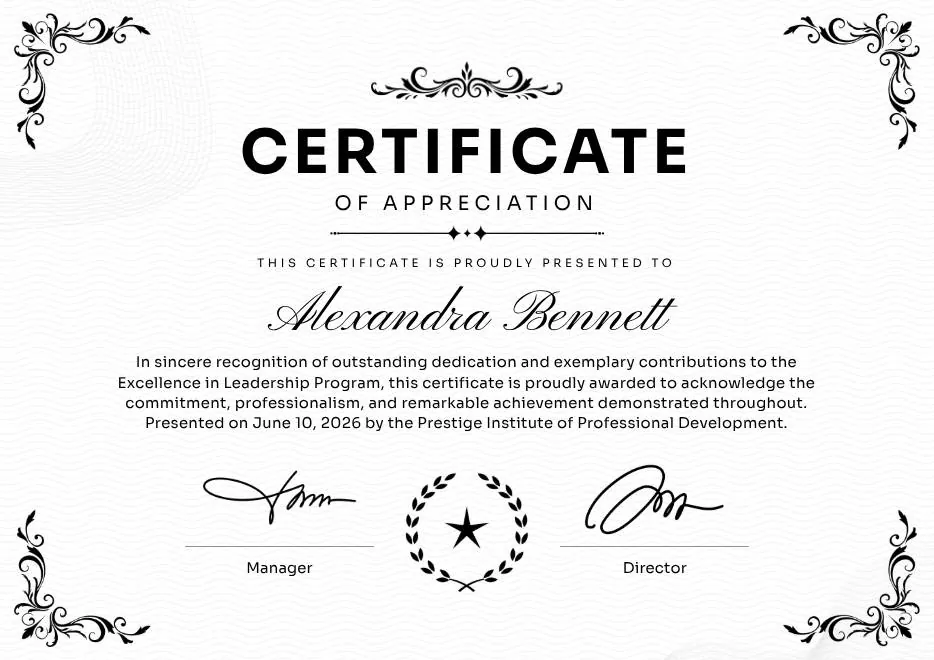
Black and White Traditional Appreciation Certificate A4
-
Colorful Abstract Waves Modern Participation Certificate
-
Green and Gold Modern Leadership Achievement Certificate
-
Teal Watercolor Elegant Certificate of Excellence
-
Blue and Yellow Modern Certificate of Excellence
-
Classic Floral Border Certificate of Achievement
-
Modern White and Green Certificate of Excellence
-
Beige Classic Certificate of Achievement
-
Colorful Brushstroke Art Certificate of Participation
-
Gold Elegant Workshop Participation Certificate
-
Blue and Gold Modern Certificate of Appreciation
-
Blue and Green Traditional Certificate of Achievement
-
Beige Brown Aesthetic Real Estate Course Completion Certificate
-
Green and Gold Elegant Internship Certificate
-
Green and Gold Geometric Modern Certificate of Participation
-
Green Modern Event Completion Certificate
-
Orange and Brown Colorful Illustrated First Flight Certificate
-
Green Clean Achievement Community Service Certificate
-
Yellow and Blue Modern Certificate of Appreciation
-
Colorful Funny Dinosaur Kids Certificate
-
Brown Modern Geometric Participation Certificate
-
Beige Blob Appreciation Seminar Certificate
-
Navy and Gold Modern Appreciation Certificate
-
White Geometric Petal Pattern Certificate of Recognition
-
Green and Gold Modern Elegant Sport Achievement Certificate
-
Blue and Gold Appreciation Certificate
-
Tan White and Black Illustrated Service Dog Certificate
-
Blue and Yellow Geometric Certificate of Social Impact
-
Black White Elegant Certificate Template
-
Blue Yellow and White Modern Appreciation Certificate
-
Blue White Gold Modern Participation Certificate
-
Green White Classic Minimalist Attendance Certificate
-
Blue and Green Modern Achievement Certificate
-
Black and White Traditional Appreciation Certificate A4
Questions about QR codes
What issuers ask before they print
What does someone see when they scan the QR code?
Do I have to create a QR code for each recipient?
{{cert_link}}. CertSeal fills in each recipient's own link when it renders their certificate.Can I use my own certificate numbers?
certificate_id column to your recipient file and CertSeal uses your values. Leave it out and every certificate gets an automatic ID in the format CERT-YEAR-WORKSPACE-SEQUENCE.What happens to the link if I edit a certificate after sending it?
Do the links stop working when I archive a batch?
Issue your first QR code certificate
Free for your first 100 certificates a year — no credit card required.