Getting started
Brand assets
Last updated: November 24, 2026
The Assets page keeps the images, fonts and brand colors your certificate designs use, so your whole team designs with the same logo, signature and colors.
Open Assets under Templates in the left sidebar. Assets belong to the workspace: everyone who can edit designs in the workspace can use them.
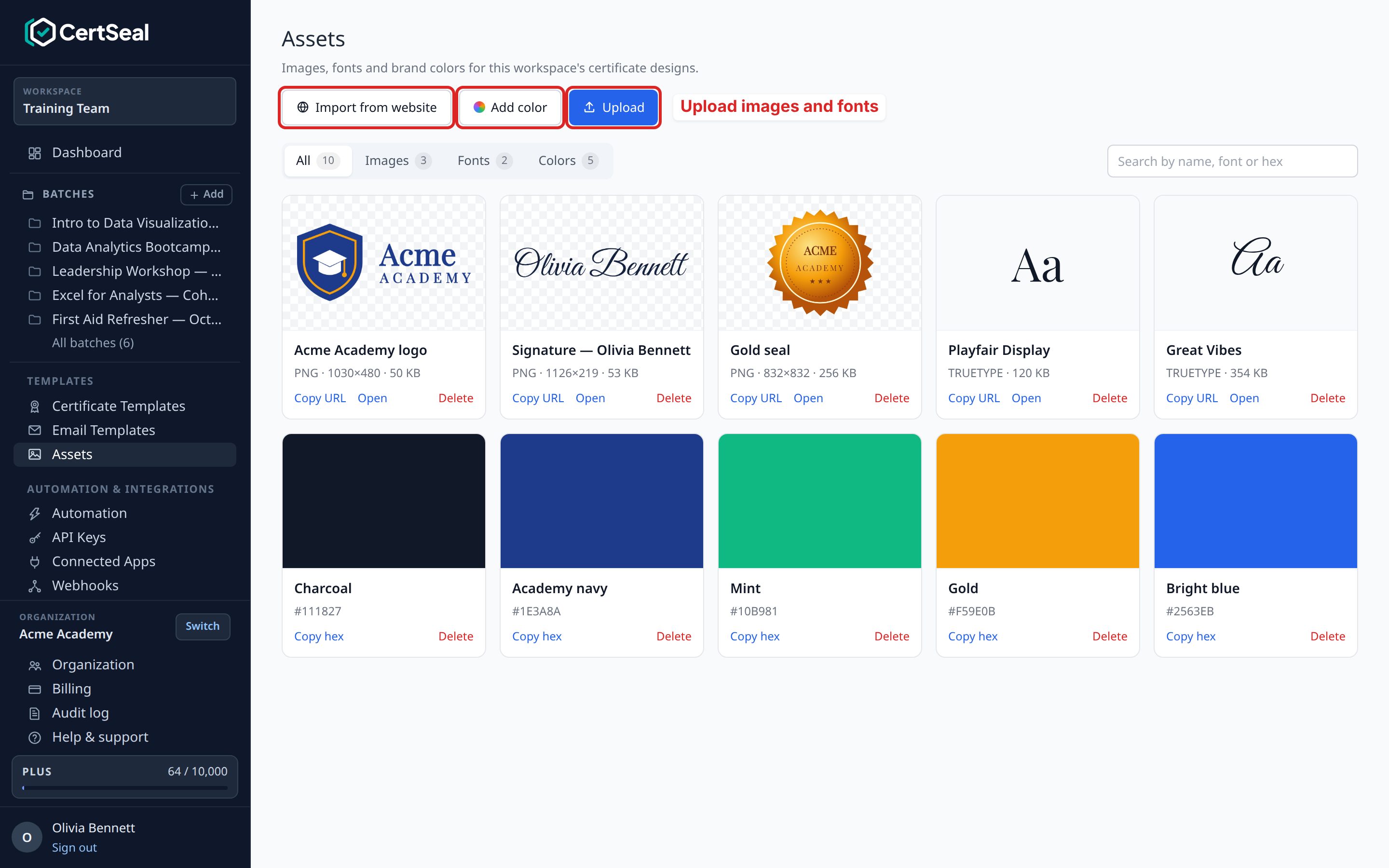
Add assets
- Upload images or fonts, or drop files anywhere on the page.
- Images: PNG, JPG, GIF, WebP or SVG, up to 10 MB. Use them for logos, signatures, seals and backgrounds.
- Fonts: TTF, OTF, WOFF or WOFF2, up to 2 MB.
- Add color saves a brand color with a name and hex value, such as “Academy navy #1E3A8A”.
- Import from website reads your website’s page and stylesheets and suggests its logos, colors and fonts. You choose which ones to add.
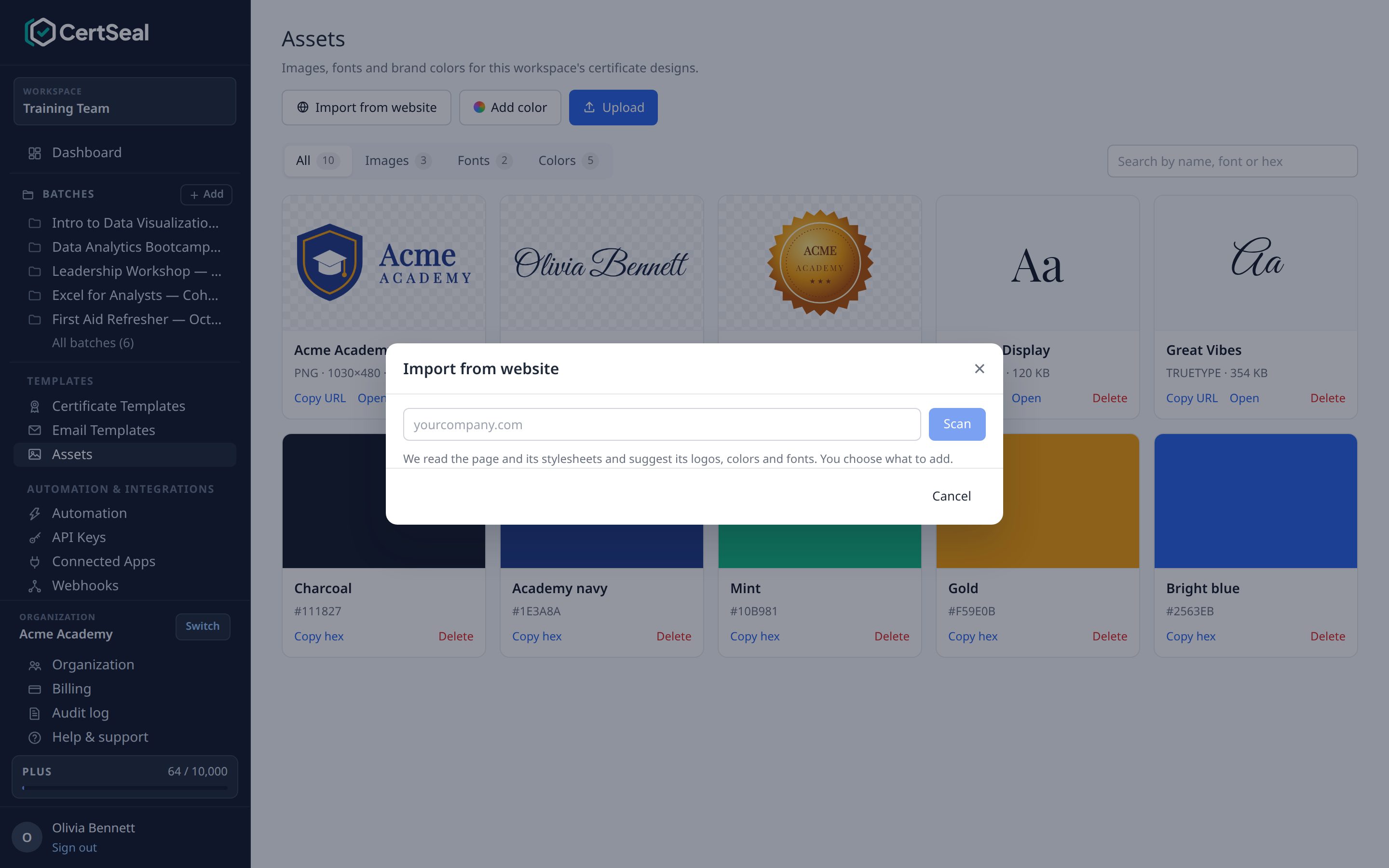
Use the All, Images, Fonts and Colors tabs, or the search box, to find an asset. Each image and font has Copy URL and Open; each color has Copy hex. Click an asset’s name to rename it.
Use assets in a design
In the design editor, your workspace’s images appear under Your images on the Images tab: click one to add it to the certificate. Your brand colors appear at the top of every color picker, and your fonts are in the font list.
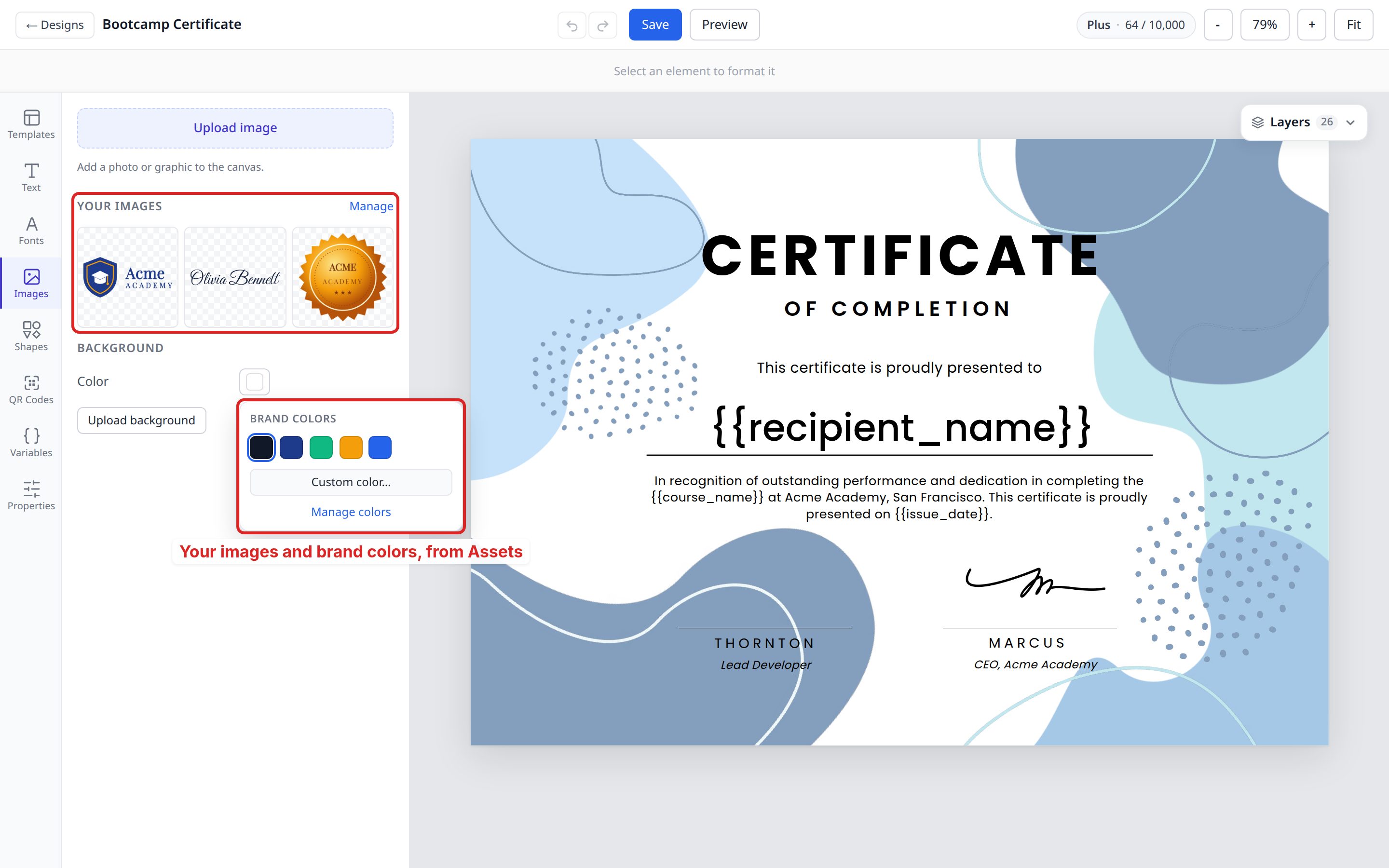
Manage (next to Your images) and Manage colors (in the color picker) take you back to the Assets page.
Delete an asset
Click Delete on the asset. CertSeal won’t delete an image or font that a design in the workspace still uses, because batches render certificates from the live design. It tells you which designs use it: remove it from those designs first, then delete it.
Support
Questions about brand assets? Email support@certseal.com and a real person will reply, typically within 1 business day (Monday–Friday, 9:00 AM–6:00 PM SGT). See the support guide for all contact options.